
Let me tell you something most WordPress tutorials skip entirely.
You can write the best content on the internet. You can build backlinks, fix your site speed, and obsess over keyword research. But if Google is spending its crawl time on the wrong pages — your tag archives, your author pages, your UTM parameter URLs, your admin login attempts — then your actual money pages are getting crawled less often. Sometimes not at all.
This is the WordPress crawl budget problem. It does not show up as an error. It does not break your site. It just quietly limits how many of your real pages Google indexes — and how fast it finds new content when you publish.
For smaller sites with under 500 pages, crawl budget rarely causes problems. But the moment you start adding WooCommerce products, programmatic pages, archive pages, or URL parameter variations — your WordPress crawl budget starts getting eaten up by pages you never needed indexed in the first place. And the content you actually care about gets less Googlebot attention as a result.
This guide explains exactly what WordPress crawl budget is, how to check yours, what is wasting it right now, and how to fix every leak — in the right order.

What Is WordPress Crawl Budget — Really?
The term gets thrown around a lot, but it is worth being precise about what it actually means before trying to optimize it.
Every time Googlebot visits your site, it has a finite amount of time and server requests it will spend before moving on. This is your crawl budget — specifically, it is the combination of two things Google has documented: crawl rate limit (how fast Googlebot crawls without overloading your server) and crawl demand (how much Google wants to crawl your site based on its authority and freshness).
In practice, what this means for a WordPress site is straightforward: Googlebot visits a certain number of pages per day. If you have 1,000 pages and Googlebot crawls 50 per day, it takes 20 days on average to reach every page. New content you publish today might not be discovered for two to three weeks.
Now here is the thing that actually hurts rankings: WordPress does not naturally distinguish between your important content pages and its automatically generated structural pages. Unless you explicitly tell it otherwise, Googlebot will spend the same crawl time on your /tag/uncategorized/ page — which nobody reads and which has zero ranking value — as it does on your best blog post. That is your WordPress crawl budget being wasted in real time.
Does Your WordPress Site Actually Have a Crawl Budget Problem?
Before diving into fixes, be honest about whether this even applies to your site. Here is a simple decision framework:
✅ Probably Fine
Under 500 total pages. Simple blog with categories and tags. No WooCommerce. No programmatic content. Google indexes your posts within a few days of publishing.
⚠️ Worth Checking
500–2,000 pages. Multiple taxonomies. Some URL parameters from campaigns or filters. Occasional new posts taking 1–2 weeks to appear in GSC.
🔴 Needs Fixing Now
2,000+ pages. WooCommerce with product filters. Programmatic pages. GSC showing many “Discovered but not indexed” URLs. New content taking weeks to index.
🚨 Critical
10,000+ URLs. Faceted navigation generating thousands of filter combinations. GSC showing crawl errors or server overload. Important pages never get indexed.
The fastest way to check your actual WordPress crawl budget usage is through Google Search Console. Here is what to look at:
- GSC → Settings → Crawl stats: This shows average pages crawled per day, crawl response codes, and Googlebot’s file type breakdown. Check the trend over 90 days — is it flat, rising, or dropping?
- GSC → Indexing → Pages: Look at the “Discovered — currently not indexed” count. If this is large relative to your total page count — Googlebot found these pages but decided not to index them yet. That is a crawl budget signal.
- GSC → Indexing → Pages → “Crawled — currently not indexed”: These pages were crawled but Google decided not to index them. High counts here usually mean thin content, duplicate content, or low-quality pages consuming crawl resources without delivering value.

The 7 Biggest WordPress Crawl Budget Wasters
These are the most common ways WordPress sites burn through their crawl budget on pages that produce zero ranking value:
| Crawl Budget Waster | Why It Happens | Pages Wasted (Typical) |
|---|---|---|
| Tag & category archives | WordPress creates a URL for every tag and category. Most have no unique content. | 50–500+ |
| Author archive pages | Each author gets /author/username/ — single-author blogs create a pointless duplicate of the main blog. | 1–20 |
| Date archives | /2024/03/ and /2024/ and /2024/03/15/ are all separate indexed URLs showing the same posts. | 20–200+ |
| URL parameters | ?utm_source=, ?orderby=, ?ref= create unique URLs for Google even though the content is identical. | Hundreds |
| WooCommerce filter URLs | Faceted navigation generates thousands of ?pa_color=red&pa_size=xl combinations — each a unique crawlable URL. | Thousands |
| Paginated archives | /blog/page/2/, /blog/page/3/ etc. crawled repeatedly even when content barely changes. | 10–100+ |
| Search result pages | /?s=keyword is indexable by default. Every search query on your site creates a crawlable URL. | Unlimited |
Fix 1: Noindex Low-Value Archive Pages
This is the highest-impact single fix for WordPress crawl budget on most sites. Tag archives, category archives with no unique content, author archives, and date archives are all being crawled by Googlebot right now on your site. They provide zero ranking value — but they consume the same crawl resources as your actual content.
Setting these to noindex does not delete them. Users can still visit them. It simply tells Googlebot: do not index this page, and do not spend crawl time here when you could be discovering real content.
In RankMath
- Go to RankMath → Titles & Meta → Categories
- Set Robots Meta to noindex
- Go to Titles & Meta → Tags → same — set to noindex
- Go to Titles & Meta → Authors → noindex (especially important on single-author sites where author archive = blog archive = duplicate)
- Go to Titles & Meta → Date Archives → noindex
- Save each section
In Yoast SEO
- Go to SEO → Search Appearance → Taxonomies
- For Categories: toggle “Show in search results” to No
- Same for Tags
- Go to Search Appearance → Archives
- Toggle off Author Archives and Date Archives
- Save changes

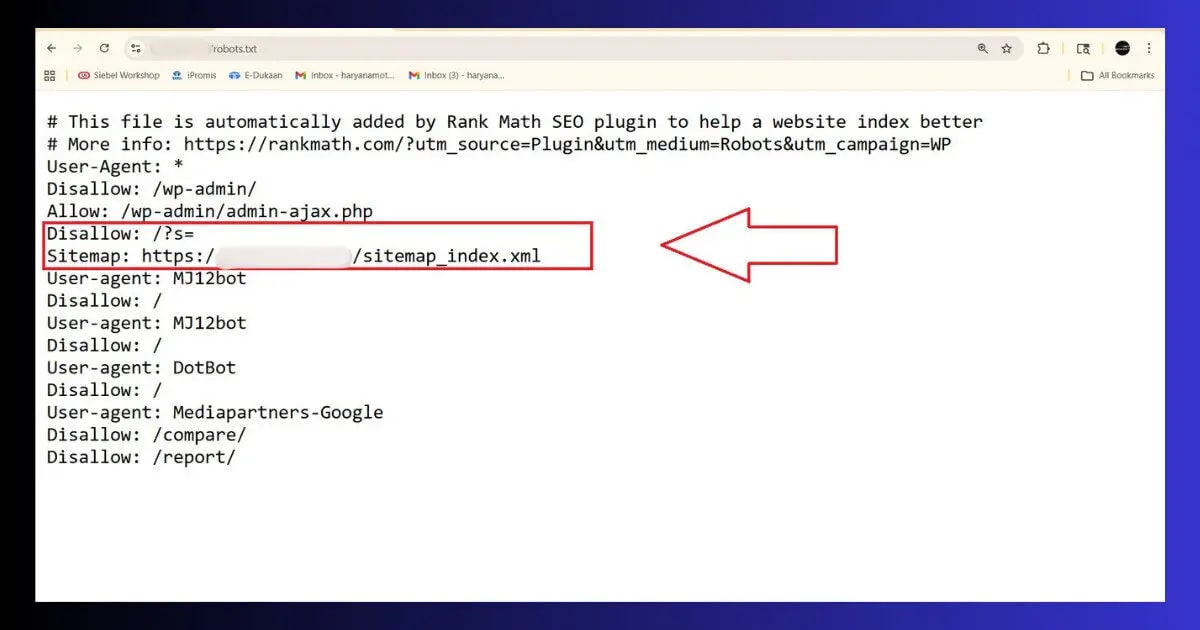
Fix 2: Block Search Result Pages in robots.txt
Your WordPress site’s internal search results — every query someone types into your search box — creates a crawlable URL at /?s=query. Every single search query = a unique URL. Googlebot crawls these endlessly and finds essentially the same content shuffled in different ways. This is one of the most pure forms of crawl budget waste because these pages will never rank for anything, and there is no upper limit on how many of them can be generated.
Block them in robots.txt:
- In RankMath: Go to RankMath → General Settings → Edit robots.txt → add the Disallow lines above → save
- In Yoast: SEO → Tools → File Editor → edit robots.txt → add the lines → save
- Verify: Open yourdomain.com/robots.txt in your browser — the Disallow: /?s= line must be visible
- Test: GSC → robots.txt Tester → enter /?s=test — should show “Blocked”
Fix 3: Handle URL Parameters
Every time a URL gets a parameter appended — ?utm_source=newsletter, ?ref=twitter, ?orderby=date — Google sees it as a potentially different page worth crawling. For a site running active marketing campaigns, this can mean Googlebot is spending a significant portion of its WordPress crawl budget on UTM-tagged versions of pages it already crawled yesterday.
The cleanest solution is canonical tags — and if you have fixed your duplicate content setup properly, your canonical tags are already handling this. The canonical tag on /post-name/?utm_source=newsletter points to /post-name/, so Googlebot consolidates the crawl signal on the clean URL.
But canonical tags are a hint, not a directive. For stronger crawl budget control on parameter URLs, add them to robots.txt specifically:
Fix 4: Fix Your Internal Linking to Direct Crawl Priority
Here is something counterintuitive about WordPress crawl budget that most guides skip: Googlebot does not crawl your pages randomly. It follows links — and it prioritises pages that have more links pointing to them from other pages on your site. A page buried three clicks deep with no internal links pointing to it may not be crawled for weeks. A page linked from your homepage and from five blog posts will be crawled within days of any update.
This means your internal linking structure is a direct lever on your crawl budget allocation. Pages you want crawled frequently should have more internal links. Pages you are happy for Google to discover slowly can have fewer.
- Link your most important pages from the homepage or main navigation: These pages get crawled on almost every Googlebot visit because navigation links appear on every page of your site. Your highest-priority content should appear here — directly or one click away.
- Add internal links from recent posts to older important posts: When you publish new content, add 3–5 internal links to your most strategically important existing posts. This is the single most actionable thing you can do to direct crawl budget towards high-value content immediately after publishing.
- Fix orphan pages: An orphan page is a page with zero internal links pointing to it. Googlebot may never find it through crawling — it only discovers it if it is in your sitemap. Check for orphan pages with a tool like Screaming Frog or the ToolXray audit — then add at least one internal link to each orphan from a relevant published post.
- Remove links to noindexed pages from your main navigation: If you have noindexed your category archives (Fix 1), you do not need them in your main navigation anymore. Linking prominently to noindexed pages wastes crawl signals on URLs that you have already told Google not to index.
Fix 5: Keep Your Sitemap Clean — Only Indexable, Valuable URLs
Your XML sitemap and your WordPress crawl budget are directly connected. Googlebot uses your sitemap as a priority signal — URLs in your sitemap are treated as pages you want crawled and indexed. If your sitemap includes 847 tag archive pages and 200 pagination URLs alongside your 150 actual blog posts, you are diluting the crawl priority of your real content with noise.
Your sitemap should only include pages that are: published and indexable, have real content value, and you actively want ranking in Google. That is it.
- Remove noindexed pages from your sitemap: RankMath and Yoast both do this automatically when you set a page type to noindex. Verify by opening your sitemap at yourdomain.com/sitemap_index.xml — tag archives should not appear there if you noindexed them in Fix 1.
- Exclude low-value post types: In RankMath → Sitemap → toggle off any post types that should not be in the sitemap (attachment pages, custom post types used internally, etc.)
- Check sitemap URL count: Your sitemap URL count should be roughly equal to your meaningful page count. If you have 300 published posts and your sitemap shows 2,000 URLs — there are post types, archives, or pages in there that should not be.
- Resubmit after cleaning: GSC → Sitemaps → delete old submission → resubmit fresh. This signals Google to update its crawl priorities based on your cleaned sitemap.
Fix 6: Improve Site Speed — Faster = More Pages Crawled Per Day
This is the part of WordPress crawl budget optimization that almost no one connects to speed. Here is the direct relationship: Googlebot has a crawl rate limit — it will not crawl so fast that it risks overloading your server. If your pages take 3 seconds to respond, Googlebot crawls fewer pages per session than if they take 300 milliseconds. A faster site literally increases your effective crawl budget because Googlebot can process more pages in the same time window.
- TTFB under 200ms is the goal: Time to First Byte is the direct metric Googlebot cares about for crawl budget purposes — it is how long the server takes to start responding. High TTFB = Googlebot waits longer per page = fewer pages crawled per day. Check yours in GSC → Core Web Vitals or with ToolXray’s free audit. Read the TTFB Guide for specific fixes.
- Enable server-side caching: LiteSpeed Cache on Hostinger serves cached HTML pages without hitting PHP or the database — response times drop from 800ms to under 100ms for cached pages. This directly improves how many pages Googlebot can crawl per day.
- Fix 5xx server errors immediately: A 500 or 503 error signals to Googlebot that your server is struggling. Google responds by reducing crawl rate — spending less crawl budget on your site to avoid overloading it. Even occasional server errors can depress your crawl rate for days.
- Reduce redirect chains: Every redirect hop costs time. A URL that goes through three redirects takes three times as long to process as a direct URL. Check for redirect chains with a redirect checker tool — each chain you clean up directly improves crawl efficiency.
Slow server TTFB dragging down your crawl budget?
Hostinger Business and Cloud plans use LiteSpeed servers with object caching built in — some of the fastest TTFB numbers available at this price point. Faster server = more pages crawled per day = better crawl budget utilisation.
Fix 7: Monitor Crawl Stats After Every Change
Unlike many SEO fixes, WordPress crawl budget changes show up quickly in Google Search Console — usually within 1–2 weeks of implementation. Here is what to monitor:

- GSC → Settings → Crawl stats: Check “Average pages crawled per day” — this should increase or stabilise after fixing crawl budget waste. A sudden drop means Googlebot encountered something it did not like (server errors, new robots.txt blocks that are too aggressive).
- GSC → Indexing → Pages → “Discovered — currently not indexed”: This count should decrease over 4–8 weeks as Google catches up with your important pages now that it is not wasting crawl time on archives and parameter URLs.
- GSC → Performance → Pages: Tracks whether your important pages are getting more impressions after the crawl budget fixes. This is the ultimate confirmation — more efficient crawl budget = important pages crawled more frequently = fresher content in the index = better rankings.
- Check crawl error rate: GSC Crawl stats shows response code breakdown — make sure your 2xx success rate is high and 4xx/5xx rates are low. Crawl errors consume crawl budget and signal to Google that your site has reliability problems.
ToolXray Free WordPress Technical Audit
Check your crawl health, redirect chains, broken links, site speed, Core Web Vitals and 80+ signals in one free scan. No signup required.
WordPress Crawl Budget Optimisation — Complete Checklist
- Check GSC Crawl Stats baseline: Average pages crawled per day noted. Divide total page count by this number — if result exceeds 10, crawl budget optimisation is needed.
- Noindex tag archives: RankMath or Yoast → Tag archive → noindex. Saves Googlebot from crawling every tag page with no unique content.
- Noindex author archives (especially on single-author sites): Author archive = duplicate of main blog page on single-author WordPress sites — pure crawl budget waste.
- Noindex date archives: /2024/, /2024/03/, /2024/03/15/ — none of these will ever rank. Remove them from crawl budget immediately.
- Block search result pages in robots.txt: Disallow: /?s= — unlimited crawlable URLs otherwise.
- Block UTM parameter URLs in robots.txt: Disallow: /*?utm_source= and other marketing parameters.
- Noindex attachment pages OR redirect to parent: Every uploaded image creates a crawlable page by default — fix this in RankMath or Yoast.
- Clean sitemap: Only indexable, high-value pages in sitemap_index.xml. Resubmit after cleaning.
- Fix orphan pages: Every page with zero internal links pointing to it is invisible to Googlebot’s link-following crawl. Add at least one internal link to each.
- Improve TTFB: Faster server response = more pages crawled per Googlebot session = better effective crawl budget.
- Fix redirect chains: Every hop in a redirect chain wastes crawl time.
- Monitor GSC Crawl stats weekly for 4 weeks after changes — confirm pages crawled per day is stable or improving.
The Bottom Line
WordPress crawl budget is not the first thing most site owners think about — and that is exactly why fixing it gives you an edge. While everyone else is focused on content and backlinks, the sites that rank fastest for new content are the ones where Googlebot spends its time efficiently: crawling money pages, discovering fresh posts quickly, and not wasting visits on tag archives that have not changed in three years.
The fixes are not complicated. Set archives to noindex. Block search result URLs in robots.txt. Handle URL parameters. Clean your sitemap. Improve your server speed. Fix your internal linking. None of these take more than a day to implement across a WordPress site of any size.
After implementing these changes, check your GSC Crawl stats in two weeks. You will see the average pages crawled per day either hold steady or increase — and over the following 4–8 weeks, the pages that matter will start getting indexed faster and ranking better as a direct result of Googlebot spending its time where you actually need it.
🔍 Free WordPress Technical Audit
Check crawl health, redirect chains, site speed, Core Web Vitals and 80+ SEO signals — free, no signup
Run Free Audit at ToolXray →Related Articles
WordPress Duplicate Content Fix
The sibling problem to crawl budget — fix both together for the biggest combined SEO improvement.
WordPress XML Sitemap Not Working
A clean sitemap is critical for crawl budget efficiency. Fix sitemap errors before optimising crawl.
Why TTFB Is Critical in 2026
Faster TTFB = more pages crawled per day. The direct connection between server speed and crawl budget.
Complete Technical SEO Audit
Full audit covering crawlability, indexing, speed, schema and 80+ checks — the complete picture.
Technical SEO for Beginners
Crawl budget, canonical tags, indexing — the complete technical SEO foundation explained clearly.
WordPress Permalink Settings
Clean permalink structure reduces crawl budget waste from the ground up. Get it right from the start.

