
You open PageSpeed Insights on your WordPress site and see it — a red CLS score. Or maybe it is orange. Either way, it is dragging your performance score down, and you are not entirely sure what it means or where to even start fixing it.
Here is the thing about WordPress CLS that most guides gloss over: it is not one problem. It is a category of problems. Images without dimensions, fonts loading late and shifting text, ads appearing mid-scroll, cookie banners pushing content down — each of these causes layout shift, and each has a different fix. Applying the wrong fix wastes time. Applying them in the right order is what actually gets your CLS score into the green.
This guide covers everything: what WordPress CLS actually measures, how to identify exactly which elements are causing layout shift on your site, and the complete fix for every common cause — with exact steps for WordPress specifically.

What Is CLS — And Why Does WordPress Struggle With It?
Cumulative Layout Shift measures how much your page’s visible content unexpectedly moves during loading. Every time an element shifts position after initial render — pushing other content down, left, or right — that movement is scored and added to your CLS total. The score is a unitless number between 0 and 1+, where lower is better and anything under 0.1 is considered “good” by Google.
The reason WordPress CLS is such a common problem is not that WordPress itself is badly built. It is that WordPress makes it extremely easy to install plugins, embed ads, add custom fonts, and upload images — and each of these, done without specific CLS-awareness, introduces layout shift in a different way.
A typical WordPress site might be experiencing CLS from three or four sources simultaneously without the owner realising any of them exist. An image uploaded without dimensions shifts the text below it when it loads. A Google Fonts embed causes a flash of unstyled text that pushes content slightly when the real font arrives. An ad network injects a banner between paragraphs after the page has rendered. A cookie consent plugin slides in from the bottom and pushes the footer up.
Each of these is a separate WordPress CLS cause with a separate fix. The combined score you see in PageSpeed Insights is the sum of all of them.
How to Diagnose Your WordPress CLS — Find the Exact Elements
Before fixing anything, you need to know which specific elements are causing layout shift on your site. PageSpeed Insights gives you a score — but it does not always tell you clearly which elements are responsible. Here is how to find the exact culprits:
Method 1 — PageSpeed Insights (Fastest)
- Go to pagespeed.web.dev → enter your URL → Analyze
- Scroll to the “Diagnostics” section
- Look for “Avoid large layout shifts” — click to expand it
- It will show you a list of DOM elements responsible for CLS with their individual shift scores
- Note each element — image, ad slot, font, banner — these are your targets

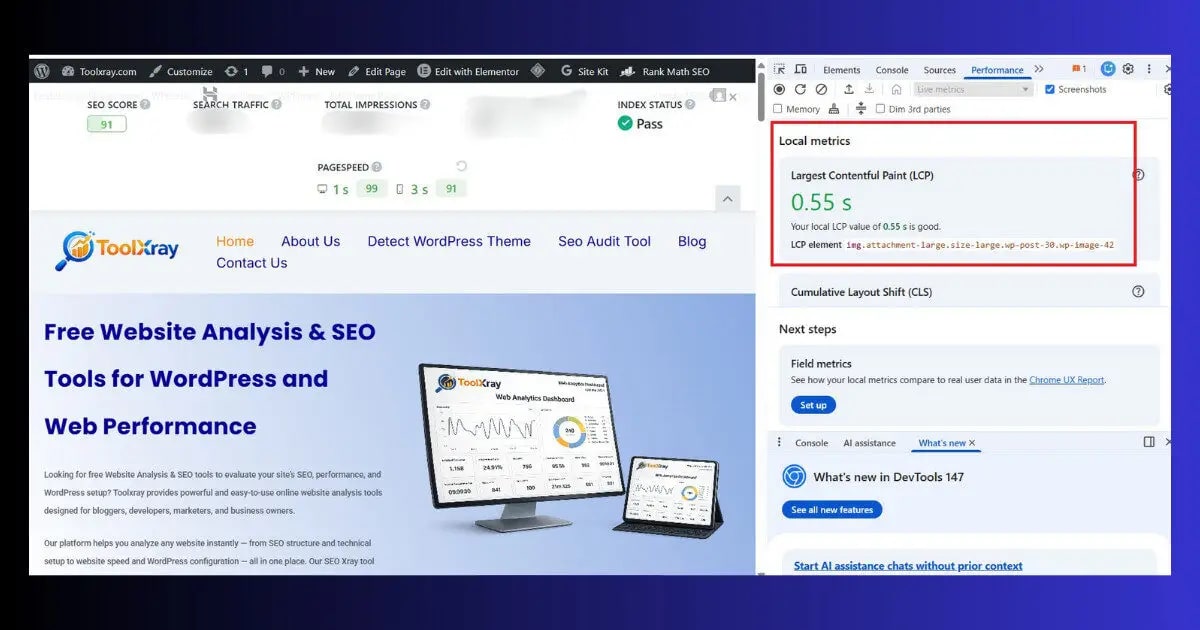
Method 2 — Chrome DevTools (Most Detailed)
- Open your site in Chrome → press F12 to open DevTools
- Click the “Performance” tab
- Click the record button (●) → reload the page → stop recording after full load
- In the timeline, look for red markers labelled “Layout Shift”
- Click on any Layout Shift event → the bottom panel shows exactly which element moved and by how much
- This is the most precise way to identify WordPress CLS causes — use it for any element that PageSpeed Insights identifies but does not describe clearly enough
Fix 1: Add Width and Height to Every Image
This is the single most common cause of WordPress CLS — and the most impactful fix. When a browser loads a page and encounters an image without declared dimensions, it has no idea how much space to reserve for it. So it renders the surrounding content first, then shifts everything down when the image finally loads and the browser realises it needs 400 pixels of vertical space.
The fix is declaring width and height attributes on every <img> tag. This gives the browser the information it needs to reserve the correct space before the image loads — eliminating the shift entirely.
For Images Uploaded Through WordPress Media Library
- Go to WordPress Dashboard → Media → Library
- Click on any image → in the right panel, note the image dimensions shown
- When inserting images into posts via the Block Editor, WordPress automatically adds width and height attributes in modern versions (5.5+)
- To verify: open a post in Code editor mode → find your image block → confirm the img tag has both width=”X” and height=”Y” attributes

For Images in Custom HTML or Page Builders
If you are using custom HTML blocks or a page builder like Elementor, images may not have dimensions automatically added. Fix manually:
For Existing Posts — Bulk Fix via Plugin
If you have hundreds of existing posts with images missing dimensions, manually updating each one is not practical. Use the Smush or Imagify plugin — both have a feature to bulk-add missing image dimensions. Alternatively, the EWWW Image Optimizer plugin includes an option to add missing width/height attributes across your entire media library.
Fix 2: Fix Font Loading — Eliminate Font Swap Layout Shift
WordPress CLS from fonts happens in two ways. First, the browser renders text using a system font (because your custom font has not loaded yet), then swaps to the actual font when it arrives — and if the two fonts have different metrics, text reflows and everything below it shifts. Second, late-loading fonts can cause a flash of invisible text (FOIT) that appears suddenly and causes shift.
For Google Fonts — Add font-display: swap
If you are loading Google Fonts via a plugin or your theme, ensure font-display: swap is set. This tells the browser to use a fallback font immediately and swap when the custom font is ready — preventing invisible text but still potentially causing minor shift.
The better solution for WordPress CLS is hosting fonts locally instead of loading from Google’s servers:
- Install the OMGF (Optimize My Google Fonts) plugin — free, specifically designed for this
- Go to Settings → OMGF → it will automatically detect Google Fonts used on your site
- Click “Save & Optimize” — it downloads the fonts to your server and updates the CSS
- Locally hosted fonts load faster and with more consistent timing — reducing the font-swap CLS contribution significantly
For Theme Custom Fonts
In your theme’s style.css or via Appearance → Customize → Additional CSS, add font-display: swap to your @font-face declarations:
Fix 3: Reserve Space for Ads and Embeds
Ads are one of the most persistent causes of WordPress CLS because they are loaded asynchronously — the page renders first, then the ad network injects content into ad slots. If those slots have no pre-reserved dimensions, everything below the ad jumps downward when the ad appears.
The fix is straightforward: give every ad container a fixed minimum height before the ad loads.
For Google AdSense specifically — if you are using the Auto Ads feature, it places ads in positions it calculates dynamically, which is a major source of WordPress CLS. Switching from Auto Ads to manual ad placement (where you control exactly where ads appear and can pre-reserve space) gives you full control over the CLS impact.
- In AdSense: Disable “Auto ads” → use Display Ad units instead → place them in specific widget areas or within content at defined positions → add the CSS min-height fix above to those containers
- For header banners: Any banner in your header that loads after the initial render should have explicit height reserved. A 728×90 leaderboard should have min-height: 90px on its container.
- For in-content ads: If ads appear between paragraphs, wrap each ad in a container with fixed dimensions. The ad may not fill the entire space every time — but the space is reserved and content will not shift.
Fix 4: Fix Cookie Banners and Notification Bars
Cookie consent banners are a particularly frustrating source of WordPress CLS because they are often injected by plugins that have no awareness of Core Web Vitals. A banner that slides in from the bottom and pushes the footer up, or appears at the top and shifts all content down, can add 0.1–0.3 to your CLS score on its own.
- Use a fixed-position banner instead of a document-flow banner: A cookie banner with position: fixed or position: sticky sits on top of your content without occupying space in the document flow. It appears visually but does not cause layout shift because it is not part of the content stack.
- Check your cookie plugin settings: Most modern GDPR plugins (Complianz, CookieYes, GDPR Cookie Consent) have options for banner position. Choose “bottom fixed” or “top overlay” rather than “top banner” (which inserts into the document flow).
- Notification bars: Same principle — any notification bar that pushes content down by inserting into the document flow causes CLS. Use position: fixed with a matching padding-top on the body element so the bar overlays rather than shifts content.
Fix 5: Prevent Embed Layout Shifts (YouTube, Twitter, Maps)
Embedded content — YouTube videos, Twitter posts, Google Maps, Loom videos — causes WordPress CLS because these embeds do not have inherent dimensions. The browser renders the surrounding content, then reserves space for the embed when the embed’s own dimensions are discovered. Everything below it shifts.
For YouTube Embeds — Use aspect-ratio CSS
Add this CSS in Appearance → Customize → Additional CSS and wrap your YouTube embeds in <div class=”video-container”>. The browser knows exactly how much space to reserve before the embed loads.
For WordPress Blocks — Use the Video Block
WordPress’s native Video block and the YouTube embed block both apply aspect ratio handling automatically in modern WordPress versions. If you are pasting raw YouTube URLs or using custom HTML embeds, they may not have this protection — switch to the native Embed block for any video content.
For Elementor Users
Elementor’s Video widget reserves space correctly for YouTube embeds. If your CLS analysis shows Elementor video elements as a source of shift — check that you are using the native Video widget rather than an HTML widget with a raw iframe.
Still seeing poor CLS scores after all these fixes?
Server-side performance affects how quickly your browser can lay out the page. Hostinger Business and Cloud plans with LiteSpeed server and built-in caching deliver HTML significantly faster — giving the browser more time to complete layout before user interaction begins.
Fix 6: Fix Dynamic Content Injected by Plugins
This is the hardest category of WordPress CLS to diagnose because it depends entirely on which plugins you have installed. Any plugin that injects content after the initial page render — without reserving space in advance — is a potential CLS source.
Common offenders:
| Plugin Type | CLS Cause | Fix |
|---|---|---|
| Live chat widgets | Chat bubble injects after render, shifts corner content | Use position:fixed with no document flow impact |
| Social share bars | Floating bars shift sidebar or content on mobile | Use fixed positioning or disable on mobile |
| Popup plugins | Exit-intent popups shift content when appearing | Use overlay popups, not document-flow injection |
| Related posts | Lazy-loaded related posts section shifts content below | Reserve fixed height for the section container |
| WooCommerce notices | “Added to cart” notices push content down at top | Use fixed/toast-style notices instead of flow injection |
The diagnostic approach: temporarily deactivate plugins one by one and re-run PageSpeed Insights after each deactivation. When your CLS score drops significantly, you have found the offending plugin. Then either configure it to use fixed positioning, find an alternative plugin that is CLS-aware, or add the appropriate CSS fix.
ToolXray Free WordPress Technical Audit
Check your CLS score alongside LCP, TTFB, PageSpeed, broken links and 80+ SEO signals — free scan, no signup required.
How to Verify Your WordPress CLS Fix
After implementing fixes, do not just re-run PageSpeed Insights once and assume you are done. WordPress CLS verification requires checking both lab data and real-world field data.
- PageSpeed Insights — Lab data check: Run your URL immediately after making changes. The “Avoid large layout shifts” diagnostic should show reduced or eliminated contributions from the elements you fixed.
- GSC Core Web Vitals — Field data check: Go to Google Search Console → Core Web Vitals. Field data updates based on real Chrome user data — it takes 28 days for the rolling average to fully reflect your changes. But you should see a trend improvement starting within 1–2 weeks.
- Chrome DevTools — Timeline verification: Run a Performance recording on your fixed pages. The Layout Shift events in the timeline should be reduced or absent for the elements you fixed.
- Mobile vs Desktop: Check both separately. CLS scores often differ significantly between mobile and desktop because ad layouts, font rendering, and plugin behaviour can vary by screen size. A fix that resolves desktop CLS may not resolve mobile CLS.

WordPress CLS Fix — Complete Checklist
- Run diagnosis first: PageSpeed Insights → “Avoid large layout shifts” → identify every element causing CLS before fixing anything.
- Add width and height to all images: Every img tag must have explicit dimensions. Check existing posts — use Smush or EWWW to bulk-fix missing attributes.
- Fix font loading: Add font-display: swap to all custom fonts. For Google Fonts — use OMGF plugin to host locally.
- Reserve space for all ad containers: min-height on every ad slot. Switch from Auto Ads to manual placement if using AdSense.
- Fix cookie banner position: position: fixed so it overlays rather than shifts content. Check your GDPR plugin settings.
- Fix video embeds: Use aspect-ratio containers for YouTube. Use native WordPress Embed block where possible.
- Audit plugins for dynamic injection: Deactivate and re-test if CLS source is unclear. Fix positioning or replace offending plugins.
- Verify on mobile AND desktop separately: CLS often differs. PageSpeed Insights tests both — check both scores after fixes.
- Monitor GSC Core Web Vitals for 28 days: Field data takes time to update. Track the trend weekly.
The Bottom Line
A poor WordPress CLS score is almost never one problem — it is three or four problems stacked on top of each other. Images without dimensions. Fonts loading late. Ads appearing after render. Cookie banners shifting content. Each adds to the cumulative total, and the fix for each is different.
The approach that works is diagnostic first, fix second. Use PageSpeed Insights and Chrome DevTools to identify the exact elements causing shift on your specific site before touching anything. Then work through the fixes in the order of their impact — images and fonts first, because they affect every page, then ads and plugins which may only affect specific pages.
A WordPress CLS score under 0.1 is achievable on almost any site with the fixes in this guide. The improvement shows in Google Search Console within a few weeks — and the ranking impact from moving from “poor” to “good” on CLS is measurable, particularly in competitive niches where most sites are still ignoring Core Web Vitals entirely.
🔍 Check Your WordPress CLS Score Right Now
Free technical audit — CLS, LCP, TTFB, PageSpeed and 80+ signals in one scan
Run Free Audit at ToolXray →Related Articles
Fix WordPress LCP
LCP and CLS are the two most impactful Core Web Vitals. Fix both together for maximum Page Experience score improvement.
Fix INP in WordPress
INP is the third Core Web Vital. After fixing CLS and LCP, INP is the final piece of a perfect Core Web Vitals score.
WordPress Speed Optimization
CLS fixes improve layout stability. Speed optimization improves overall load performance — do both for PageSpeed 90+ scores.
Why TTFB Is Critical in 2026
Fast TTFB gives the browser more time to complete layout before user interaction — directly reducing CLS risk.
How to Use PageSpeed Insights
Learn to read every section of PageSpeed Insights — the tool you will use most to diagnose and verify CLS fixes.
Complete Technical SEO Audit
CLS is one signal in a full audit. Run all 80+ checks after fixing your Core Web Vitals to catch everything else.

