
You type your WordPress username and password. You click Log In.
And you are back at the login page again. Same fields. Same button. No error message. No explanation.
You try again. Same thing. The page just refreshes and sends you right back to the login screen — over and over — as if your credentials never worked at all.
This is the WordPress login redirect loop — and it is one of the most disorienting WordPress errors because it gives you absolutely no information about what went wrong. Your username and password are correct. WordPress even accepts them. But something is broken in the authentication process that prevents you from actually reaching the dashboard.
This guide explains exactly why the wordpress login redirect loop happens — most cases are resolved in under 10 minutes once you know the cause, how to diagnose which type you have, and the exact fixes in the right order — most of which take under 5 minutes.
The wordpress login redirect loop is surprisingly common — it affects beginners and experienced developers equally, because the causes have nothing to do with how well you manage your site. A single plugin update, an SSL certificate addition, or a site migration can trigger a wordpress login redirect loop instantly on any WordPress installation regardless of its age or quality.

What Is the WordPress Login Redirect Loop?
Understanding the wordpress login redirect loop starts with knowing what WordPress actually does during login. Most site owners assume the wordpress login redirect loop means their password is wrong — but in almost every case, WordPress has already accepted the credentials. The failure happens one step later, when the session cookie is rejected.
The WordPress login redirect loop is different from most WordPress errors. Your site’s frontend usually works fine — visitors can browse your content normally. The problem is specific to the authentication process: WordPress accepts your login credentials but cannot complete the session creation step that grants admin access.
When you log into WordPress, it creates an authentication cookie in your browser. This cookie proves to the server that you are a logged-in user. On the next page load, WordPress reads the cookie, confirms your session, and loads the dashboard.
In a WordPress login redirect loop, this cookie either cannot be set, cannot be read correctly, or is being rejected — so WordPress thinks you are not logged in on every page load and keeps sending you back to the login screen.
| Symptom | Likely Cause | Fix |
|---|---|---|
| Works in incognito, not regular browser | Corrupted browser cookies | Fix 1 |
| Login loops for all browsers/devices | Wrong URL settings or salts | Fix 2 or 3 |
| Started after moving to HTTPS/SSL | Cookie domain mismatch | Fix 2 |
| Started after plugin install/update | Plugin conflict | Fix 4 |
| Started after site migration | Wrong URL in database | Fix 2 |
| Specific user cannot log in, others can | User cookie conflict | Fix 5 |
Why Does the WordPress Login Redirect Loop Happen?
🔴 Corrupted Browser Cookies
Most common cause. Old or corrupted WordPress authentication cookies in your browser conflict with new ones being set. Affects only your browser — other devices work fine.
🔴 Wrong WordPress URL Settings
WordPress Address and Site Address mismatch — especially after migration or adding SSL. WordPress sets cookies for the wrong domain, causing instant rejection on every login.
🟡 Wrong Cookie Domain in wp-config
COOKIE_DOMAIN defined incorrectly in wp-config.php — particularly common after switching from HTTP to HTTPS or adding/removing www prefix.
🟡 Corrupted Security Keys/Salts
WordPress security keys in wp-config.php encrypt authentication cookies. If these keys are corrupted or duplicated, every cookie becomes invalid instantly.
🔵 Plugin Conflict
Security plugins, caching plugins, or login customization plugins can interfere with WordPress cookie handling — redirecting users back to the login page after successful authentication.
🟢 Caching Issue
Aggressive caching serving a cached version of the login page instead of the authenticated dashboard — causing the appearance of a redirect loop even when authentication succeeds.
Fix 1: Clear Browser Cookies and Cache
This resolves the WordPress login redirect loop in the majority of cases — especially when the loop only affects your browser but not other devices or browsers.
- In Chrome press Ctrl + Shift + Delete (Windows) or Cmd + Shift + Delete (Mac)
- Set Time range to All time
- Check both Cookies and other site data AND Cached images and files
- Click Clear data
- Close all browser tabs completely → reopen Chrome → go to your wp-admin login page
- Try logging in — the WordPress login redirect loop should be resolved

Fix 2: Fix WordPress URL Settings
The second most common cause of the WordPress login redirect loop is a mismatch between your WordPress Address and Site Address — particularly after adding SSL, migrating to a new domain, or changing www preferences. WordPress sets authentication cookies based on the stored URL — if it does not match your actual domain, every cookie is instantly rejected.
Method A — Via wp-admin Settings
- Go to WordPress Dashboard → Settings → General
- Check WordPress Address (URL) and Site Address (URL)
- Both must be identical — including https:// vs http:// and www vs non-www
- If using SSL — both must start with https://
- Click Save Changes → clear browser cookies → try logging in again

Method B — Via wp-config.php (If Locked Out)
If the login loop prevents wp-admin access, add these lines to wp-config.php:
- Open hPanel → File Manager → public_html → wp-config.php → Edit
- Add both lines before the /* That’s all, stop editing! */ comment
- Replace yourdomain.com with your actual domain
- Save → clear cookies → try logging in
- Once inside — go to Settings → General → confirm URLs → remove these lines from wp-config.php
Fix 3: Regenerate WordPress Security Keys and Salts
WordPress security keys and salts in wp-config.php are used to encrypt and validate authentication cookies. When these keys are corrupted, duplicated, or contain special characters that break PHP parsing, every cookie WordPress sets becomes immediately invalid — creating a permanent WordPress login redirect loop that no amount of cookie clearing will fix.
Regenerating the keys forces all current sessions to end and creates fresh encryption for new cookies.
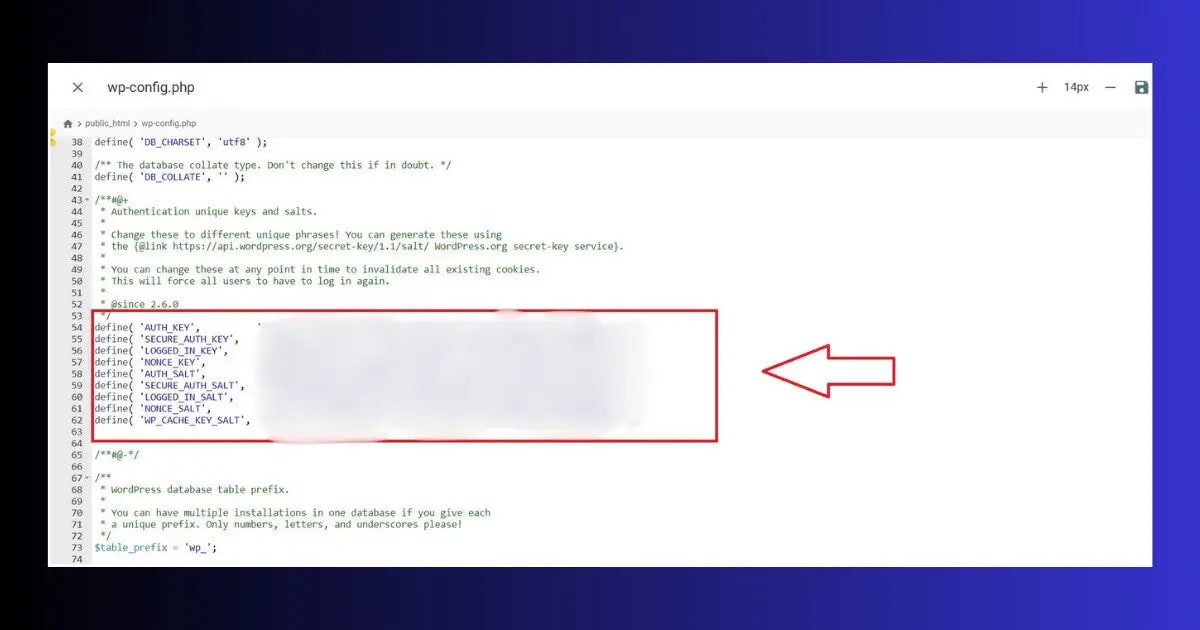
- Go to api.wordpress.org/secret-key/1.1/salt/ — this generates a fresh set of unique keys
- Open hPanel → File Manager → public_html → wp-config.php → Edit
- Find the section that looks like this (8 lines starting with define(‘AUTH_KEY’):
- Delete all 8 lines
- Paste the fresh keys you generated from the WordPress API link above
- Save wp-config.php → all current sessions are immediately ended
- Go to your login page → log in with your credentials
Fix 4: Disable All Plugins
Security plugins, login redirect plugins, caching plugins, and two-factor authentication plugins are all common triggers for a login issue. They intercept the authentication process and, when misconfigured or conflicting with each other, prevent the session from being established correctly.
- Open hPanel → File Manager → public_html → wp-content
- Find the plugins folder → right-click → Rename to plugins_disabled
- Try logging into wp-admin — if the login redirect loop is resolved, a plugin was the cause
- Rename plugins_disabled back to plugins
- Reactivate plugins one at a time via wp-admin → Plugins
- When the the loop returns — that plugin is the culprit

Fix 5: Fix the COOKIE_DOMAIN Setting in wp-config.php
If your wp-config.php file contains a COOKIE_DOMAIN definition that does not match your current domain setup, WordPress sets authentication cookies for the wrong domain — making them instantly invalid and creating a login loop. This is especially common after switching from HTTP to HTTPS, adding or removing www, or migrating domains.
- Open hPanel → File Manager → public_html → wp-config.php → Edit
- Search for COOKIE_DOMAIN in the file
- If found — check that the value exactly matches your current domain including protocol and www preference
- If the value is wrong — update it to match your actual domain
- If unsure — simply delete the entire COOKIE_DOMAIN line (WordPress will handle it automatically)
- Save → clear browser cookies → try logging in
Fix 6: Clear WordPress Cache After Every Fix
Caching plugins — especially aggressive ones — sometimes cache the login redirect itself. Even after you fix the underlying cause of the this loop, a cached version of the redirect may keep serving until the cache is cleared.
- Go to WordPress Dashboard → LiteSpeed Cache
- Click Purge All in the admin toolbar
- Also go to LiteSpeed → Toolbox → Purge All
- Clear QUIC.cloud CDN cache if enabled
- Test login in a fresh incognito window after purging
Fix 7: Force wp-admin Redirect After Login
If all other fixes have failed, you can force WordPress to redirect to the admin dashboard after a successful login by adding a temporary line to your theme’s functions.php file — a technique described in the WordPress login_redirect hook documentation. This bypasses whatever is intercepting the normal redirect.
- Open hPanel → File Manager → public_html → wp-content → themes → your-active-theme
- Find functions.php → right-click → Edit
- Add this code at the very end of the file:
- Save → try logging in → you should now reach wp-admin directly
- Once inside — diagnose the underlying cause using the other fixes above
- Remove this code from functions.php after diagnosing and fixing the root cause
How the login issue Affects Your Site
Unlike frontend errors that take your entire site offline, the wordpress login redirect loop is a backend-only problem, the the loop is a backend-only problem in most cases. Your visitors continue to access your site normally — only your admin access is blocked.
However, the indirect consequences of being locked out accumulate quickly:
- Updates cannot be applied: Security patches, plugin updates, and WordPress core updates are inaccessible. Every day without updates increases vulnerability exposure.
- Content cannot be published: New posts, pages, and updates are blocked — affecting your publishing schedule and SEO content calendar.
- Technical issues go unresolved: Any site error that requires admin access cannot be fixed until the login redirect loop is resolved.
- Monitoring is blind: You cannot check Google Search Console integration, SEO audit results, or performance data from inside WordPress.
Free WordPress Technical Audit — ToolXray
After fixing your login redirect loop — check Core Web Vitals, PageSpeed, broken links and 80+ signals. Free, no signup needed.
How to Prevent the this redirect issue
- Always set correct URLs immediately after migration: One of the most common causes of a wordpress login redirect loop is a post-migration URL mismatch. The moment you move to a new domain or add SSL — to prevent a wordpress login redirect loop, update both WordPress Address and Site Address in Settings → General before doing anything else. This single step prevents the majority of post-migration login redirect loops.
- Test login after every security plugin update: Security and login-related plugins are the most common plugin cause of login redirect loops. After updating Wordfence, iThemes Security, or any two-factor auth plugin — immediately test your login in an incognito window.
- Do not define COOKIE_DOMAIN unless necessary: Most WordPress sites do not need a COOKIE_DOMAIN definition in wp-config.php. If you have one — remove it unless you have a specific multi-domain reason to keep it.
- Keep security keys backed up: Copy your current wp-config.php security keys to a secure note before any major site changes. If keys become corrupted, restoring the backup is faster than regenerating and logging out all users.
- Check speed after fixing: Login issues caused by security plugins often affect site performance too. After fixing, check WordPress Speed Optimization Guide and run the LCP fix guide to restore performance scores.
- Monthly technical audit: Run a free audit at ToolXray monthly to catch configuration issues before they become access problems.
The Bottom Line
The login redirect error is one of the most disorienting WordPress errors because it accepts your credentials and then immediately sends you back to the login page with no explanation. But the cause is almost always one of a small number of identifiable issues — corrupted cookies, URL mismatch, security key corruption, or a plugin conflict.
Start with Fix 1 — clear browser cookies and test in incognito. This resolves the wordpress login redirect loop in the majority of cases. This resolves the vast majority of login loop cases in under 2 minutes without any server-side changes. If the loop persists in incognito, move to Fix 2 and verify your WordPress URL settings. Between these two fixes, most wordpress login redirect loop cases are resolved completely.
For persistent wordpress login redirect loop cases — regenerate security keys (Fix 3), disable plugins via File Manager (Fix 4), and check for a COOKIE_DOMAIN conflict (Fix 5). The Force Redirect method (Fix 7) is always available as a last resort to regain access while you diagnose the root cause.
🔍 Free WordPress Technical Audit
After fixing your login loop — check Core Web Vitals, PageSpeed, broken links and 80+ signals
Run Free Audit at ToolXray →Related Articles
WordPress Stuck in Maintenance Mode
Plugin update caused maintenance mode? 60-second fix via File Manager.
WordPress Site Hacked Guide
Cannot log in after a security incident? Check for compromised admin accounts.
WordPress Database Error Fix
Database error alongside login issues? Fix both with the wp-config.php method.
Free Alternative to Ahrefs
Monitor your site health after login fixes — free SEO tools, no subscription needed.
WordPress 404 Error Fix
404 errors appearing after fixing login? Permalink flush usually fixes both.
Technical SEO Audit Guide
After fixing login access — run a full technical audit to catch any other issues.

