
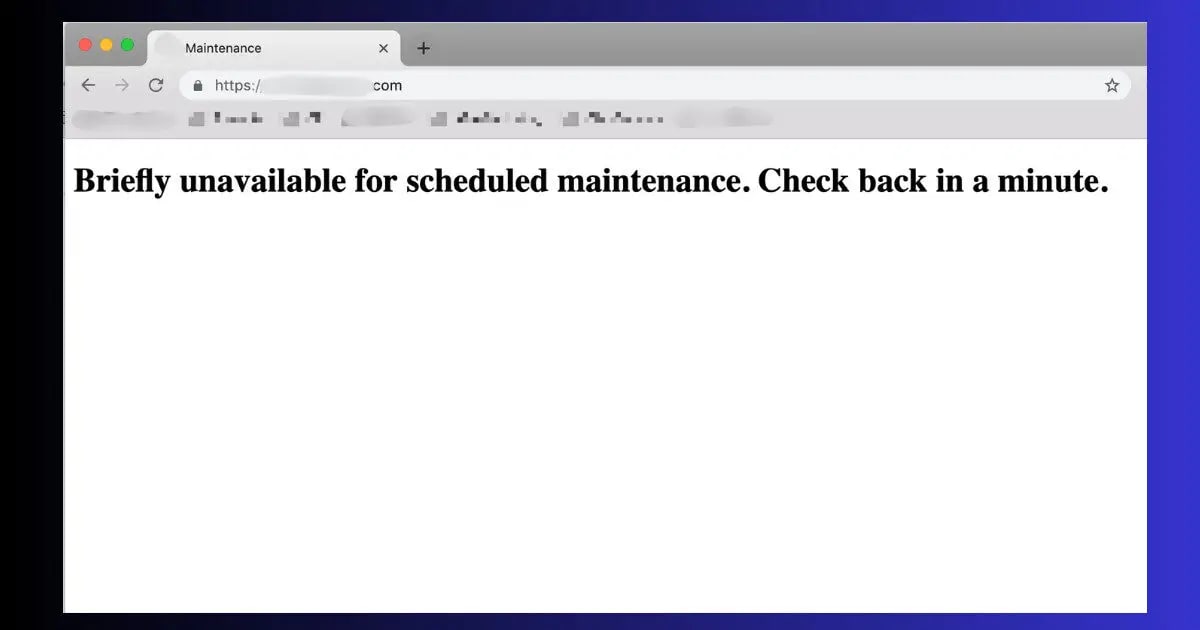
You hit “Update” on a plugin. The progress bar moves. Then everything stops — and your site shows this:
“Briefly unavailable for scheduled maintenance. Check back in a minute.”
You wait a minute. Then five minutes. Then ten. The message is still there. Your site is offline. Every visitor sees that same frozen screen.
Your WordPress site is stuck in maintenance mode — and the fix takes exactly 60 seconds once you know what to do.
This guide explains exactly why WordPress gets stuck in maintenance mode, the 60-second fix, and what to do when the simple fix does not work.
Every WordPress site owner encounters WordPress stuck in maintenance mode at some point — usually at the worst possible time, right before an important deadline or product launch. The frustrating part is that WordPress stuck in maintenance mode looks exactly like a serious crash, but it is actually one of the simplest problems in all of WordPress to resolve. Understanding why it happens makes the fix completely obvious.
Why Does WordPress Get Stuck in Maintenance Mode?
The reason WordPress stuck in maintenance mode is so common is simple — the update process depends on an uninterrupted connection between your browser and the server. Most site owners do not know this, so they close tabs, switch windows, or let their laptop sleep during an update without realizing it will leave their site frozen. WordPress stuck in maintenance mode is not a bug — it is an interrupted cleanup step.
Every time you update WordPress core, a plugin, or a theme, WordPress automatically creates a temporary file called .maintenance in your site’s root directory. This file tells the server to display the maintenance message to visitors — keeping them from seeing a broken site while the update runs.
Under normal conditions, WordPress deletes this file the moment the update finishes. The whole process takes 3-10 seconds and visitors never notice anything.
But when something interrupts the update process — a browser tab closed too early, a server timeout, a plugin conflict — the update stops before the cleanup step. The .maintenance file stays in place. And WordPress continues showing the maintenance message to every visitor indefinitely, because as far as the server is concerned, the update is still running.
🔴 Browser Closed Early
Most common cause. You closed the tab or navigated away before the update finished. The update stopped mid-process and the .maintenance file was never deleted.
🔴 Bulk Plugin Updates
Updating all plugins at once overloads the server. If any update times out or fails mid-process, the .maintenance file gets left behind.
🟡 Server Timeout
Slow hosting or low PHP memory causes the update script to time out before completing — leaving WordPress frozen in maintenance mode.
🟡 Plugin Conflict
A plugin conflict during the update process causes a fatal error that stops everything mid-update, including the file cleanup step.
🔵 Poor Internet Connection
Your internet dropped during the update. The connection to the server was lost before the update script could finish and clean up.
🟢 Maintenance Plugin
A dedicated maintenance mode plugin was activated and not properly deactivated. Different fix — see Fix 4 below.
Fix 1: Delete the .maintenance File — The 60-Second Solution
This is the fix for WordPress stuck in maintenance mode in 99% of cases. The .maintenance file is a hidden file in your WordPress root directory — deleting it instantly takes your site out of maintenance mode.
- Open Hostinger hPanel → File Manager
- Navigate to public_html (your WordPress root folder)
- Click Settings (top right corner) → enable Show Hidden Files
- Look for a file named .maintenance — it will appear with a dot at the start
- Right-click the file → click Delete → confirm
- Refresh your website — it should load normally immediately


In the vast majority of cases, WordPress stuck in maintenance mode is resolved the moment you delete this single file. The fix works because the .maintenance file is the only thing preventing WordPress from serving your normal site — your content, database, plugins, and theme are completely intact. Once the file is gone, WordPress stuck in maintenance mode ends instantly and every visitor sees your normal site again.
Fix 2: If the .maintenance File Keeps Coming Back
Sometimes after deleting the .maintenance file, it reappears within seconds. This means a plugin is regenerating it — the plugin itself is stuck in an update loop and keeps recreating the maintenance file every time you delete it.
- Open hPanel → File Manager → public_html → wp-content
- Find the plugins folder
- Right-click → Rename → rename to plugins_disabled
- Go back to public_html → delete the .maintenance file again
- Refresh your site — it should now load (with plugins disabled)
- Rename plugins_disabled back to plugins
- Go to WordPress → Plugins → reactivate plugins one at a time
- When the WordPress stuck in maintenance mode message returns — that plugin is the cause. Update or replace it.
Fix 3: Clear All Caches After Fixing
Even after successfully deleting the .maintenance file, your site may continue showing the maintenance message to some visitors. This happens because caching systems — LiteSpeed, browser cache, or CDN — have stored the maintenance page and keep serving it even though the underlying issue is fixed.
- Go to WordPress Dashboard → LiteSpeed Cache
- Click Purge All in the admin toolbar
- Also go to LiteSpeed → Toolbox → Purge All
- Clear your browser cache: Chrome → Ctrl + Shift + Delete → All time → Clear
- Test in incognito mode to confirm the maintenance message is gone

Fix 4: If You Used a Maintenance Mode Plugin
If you intentionally enabled maintenance mode using a plugin — SeedProd, WP Maintenance Mode, Elementor’s Coming Soon, or similar — the fix is different. Deleting the .maintenance file will not help because the plugin uses its own system to display the maintenance page.
- Log into wp-admin
- Go to the maintenance mode plugin’s settings
- Toggle the mode from Active/Maintenance to Inactive/Disabled
- Save settings → refresh your site
If you cannot access wp-admin (the maintenance plugin is blocking admin access too), disable it via File Manager:
- Go to hPanel → File Manager → public_html → wp-content → plugins
- Find the maintenance plugin folder (e.g., wp-maintenance-mode)
- Right-click → Rename → add _disabled to the end
- Refresh your site — plugin is now deactivated
Fix 5: Complete the Interrupted Update
After fixing the WordPress stuck in maintenance mode issue by deleting the file, you should complete the update that was interrupted. An incomplete plugin or WordPress core update can leave your site with partially updated files — which creates security vulnerabilities and can cause errors.
- Log into wp-admin
- Go to Dashboard → Updates
- Check for any pending updates — plugins, themes, or WordPress core
- Run updates one at a time — do not bulk update
- Keep the browser tab open until you see the “Successfully updated” message before starting the next update

WordPress Stuck in Maintenance Mode But No .maintenance File?
Sometimes you enable Show Hidden Files in File Manager and the .maintenance file simply is not there — but your site is still showing the maintenance message. Here are the less common causes and fixes:
- Browser cache: Your browser stored the maintenance page. Open in incognito mode — if the site loads normally there, clear your browser cache. The file was already deleted automatically.
- CDN cache: Your CDN (Cloudflare or QUIC.cloud) cached the maintenance page. Log into your CDN dashboard and purge all cache. This is particularly common on Hostinger sites using QUIC.cloud.
- maintenance.php in wp-content: Some plugins create a maintenance.php file inside /wp-content/ instead of the root. Check that folder too — rename the file to maintenance_old.php to disable it.
- Cached WordPress core: LiteSpeed or another caching layer served the maintenance page from cache even after the file was deleted. Run Purge All in LiteSpeed Cache plugin.
How to Prevent WordPress Stuck in Maintenance Mode
- Never close the tab during updates: Keep the WordPress dashboard tab active and visible during every update. Wait for the “Successfully updated” confirmation before navigating away.
- Update plugins one at a time: The bulk “Select All → Update” approach is the most common trigger for maintenance mode getting stuck. Update one plugin, confirm it succeeded, then move to the next.
- Run a full audit after every update: After updates, quickly check your site with Technical SEO Audit Guide and run ToolXray free audit to catch any issues introduced by the update.
- Increase PHP memory limit: Low memory causes update timeouts which leave WordPress in maintenance mode. Set WP_MEMORY_LIMIT to 256M in wp-config.php and raise the server cap in hPanel PHP Configuration. Read the full WordPress Memory Limit guide for exact steps.
- Update during low-traffic hours: Running updates at 3-5am when server load is minimal reduces timeout risk significantly.
- Take a backup before every update: UpdraftPlus free tier — configure it once, and you have a clean restore point before every update session.
Frequent maintenance mode issues? Hosting resources may be the cause.
Hostinger Business and Cloud plans include higher PHP memory limits and faster server resources — eliminating the timeouts that cause WordPress to get stuck in maintenance mode during updates.
Free WordPress Technical Audit — ToolXray
After restoring your site from maintenance mode — check Core Web Vitals, PageSpeed and 80+ technical signals. Free, no signup.
The Bottom Line
Every week, thousands of WordPress site owners search for a fix for WordPress stuck in maintenance mode — making it one of the most common WordPress errors on the internet. The reason it feels so alarming is that the maintenance message replaces your entire site with no explanation of what went wrong. But WordPress stuck in maintenance mode is never a data loss situation — your content, database, and settings are completely untouched.
When WordPress is stuck in maintenance mode, the cause is almost always a single leftover file — .maintenance — sitting in your root directory after an interrupted update. Delete it via File Manager and your site is back online in 60 seconds.
If the file keeps coming back, a plugin is regenerating it — disable all plugins via File Manager to confirm, then reactivate one at a time to find the culprit.
After fixing the immediate issue, always complete the interrupted update one plugin at a time, clear all caches, and run a quick technical audit to confirm your site is fully healthy. And going forward — never close the browser tab during updates. That one habit prevents the vast majority of WordPress getting stuck in maintenance mode situations permanently.
🔍 Free WordPress Technical Audit
After restoring from maintenance mode — check Core Web Vitals, PageSpeed, broken links and 80+ signals
Run Free Audit at ToolXray →Related Articles
WordPress White Screen of Death
Blank white page after an update? Plugin conflict is usually the cause — 9 proven fixes.
WordPress 404 Error Fix
Pages returning “not found” after restoring from maintenance mode? 7 fast solutions.
WordPress Database Error Fix
Failed update causing database errors? 6 fixes including the wp-config.php method.
WordPress Memory Limit Fix
Low memory causes update timeouts — the root cause of maintenance mode getting stuck.
ERR_TOO_MANY_REDIRECTS Fix
Redirect loop after plugin update? 7 proven fixes including SSL and .htaccess reset.
Free Alternative to Ahrefs
Monitor your site after maintenance — free SEO tools, no expensive subscription.
WordPress Site Hacked Guide
Maintenance mode triggered by malware? Signs your site was compromised + recovery steps.

