
You open your WordPress site and instead of your homepage, you see this:
“This page isn’t working. yourdomain.com redirected you too many times. ERR_TOO_MANY_REDIRECTS”
No site. No admin panel. Just a browser error and a completely inaccessible website.
The ERR_TOO_MANY_REDIRECTS WordPress error is one of the most frustrating problems you can encounter — because unlike most WordPress errors, it locks you out of both your frontend AND your wp-admin simultaneously. You cannot log in to fix it from inside WordPress. Everything has to be done via cPanel, File Manager, or phpMyAdmin.
But here is what makes this error different from other WordPress crashes: it almost always has a clear, identifiable cause. Once you know the diagnosis flow, the fix is almost always found in under 15 minutes. This guide walks you through every step.

How ERR_TOO_MANY_REDIRECTS Looks in Different Browsers
The same redirect loop error appears differently depending on which browser your visitor is using. All of these mean exactly the same thing — a redirect loop has been detected:
Google Chrome
“This page isn’t working. yourdomain.com redirected you too many times. ERR_TOO_MANY_REDIRECTS”
Mozilla Firefox
“The page isn’t redirecting properly. Firefox has detected that the server is redirecting the request in a way that will never complete.”
Safari
“Safari Can’t Open the Page. Too many redirects occurred trying to open yourdomain.com.”
Microsoft Edge
“Hm, we can’t reach this page. yourdomain.com redirected you too many times.”
What Causes the ERR_TOO_MANY_REDIRECTS WordPress Error?
A redirect loop happens when your server tells the browser to go from URL A to URL B — but URL B then redirects back to URL A. The browser bounces back and forth until it gives up and shows the ERR_TOO_MANY_REDIRECTS WordPress error.
What makes it particularly confusing is that the loop is rarely obvious. It can be caused by a single misconfigured setting, a plugin that modified your .htaccess file, or a mismatch between your SSL configuration and your stored WordPress URL — all of which look normal from inside your dashboard.
| Cause | How Common | Fix |
|---|---|---|
| 🔴 Wrong WordPress/Site URL | Most common | Fix 1 — Settings → General |
| 🔴 SSL/HTTPS misconfiguration | Very common | Fix 2 — Force HTTPS settings |
| 🟡 Caching plugin serving old redirects | Common | Fix 3 — Clear all caches |
| 🟡 Corrupted .htaccess file | Common | Fix 4 — Reset .htaccess |
| 🟠 Plugin conflict | Common | Fix 5 — Disable plugins |
| 🔵 Browser cookies/cache | Frequent | Fix 6 — Clear browser data |
| 🟢 CDN misconfiguration | Less common | Fix 7 — CDN settings |
Quick Diagnosis — Find Your Cause in 2 Minutes
❌ No → Go directly to Fix 1 via wp-config.php override, then Fix 3 (clear cache).
❌ No → Continue diagnosis below.
❌ No → Try Fix 3 (clear cache) then Fix 4 (.htaccess reset).
✅ Yes → The error is server-side. Continue with Fixes 1–5.
Fix 1: Correct Your WordPress URL Settings
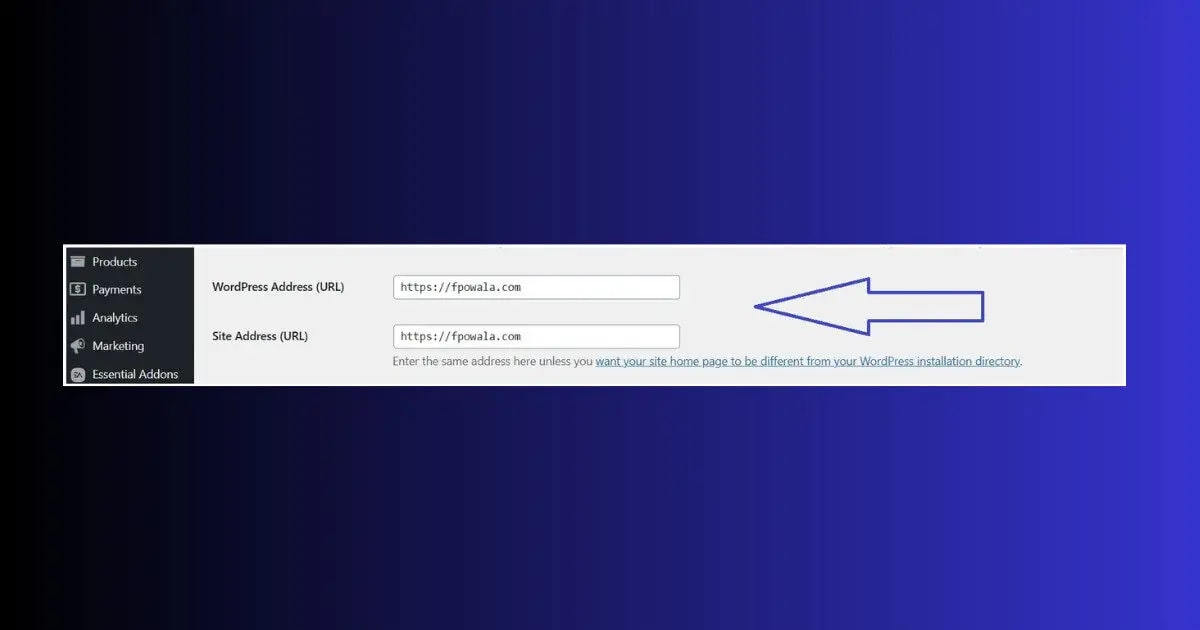
The most common cause of the ERR_TOO_MANY_REDIRECTS WordPress error is a mismatch between your WordPress Address and Site Address — or between those settings and your actual domain. Even a single character difference (http vs https, www vs non-www) creates a redirect loop.
Method A — Via wp-admin Settings (If You Can Access It)
- Go to WordPress Dashboard → Settings → General
- Check both WordPress Address (URL) and Site Address (URL)
- Both must be identical and must match your actual domain exactly — including http vs https and www vs non-www
- If using SSL: both should start with https://
- Click Save Changes → test your site
Method B — Via wp-config.php (If wp-admin Is Inaccessible)
- Open Hostinger hPanel → File Manager → public_html
- Find wp-config.php → right-click → Edit
- Add these two lines before the /* That’s all, stop editing! */ comment:
- Replace yourdomain.com with your actual domain
- Save → test your site
- Once site loads — go to Settings → General → confirm URLs → remove these lines from wp-config.php
Fix 2: Fix SSL/HTTPS Redirect Loop
The second most common cause of ERR_TOO_MANY_REDIRECTS in WordPress is an SSL misconfiguration — where your server forces HTTPS but your WordPress URL settings still use HTTP, or vice versa. The result is an endless loop between the two protocols.
Check Your SSL Configuration
- Confirm your SSL certificate is active — Hostinger hPanel → SSL → check green status
- Go to Settings → General → make sure both URLs start with https:// (not http)
- Check your .htaccess file — look for any HTTP-to-HTTPS redirect rules
- If using LiteSpeed cache — go to LiteSpeed → General → Force HTTPS → make sure it is not conflicting with an SSL plugin doing the same thing
Fix Double HTTPS Redirect in .htaccess
Sometimes two conflicting HTTPS redirect rules exist in .htaccess — one from WordPress and one from a plugin or hosting panel. Check for duplicate redirect rules and remove one:
Fix 3: Clear All Caches
Redirect loops get cached — meaning even after you fix the underlying issue, your site may continue showing the error because an old cached redirect is still being served. Clearing all caches is an essential step in fixing any ERR_TOO_MANY_REDIRECTS WordPress situation.
Clear LiteSpeed Cache (Hostinger)
- Go to WordPress Dashboard → LiteSpeed Cache
- Click Purge All in the top toolbar
- Also go to LiteSpeed → Toolbox → Purge → Purge All

Clear Browser Cache and Cookies
- Chrome: Press Ctrl + Shift + Delete → select All time → check Cookies and Cached images → Clear data
- Or open your site in Incognito mode (Ctrl + Shift + N) — if it loads in incognito, browser cache was the cause
- Also try accessing your site from a different device or network to confirm the error is server-side
Fix 4: Reset Your .htaccess File
The .htaccess file controls all URL routing on your server. Plugins — particularly SEO plugins, redirect managers, and SSL plugins — can add conflicting redirect rules to .htaccess that create loops. Resetting it to the clean WordPress default fixes this type of ERR_TOO_MANY_REDIRECTS WordPress error completely.
- Open hPanel → File Manager → public_html
- Enable Show Hidden Files → find .htaccess
- Right-click → Rename → rename to .htaccess_old (keep as backup)
- Create a new file named .htaccess
- Paste this clean WordPress default content:
- Save the file → test your site
- If site loads — the old .htaccess had conflicting redirect rules
- Go to Settings → Permalinks → Save Changes to regenerate clean rewrite rules. The default .htaccess content is sourced from the official WordPress documentation

Fix 5: Disable All Plugins via File Manager
Plugin conflicts are one of the most frequent causes of the ERR_TOO_MANY_REDIRECTS WordPress error — particularly redirect manager plugins, SSL plugins, SEO plugins with redirect features, and caching plugins. Since the error often locks you out of wp-admin, you need to disable them via File Manager rather than the WordPress dashboard.
- Open hPanel → File Manager → public_html → wp-content
- Find the plugins folder
- Right-click → Rename → rename to plugins_disabled
- This deactivates ALL plugins simultaneously
- Test your site — if it loads, a plugin was causing the redirect loop
- Rename plugins_disabled back to plugins
- Reactivate plugins one at a time via wp-admin → Plugins → when the error returns, that plugin is the cause

Fix 6: Clear Browser Cookies Completely
Sometimes the ERR_TOO_MANY_REDIRECTS WordPress error is not a server problem at all — it is a corrupted browser cookie storing an old redirect that no longer exists. This is more common than most people realize, and it is the easiest fix of all.
- In Chrome — press Ctrl + Shift + Delete
- Set Time range to All time
- Check Cookies and other site data AND Cached images and files
- Click Clear data
- Close all browser tabs → reopen → visit your site
Fix 7: Check CDN and Cloudflare Settings
If you are using Cloudflare or another CDN, a common SSL misconfiguration causes an endless redirect loop between Cloudflare and your server. This specific issue has a well-known cause and a one-setting fix.
- Log into your Cloudflare dashboard
- Select your domain → click SSL/TLS in the left menu
- Check the encryption mode — if it is set to Flexible, change it to Full or Full (Strict)
- Save → wait 2-3 minutes → test your site
Redirect errors caused by your hosting configuration?
Hostinger Business and Cloud plans include LiteSpeed SSL, Cloudflare integration, and priority support — eliminating the most common server-side causes of redirect loops for growing WordPress sites.
How ERR_TOO_MANY_REDIRECTS Hurts Your SEO
The ERR_TOO_MANY_REDIRECTS WordPress error does not just take your site offline for visitors — it has immediate and measurable SEO consequences that continue even after the error is resolved.
- Googlebot cannot crawl your site: Search engine bots hit the same redirect loop as browsers. During the time your site is down, Googlebot cannot crawl any of your pages — new content goes undiscovered and existing rankings begin to decay.
- Crawl budget waste: When Googlebot does attempt to crawl and encounters repeated redirect loops, it consumes crawl budget without successfully indexing anything — leaving your other pages less frequently visited.
- Potential deindexing: If the ERR_TOO_MANY_REDIRECTS WordPress error persists for days or weeks, Google may begin removing affected pages from its index — requiring a manual resubmission via Google Search Console after the fix.
- Traffic loss compounds: Every hour your site is offline is traffic your competitors receive instead. For sites with established rankings, a multi-day outage can take weeks of normal operation to fully recover from.
Free WordPress Technical Audit — ToolXray
After fixing your redirect error — check Core Web Vitals, PageSpeed, TTFB and 80+ technical signals. Free, no signup needed.
How to Prevent ERR_TOO_MANY_REDIRECTS From Coming Back
- Set URLs correctly from day one: When installing WordPress on a new domain or after any migration — immediately verify Settings → General has both URLs set correctly with the right protocol (https://) and www preference.
- Only use one SSL plugin: Having both LiteSpeed’s Force HTTPS and a dedicated SSL plugin like Really Simple SSL active simultaneously almost guarantees a redirect conflict. Choose one and disable the other.
- Test after every redirect plugin update: Redirect manager plugins and SEO plugins with redirect features are the most common source of .htaccess conflicts. Test your site immediately after updating any of these.
- Set Cloudflare SSL to Full — not Flexible: Flexible SSL is a redirect loop waiting to happen on any WordPress site with HTTPS. Set it to Full or Full (Strict) and never change it back.
- Monitor performance after fixing: A redirect loop causes TTFB spikes and LCP degradation. After fixing, check Why TTFB Is Critical, Fix LCP in WordPress and Fix INP in WordPress to restore performance scores.
- Keep a working wp-config.php backup: Having WP_HOME and WP_SITEURL defined and ready to paste into wp-config.php means you can recover from a redirect loop in under 2 minutes regardless of what caused it.
The Bottom Line
The ERR_TOO_MANY_REDIRECTS WordPress error is alarming precisely because it locks you out of everything simultaneously — but it is almost always caused by one of seven identifiable issues, and most of them are fixed in under 5 minutes once you know where to look.
Start with the diagnosis flow: can you access wp-admin? Did the error start after an SSL change or plugin update? Does it appear in incognito mode? These three questions cut the possible causes in half and point you directly to the right fix.
The fastest recovery path for most sites: clear browser cookies → check URLs in Settings → General → clear all caches. Between these three steps, the majority of ERR_TOO_MANY_REDIRECTS WordPress errors are resolved without ever touching .htaccess or disabling plugins.
🔍 Free WordPress Technical Audit
After fixing your redirect error — check Core Web Vitals, broken links, PageSpeed and 80+ signals
Run Free Audit at ToolXray →Related Articles
WordPress White Screen of Death
Another site-wide crash — different cause, same urgency. 9 proven fixes.
WordPress Database Error Fix
Migration causing both database errors and redirect loops? Fix both here.
Free Alternative to Ahrefs
Monitor recovery after redirect errors — free SEO tools, no subscription needed.
WordPress Theme Detector
Check which theme and plugins are active on your site — useful for diagnosing plugin conflicts.
Technical SEO Audit Guide
Post-redirect fix audit — crawlability, indexing, performance and 80+ checks.

