
You are working in your WordPress dashboard — installing a plugin, uploading an image, or running a backup — and suddenly everything stops:
“Fatal error: Allowed memory size of 67108864 bytes exhausted (tried to allocate 2097152 bytes)”
Or more recently in WordPress 6.x, the more cryptic: “There has been a critical error on this website.”
Both mean the same thing: your site hit the WordPress memory limit and PHP stopped working.
Here is what most guides do not tell you — simply increasing the number is a temporary patch, not a real fix. If you keep hitting the WordPress memory limit, something on your site is consuming far more memory than it should. This guide covers not just how to increase the limit, but how to find what is causing the problem and fix it permanently.
define( ‘WP_MEMORY_LIMIT’, ‘256M’ );
This resolves most WordPress memory limit errors immediately. If the error keeps coming back — read on for the permanent fix.

What Is the WordPress Memory Limit?
Every time someone visits a page on your WordPress site, PHP runs on your server — executing your theme’s code, running active plugins, querying the database, and assembling the page. All of this work consumes RAM on your server.
The WordPress memory limit is a cap on how much RAM PHP is allowed to use for a single request. When a page load or admin action tries to exceed this cap, PHP stops immediately and throws the memory exhausted error.
There are actually two separate WordPress memory limit settings you need to understand:
| Setting | Controls | Where to Set | Recommended |
|---|---|---|---|
| WP_MEMORY_LIMIT | Frontend visitors — page loads | wp-config.php | 128M–256M |
| WP_MAX_MEMORY_LIMIT | Admin panel, cron jobs, WP-CLI | wp-config.php | 256M–512M |
| memory_limit | Server-level hard cap | php.ini / hPanel | 256M+ |
The most important thing to understand: WordPress cannot exceed the server-level memory limit no matter what you set in wp-config.php. If your hosting plan allocates 64MB at the server level, setting WP_MEMORY_LIMIT to 512M in wp-config.php will have zero effect. You need to increase both.
How Much Memory Does Your WordPress Site Actually Need?
📊 PHP Memory Requirements by Site Type:
Step 1 — Check Your Current WordPress Memory Limit
Before increasing anything, check what your current WordPress memory limit actually is. There are two quick ways:
Method A — WordPress Site Health
- Go to WordPress Dashboard → Tools → Site Health
- Click the Info tab
- Expand Server section
- Look for PHP memory limit — this shows the server-level cap
- Also look for WordPress memory limit — this shows the WP_MEMORY_LIMIT value

Method B — Add Temporary Debug Code
Add this line temporarily to any theme’s functions.php file to display current memory usage:
Visit your site, note the values, then remove this line immediately.
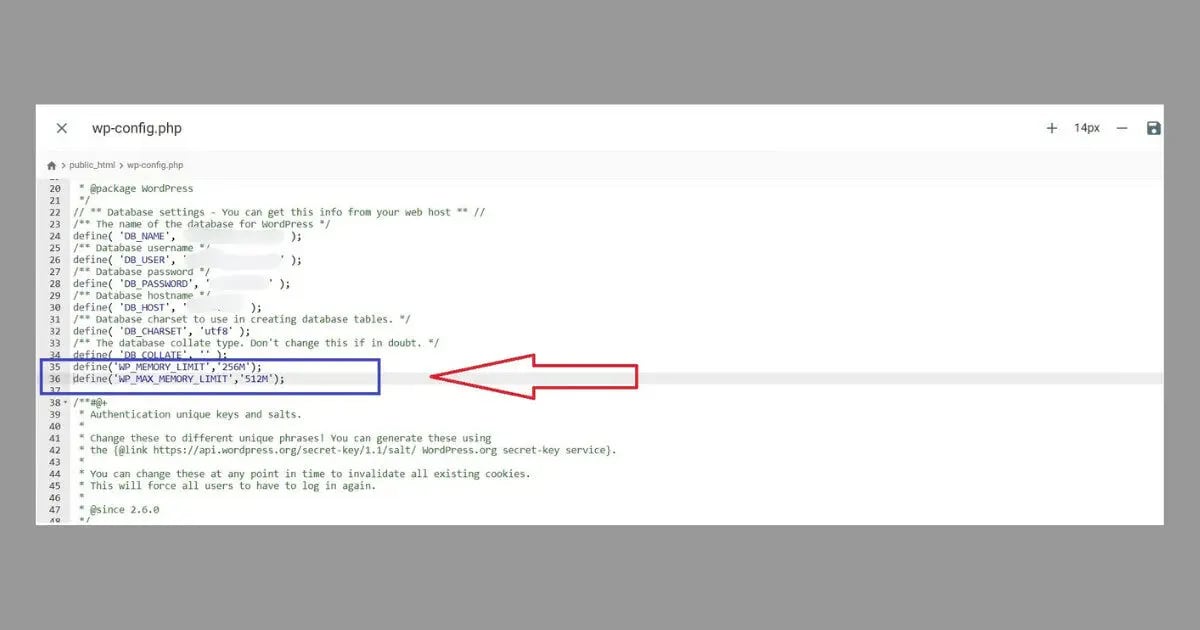
Fix 1: Increase WordPress Memory Limit in wp-config.php (Fastest)
This is the first and most reliable method to fix a WordPress memory limit error. It works on virtually all hosting environments and takes under 2 minutes.
- Open Hostinger hPanel → File Manager → public_html
- Find wp-config.php → right-click → Edit
- Find the line that says /* That’s all, stop editing! */
- Paste these two lines immediately before that comment:
- Save the file → Click Save & Close
- Refresh your site and attempt the action that caused the error
Fix 2: Increase PHP Memory Limit via Hostinger hPanel
If the wp-config.php method did not resolve the memory limit error, the server-level PHP memory cap is lower than what you set in WordPress. You need to increase it at the hosting level.
- Log into Hostinger hPanel
- Scroll down to the Advanced section
- Click PHP Configuration
- Find the memory_limit field
- Change the value to 256M (or 512M for resource-heavy sites)
- Click Save
- Go back to WordPress and test the action that caused the error

Fix 3: Increase Memory Limit via .htaccess
If neither wp-config.php nor hPanel resolved the PHP memory error, try the .htaccess method. This works on Apache servers where PHP runs as an Apache module.
- Open cPanel → File Manager → public_html
- Enable Show Hidden Files → find .htaccess
- Right-click → Edit
- Add this line at the very top of the file:
- Save the file → test your site
The Real Fix: Find What Is Consuming Your Memory
Increasing the the memory cap stops the error — but it does not fix the underlying problem. If your site keeps hitting the limit, something is consuming abnormally high amounts of memory. Finding and fixing that is what permanently resolves the issue.
Think of it this way: increasing the memory limit is putting a bigger bucket under a leaking roof. The leak is still there.
How to Identify Memory Hogs — Query Monitor Plugin
- Install Query Monitor plugin (free)
- Visit different pages on your site with Query Monitor active
- The toolbar at the top shows memory usage per page load in real time
- Go to Query Monitor → PHP Errors to see memory-related warnings
- Go to Query Monitor → Scripts to see which plugins are loading the most JavaScript
- The page with the highest memory usage = start your investigation there

Common Memory Culprits — And Their Fixes:
🔴 Backup Plugins
Running a full backup can consume 200-500MB temporarily. Schedule backups during off-peak hours (3–5am) and use incremental backups if available.
🔴 Page Builders
Elementor, Divi, and Beaver Builder are memory-intensive. Keep them updated — newer versions are significantly more efficient than older ones.
🟡 Analytics Plugins
Plugins that run their own tracking (MonsterInsights, Jetpack Stats) load significant data. Consider using Google Analytics directly via code instead.
🟡 Security Scanners
Real-time malware scanners scan every file on every request. Schedule scans instead of running them continuously — a massive memory saving.
🔵 Too Many Plugins
Every active plugin consumes memory even if not used on the current page. Audit your plugins quarterly — delete anything not actively needed.
🟢 Large Image Uploads
WordPress creates multiple resized versions of every uploaded image — memory-intensive for large files. Compress images before uploading using Squoosh.
Advanced: Increase PHP Memory via php.ini
If none of the above methods work for your specific hosting setup, editing the php.ini file directly raises the server-level memory cap:
- Go to cPanel → File Manager → public_html
- Check if a php.ini file already exists — if not, create a new file with that exact name
- Add this line:
- Save and test your site
When to Consider Upgrading Your Hosting Plan
Sometimes a recurring this limit error is not a configuration problem — it is a sign that your site has genuinely outgrown its current hosting plan’s resource allocation.
- You have set memory to 256M but still regularly hit the limit
- Your site runs WooCommerce, a membership plugin, or multiple page builders simultaneously
- Traffic has grown significantly and memory errors appear during peak periods
- Backup jobs consistently fail due to memory exhaustion
- Your hosting plan’s maximum PHP memory limit is below 256MB
Outgrowing your current hosting plan?
Hostinger Business and Cloud plans include higher PHP memory limits, dedicated resources, and priority support — built for growing WordPress sites that need more than shared hosting can offer.
How to Prevent PHP memory Errors
- Set memory correctly from the start: When installing WordPress, add both WP_MEMORY_LIMIT and WP_MAX_MEMORY_LIMIT to wp-config.php immediately. Do not wait for the error to appear.
- Audit plugins quarterly: Deactivate and delete any plugin you are not actively using. Even deactivated plugins can sometimes consume memory — delete them entirely.
- Compress images before uploading: Use Squoosh (free) to compress images before uploading to WordPress. Smaller files = less memory consumed during processing.
- Security scanner memory: If you recently recovered from a hack, your security scanner may be running continuously consuming excess memory. Read WordPress Site Hacked Recovery Guide to configure it correctly.
- Schedule heavy operations: Configure backup plugins to run at 3–5am when traffic is lowest. Memory-intensive operations during peak traffic is the most common cause of intermittent memory errors.
- Monitor memory usage: Keep Query Monitor installed (even if inactive) and check memory usage occasionally — catching a memory leak early is far easier than dealing with a crashed site.
- Update PHP version: PHP 8.x is significantly more memory-efficient than PHP 7.x. Update via hPanel → PHP Configuration. Newer PHP versions handle the same operations using less RAM.
Free WordPress Technical Audit — ToolXray
After fixing your memory limit — check Core Web Vitals, PageSpeed, TTFB and 80+ technical signals. Free, no signup needed.
The Bottom Line
A memory cap error is one of the most fixable problems in WordPress — but only if you address both the symptom and the cause. Increasing WP_MEMORY_LIMIT in wp-config.php and raising the server-level cap in hPanel resolves the immediate error in minutes.
But the real work is finding what is consuming the memory in the first place. Query Monitor makes this straightforward — run it, find the memory hog, fix or replace it. A site that operates well within its the memory cap is faster, more stable, and far less likely to crash during traffic spikes or admin operations.
Set your memory correctly, audit your plugins regularly, and schedule heavy operations for off-peak hours. These three habits eliminate memory errors permanently.
🔍 Free WordPress Technical Audit
Check PageSpeed, Core Web Vitals, TTFB and 80+ technical signals after fixing your memory limit
Run Free Audit at ToolXray →Related Articles
WordPress White Screen of Death
Memory limit errors often cause WSOD — 9 fixes including memory and PHP solutions.
WordPress Database Error Fix
Another site-wide crash error — different cause, same panic. 6 proven fixes.
WordPress Speed Optimization
After fixing memory — optimize for PageSpeed 90+ scores and faster load times.
Why TTFB Is Critical in 2026
High memory usage spikes your TTFB — here is how to monitor and fix server response time.
Free Alternative to Ahrefs
Monitor your site’s technical health for free — no $99/month subscription needed.

