
One moment your WordPress site is working perfectly. The next, every single visitor — including you — sees this:
“Error establishing a database connection.”
No homepage. No blog posts. No admin dashboard. Just one line of text and a completely inaccessible site.
A WordPress database error is one of the most alarming problems you can encounter — because unlike a plugin conflict or a slow page, it takes your entire site offline instantly. But here is the important thing to understand before you panic: your content is safe. Every post, page, and setting is still sitting in your database exactly where you left it. WordPress simply cannot reach it right now.
This guide covers every cause of a WordPress database error, the exact fixes in the right order, and how to make sure it never brings your site down again.

What Is the WordPress Database Error?
Every WordPress site runs on two separate systems working together: PHP files that handle your site’s logic and templates, and a MySQL database that stores all your content — posts, pages, comments, user accounts, plugin settings, and theme options.
Every time someone visits a page on your site, WordPress runs PHP code that connects to MySQL, pulls the relevant content, and assembles it into the page the visitor sees. When that connection fails, WordPress has nothing to display. The result is a WordPress database error — a blank page with a single error message and a completely inaccessible site.
What makes a WordPress database error particularly disorienting is that it affects both your frontend and your wp-admin simultaneously. You cannot access your dashboard to troubleshoot from inside WordPress — everything has to be fixed via cPanel, File Manager, or phpMyAdmin.
Why Does the WordPress Database Error Happen?
🔴 Wrong DB Credentials
Most common cause — 70% of cases. Wrong database name, username, password, or host in wp-config.php. Happens after migrations or hosting changes.
🔴 Database Server Down
MySQL server crashed or is under maintenance. Your hosting provider’s server issue — nothing wrong with your files.
🟡 Corrupted Database Tables
Tables become corrupted after plugin conflicts, failed updates, or sudden server crashes. WordPress shows “One or more tables unavailable.”
🟡 Too Many Connections
MySQL has a connection limit. Traffic spikes or runaway plugins can exhaust all available connections — causing a temporary database error.
🔵 Corrupted Core Files
Malware infection or failed update corrupted WordPress core files — breaking the PHP-to-MySQL communication layer.
🟢 Wrong Site URL in DB
After a migration, the stored site URL still points to the old domain — causing redirect loops and connection failures.
Quick Diagnosis — Which Type Do You Have?
| What You See | Most Likely Cause | Fix To Use |
|---|---|---|
| Error on frontend + wp-admin | Wrong credentials or server down | Fix 1 then Fix 2 |
| Error only on frontend, wp-admin loads | Corrupted database tables | Fix 3 |
| “One or more tables unavailable” | Corrupted tables | Fix 3 |
| Started after migration | Wrong credentials or site URL | Fix 1 then Fix 5 |
| Intermittent — comes and goes | Too many connections or traffic spike | Fix 4 |
| Started after update or hack | Corrupted core files | Fix 6 |
Fix 1: Check Your Database Credentials in wp-config.php
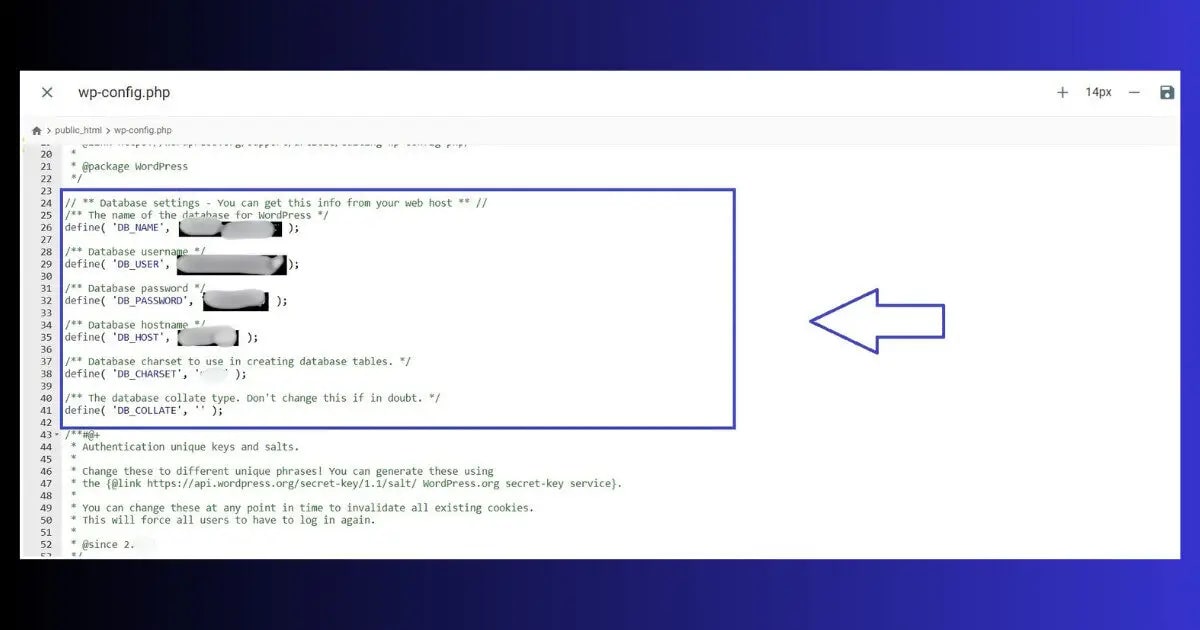
This is the first thing to check for any WordPress database error — and it resolves the problem in 70% of cases. Your database credentials are stored in a file called wp-config.php in your site’s root directory. If any of the four key values are wrong, WordPress cannot connect to the database.
- Open Hostinger hPanel → File Manager → public_html
- Find wp-config.php → right-click → Edit
- Look for these four lines near the top of the file
How to Verify Your Correct Credentials
- Go to Hostinger hPanel → MySQL Databases
- You will see your database name, username listed there
- Compare exactly with what is in wp-config.php — they must match character for character
- If the password is wrong — reset it in hPanel → MySQL Databases → change password → update wp-config.php with the new password
- Save wp-config.php → refresh your site

Fix 2: Check if the Database Server Is Down
If your credentials are correct but you are still seeing the WordPress database error, the MySQL server itself may be down or overloaded. This is a hosting-side issue — nothing you can fix from within WordPress.
- Log into Hostinger hPanel
- Check for any maintenance notices or server status alerts on the dashboard
- Go to hPanel → MySQL Databases → phpMyAdmin — if phpMyAdmin loads and shows your database — the server is running fine and the issue is your credentials
- If phpMyAdmin does not load — the MySQL server is down. Contact Hostinger support immediately with your domain name
- While waiting — check hostingstatus.com for any reported Hostinger outages
Fix 3: Repair Corrupted Database Tables
A corrupted database is the second most common cause of a WordPress database error. This happens when database tables get damaged — usually after a plugin conflict, a failed update, or a sudden server crash mid-write. WordPress has a built-in repair tool that fixes this in one click.
Method 1 — WordPress Built-in Repair Tool (Easiest)
- Open wp-config.php via cPanel File Manager
- Add this line before the /* That’s all, stop editing! */ comment:
- Save the file
- Visit this URL in your browser: https://yourdomain.com/wp-admin/maint/repair.php
- Click Repair Database — WordPress will scan and fix all corrupted tables
- After repair is complete — go back to wp-config.php and remove the WP_ALLOW_REPAIR line immediately
- Refresh your site — the database error should be resolved

Method 2 — phpMyAdmin Repair (More Control)
- Go to hPanel → MySQL Databases → phpMyAdmin
- Click your WordPress database name in the left sidebar
- Click Check All to select all tables
- In the dropdown at the bottom — select Repair table
- Click Go — phpMyAdmin runs repair on every table
- Refresh your site after the repair completes

Fix 4: Fix Too Many Database Connections
When too many visitors hit your site simultaneously — or when a plugin opens database connections without properly closing them — MySQL runs out of available connections. Every new request after that point returns a database error until connections free up.
- Add this line to wp-config.php to enable error logging and confirm this is the cause:
- Check /wp-content/debug.log — if you see Too many connections — this is confirmed
- Go to Plugins → Installed Plugins — deactivate all plugins → test if the error clears
- Reactivate plugins one by one — the plugin that causes the error to return is opening unclosed database connections
- Contact Hostinger support to temporarily increase your MySQL connection limit if traffic spikes are the cause
- Consider upgrading your hosting plan if your site traffic has grown — shared hosting plans have lower MySQL connection limits than Business or Cloud plans
Recurring database errors? Your hosting plan may be the bottleneck.
Hostinger Business and Cloud plans include higher MySQL connection limits, dedicated resources, and priority support — built for growing WordPress sites.
Fix 5: Fix this error After Migration
Moving your WordPress site to a new domain or hosting provider is one of the most reliable triggers of a the error. Two things typically go wrong: the database credentials change on the new host, or the site URL stored in the database still points to the old domain.
Step 1 — Update Credentials in wp-config.php
Follow Fix 1 above — verify that the DB_NAME, DB_USER, DB_PASSWORD, and DB_HOST in wp-config.php match the new hosting environment exactly. On a new host, all four values are different from your previous host.
Step 2 — Fix Site URL in wp-config.php
If credentials are correct but the error persists, add these two lines to wp-config.php temporarily:
Replace yournewdomain.com with your actual domain. Once your site loads — go to Settings → General and update both URL fields there permanently. Then remove these two lines from wp-config.php.
Fix 6: Replace Corrupted WordPress Core Files
In rare cases — after a malware infection or a badly failed update — the WordPress core files themselves become corrupted, breaking the connection between WordPress and the database. The fix is to replace the core files with a fresh copy without touching your content.
- Download the latest WordPress version from wordpress.org/download/
- Unzip the downloaded file on your computer
- Delete the wp-content folder from the unzipped files — this protects your themes, plugins, and uploads
- Delete the wp-config.php file from the unzipped files — this protects your database credentials
- Upload the remaining files to your public_html via cPanel File Manager → overwrite existing files when prompted
- Refresh your site — fresh core files should resolve the this issue
How to Prevent the issues
- Daily automated backups: UpdraftPlus free tier backs up your database to Google Drive daily. A database backup is your fastest recovery option for any database error — restore takes minutes instead of hours of manual troubleshooting.
- Never edit wp-config.php without a backup: Any manual edit to wp-config.php that introduces a typo in your database credentials instantly triggers a database error. Always keep a copy of your current working wp-config.php before making any changes.
- Update plugins one at a time: Bulk plugin updates occasionally cause database table conflicts. Update one plugin at a time, testing your site after each update — the moment a database error appears, you know exactly which plugin caused it.
- Check Core Web Vitals after recovery: A database error can temporarily impact your site’s performance signals. Read Fix INP in WordPress and Fix LCP in WordPress to restore your scores after fixing the error.
- Install WP-Optimize: This free plugin cleans your database — removing post revisions, spam comments, transients, and orphaned data that accumulate over time and increase corruption risk. Run it monthly.
- Monitor database size: hPanel → MySQL Databases shows your database size. A rapidly growing database on a shared hosting plan can hit resource limits and trigger connection errors. Clean regularly and upgrade hosting if needed.
ToolXray Free WordPress Technical Audit
After fixing a database error — confirm no performance or SEO damage remains. Core Web Vitals, PageSpeed, TTFB and 80+ checks. Free, no signup.
The Bottom Line
A this error is one of the most alarming WordPress problems — but it is almost always caused by one of a small number of fixable issues. Start with Fix 1: verify your database credentials in wp-config.php. This single step resolves the vast majority of the errors within minutes.
If credentials are correct, check whether the MySQL server is down, repair any corrupted tables using WordPress’s built-in repair tool, and work through the remaining fixes in order. Between these six fixes, virtually every database connection error is recoverable without data loss.
The real lesson from any database error is preparation: daily automated backups, careful plugin update practices, and regular database cleaning reduce both the frequency and the recovery time of any future database issues significantly.
🔍 Free WordPress Technical Audit
After fixing your database error — check Core Web Vitals, PageSpeed, broken links and 80+ signals
Run Free Audit at ToolXray →Related Articles
WordPress White Screen of Death
Different from a database error — WSOD is a PHP crash. 9 fixes that work.
WordPress 404 Error Fix
Pages returning “not found” after a migration or database fix? 7 proven solutions.
WordPress Site Hacked Guide
Malware is a common cause of database corruption. Signs + complete recovery steps.
Complete Technical SEO Audit
Post-database error audit — check crawlability, indexing and all 80+ signals.
Free Alternative to Ahrefs
Monitor your site’s recovery with free SEO tools — no expensive subscription needed.

