
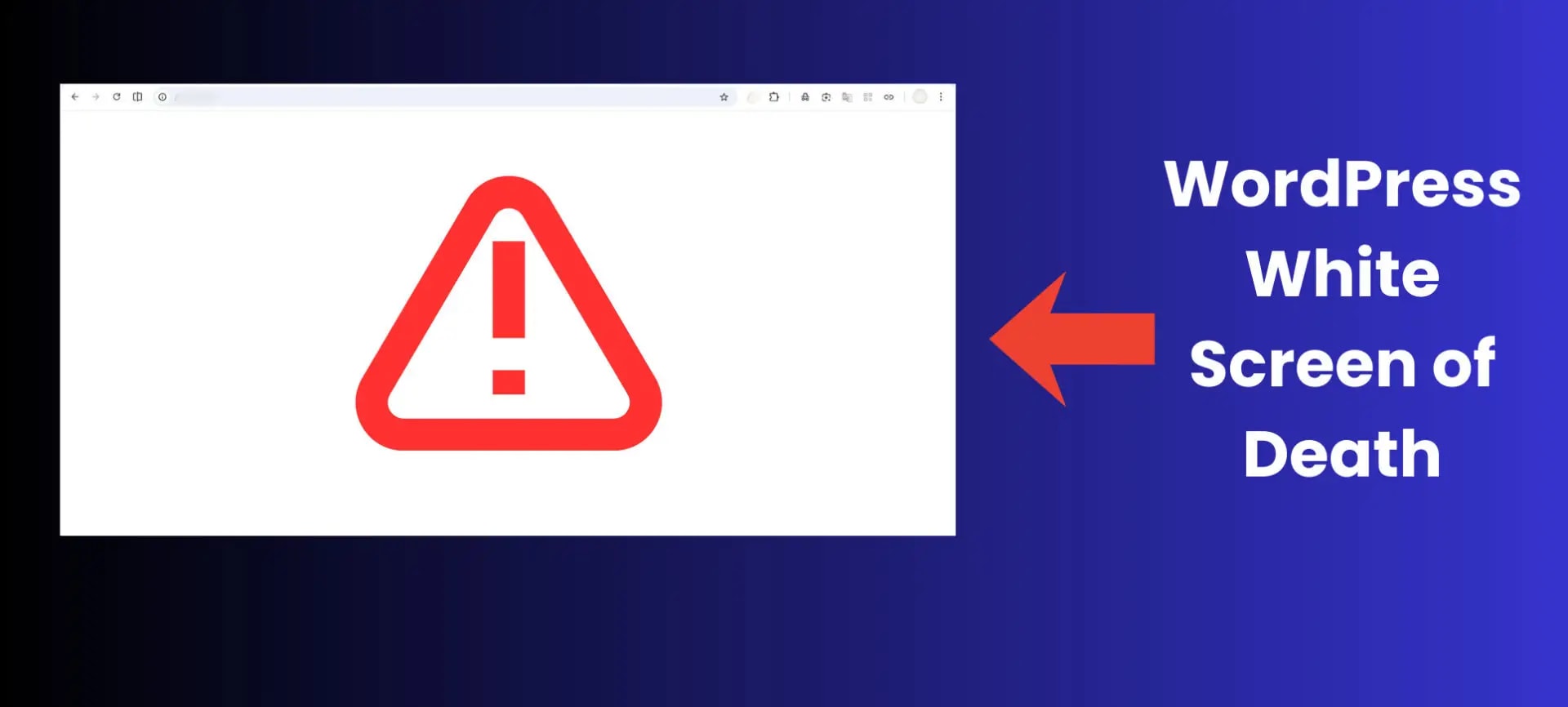
You opened your site. Nothing loaded. Just a blank white page staring back at you.
No error message. No red text. No helpful hint about what went wrong. Just white.
That is the WordPress White Screen of Death — and if you are reading this, you are probably having one of the worst days of your WordPress journey right now. Your site is down, you cannot access the admin panel, and you have zero clues about where to start.
Breathe. This guide is written specifically for that moment.
The WordPress White Screen of Death is one of the most searched WordPress problems online — because it happens to nearly every site owner at some point, gives you zero diagnostic information upfront, and most guides online tell you to do things that are either outdated or make the situation worse.
This guide is different. It starts with the fastest diagnosis method, gives you 9 fixes ordered by how common each cause is, and tells you exactly what to do in cPanel or FTP — even if you have never opened a PHP file in your life.
What Actually Causes the WordPress White Screen of Death?
The name sounds dramatic but the technical explanation is simple: PHP throws a fatal error, WordPress cannot recover from it, and instead of showing a helpful error message it shows nothing. A white screen.
There are six main triggers. The one affecting your site right now is almost certainly one of these:
| Cause | How Common | When It Happens |
|---|---|---|
| 🔴 Faulty plugin update | Most common — 60%+ cases | Right after a plugin update |
| 🟠 Theme PHP error | Very common | After theme switch or update |
| 🟡 PHP memory limit | Common on shared hosting | Specific pages only |
| 🟡 PHP version mismatch | Common after host upgrade | Site-wide, sudden onset |
| 🟢 Corrupted wp-config.php | Less common | Full site down, no admin access |
| 🟢 Bad .htaccess file | Less common | Usually shows 500 error too |
Step 0: Diagnose in 60 Seconds — Enable WordPress Debug Mode
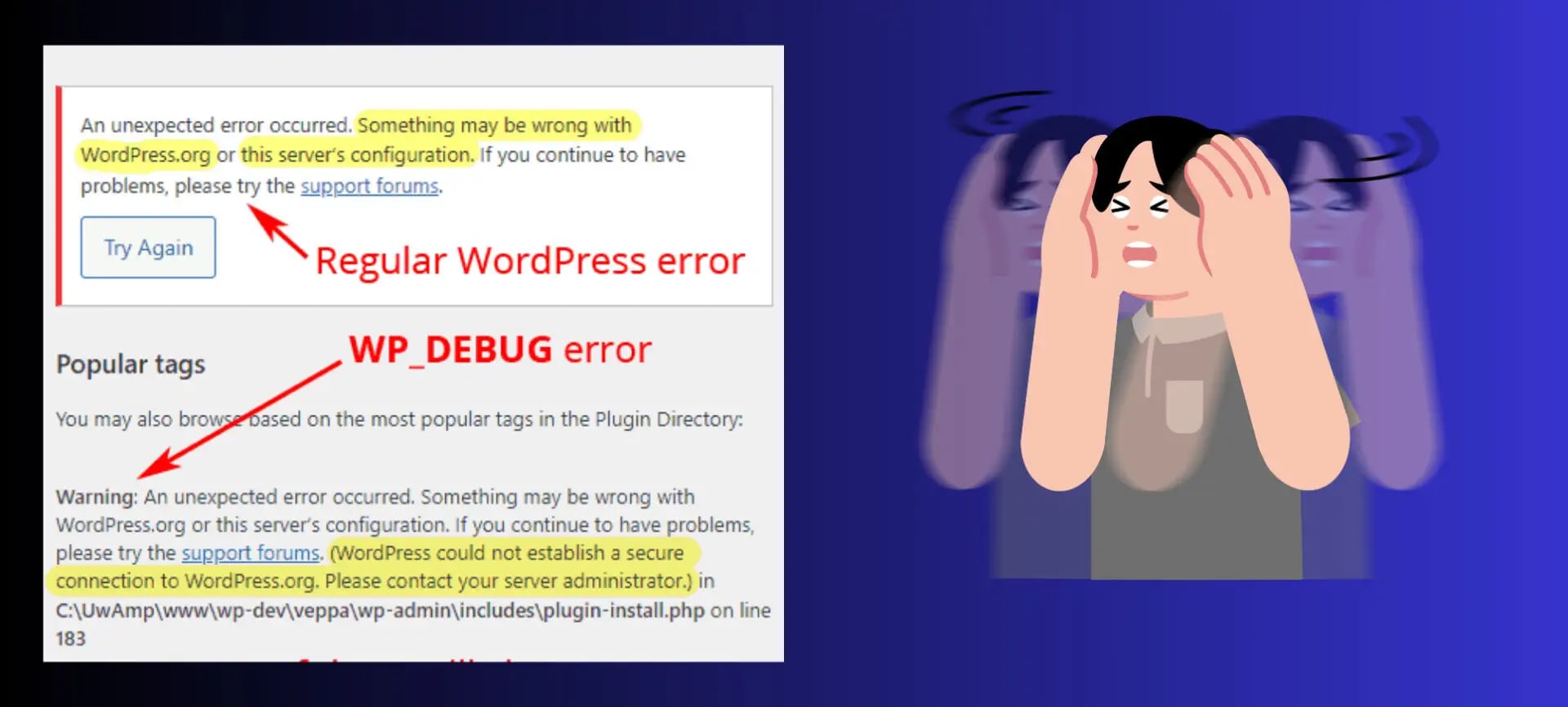
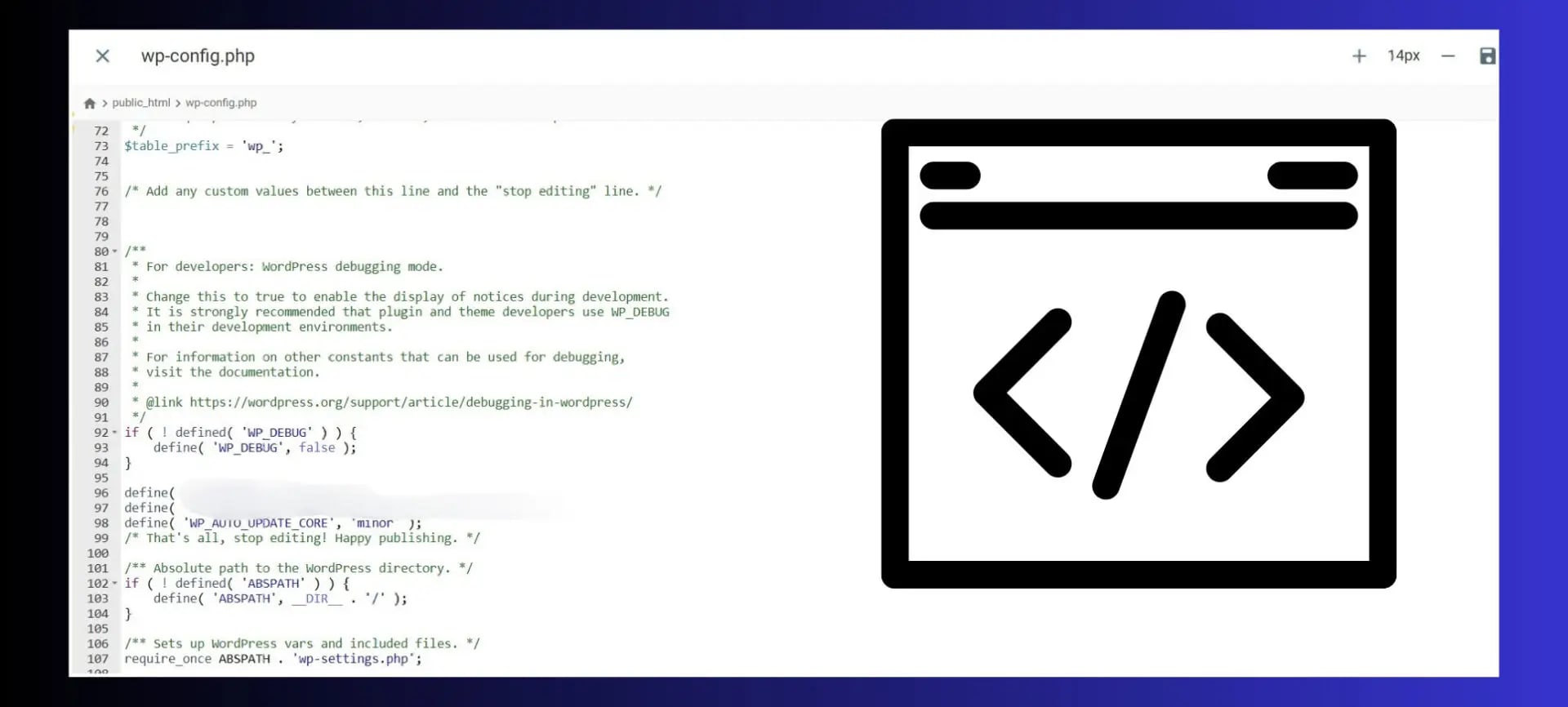
Before jumping into fixes, spend 60 seconds turning on WordPress debug mode. This converts your blank white screen into an actual PHP error message that shows you exactly which file and which line number caused the crash.
You need cPanel File Manager or FTP access. Here is the exact process:
- Open cPanel → File Manager → public_html → find wp-config.php → right-click → Edit
- Find this line near the top of the file:
- Replace it with these three lines:
- Save the file and refresh your site in the browser
- Instead of white screen you will now see a PHP error — like: “Fatal error: Call to undefined function… in /wp-content/plugins/xyz/file.php on line 42”
- That tells you exactly which plugin or theme caused the crash — jump directly to that fix below
Free WordPress Technical Audit
Check your site’s Core Web Vitals, PageSpeed, TTFB and 80+ technical signals — free, no signup
Fix 1: Disable All Plugins via FTP (No Admin Access Needed)
Plugin conflicts cause the WordPress White Screen of Death more than any other single reason. If your white screen appeared immediately after installing or updating a plugin — this fix will almost certainly solve it.
If you can still access wp-admin: Go to Plugins → Installed Plugins → select all → Bulk Action: Deactivate → Apply. Refresh your site. If it loads, a plugin was the culprit.
If wp-admin also shows a white screen:
- Open cPanel → File Manager → public_html → wp-content
- Find the folder named plugins
- Right-click → Rename → change it to plugins_disabled
- Refresh your site — if it loads, a plugin was the cause
- Rename the folder back to plugins
- Re-enable plugins one at a time, refreshing after each — when white screen returns, you found the culprit
- Delete or update that specific plugin

Fix 2: Switch to a Default WordPress Theme
If disabling all plugins did not help, the next most likely cause is your active theme. A theme with a PHP error in its functions.php file will produce a white screen across your entire site — and you cannot fix it from the admin panel because the theme loads before the admin interface does.
- Navigate to: public_html/wp-content/themes/ via cPanel File Manager
- Find your current active theme folder — rename it to yourtheme_disabled
- WordPress automatically falls back to the default Twenty Twenty-Four theme
- Refresh your site — if it loads, your theme was the cause
- Rename your theme folder back — contact the theme developer or check their support forum
Fix 3: Increase PHP Memory Limit
WordPress needs a minimum amount of PHP memory to run. When a plugin or theme tries to use more memory than your server has allocated, PHP crashes — resulting in a white screen or a page that loads partially then cuts off. This is especially common on shared hosting where the default PHP memory limit is 32MB or 64MB — far too low for a WordPress site running even 10 plugins.
Method 1 — Edit wp-config.php:
- Open cPanel → File Manager → public_html → wp-config.php → Edit
- Add this line before the line that says /* That’s all, stop editing! */
- Save and refresh your site
Method 2 — Edit php.ini:
- In File Manager, find or create php.ini in public_html
- Add: memory_limit = 256M → Save and refresh
Fix 4: Check Your PHP Version
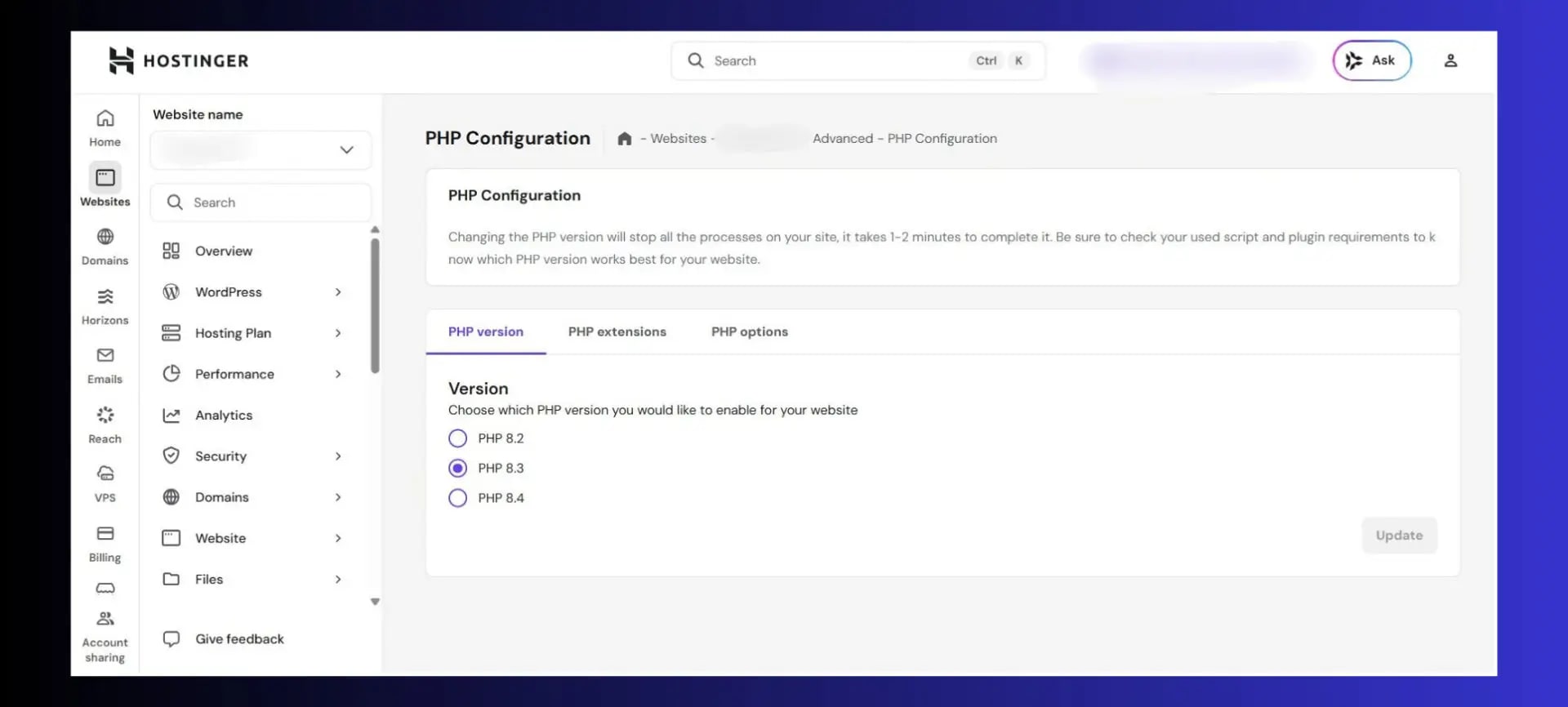
Every major update cycle, sites crash overnight — not because anything the owner changed, but because their hosting provider silently upgraded the server’s PHP version. PHP 8.1 and 8.2 introduced breaking changes that conflict with functions used in older plugins and themes built for PHP 7.x.
- Go to cPanel → Software → PHP Selector or MultiPHP Manager
- Check which PHP version your domain is currently using
- If recently changed from 7.4 to 8.x, switch back to 7.4 temporarily
- Refresh your site — if it loads, the PHP version change was the cause
- Update plugins and theme to PHP 8.x compatible versions, then switch back
Fix 5: Regenerate Your .htaccess File
A corrupted .htaccess file controls how your server handles every request. A single syntax error in this file causes the server to reject all requests — showing a blank white page or a 500 error.
Step 1 — Temporarily rename .htaccess:
- cPanel → File Manager → public_html
- Find .htaccess (click Settings → enable “Show Hidden Files” if not visible)
- Rename it to .htaccess_old
- Refresh your site — if it loads, .htaccess was the cause
Step 2 — Generate a fresh .htaccess:
- Log into wp-admin → Settings → Permalinks
- Do not change anything — just click Save Changes
- WordPress automatically generates a clean .htaccess file
- Delete the old .htaccess_old file
Fix 6: Deactivate Recently Updated Page Builder Plugins
Elementor, Divi, WPBakery — these page builders are among the most frequent triggers of the WordPress White Screen of Death after an update. A single bad release can bring an entire site down instantly due to their deep integration with WordPress core.
- Via FTP, navigate to wp-content/plugins/
- Rename elementor folder to elementor_disabled
- Rename elementor-pro folder to elementor-pro_disabled
- Refresh site — if it loads, Elementor caused the crash
- Check Elementor’s changelog for a hotfix, re-enable and update
Fix 7: Restore From Backup
If you have been through Fixes 1 through 6 and the site is still blank — or if you simply need the site live immediately — restoring from a recent backup is the fastest path forward.
- Hostinger hPanel: Websites → Backups → select date before white screen → Restore
- cPanel: Backup Wizard → Restore → Full Backup → select your file
- UpdraftPlus plugin: Settings → UpdraftPlus → Restore → choose latest clean backup
- JetBackup (cPanel): Full Account Restore → pick a date before the issue
After restoring: identify what changed between the backup date and when the white screen appeared — which plugin was updated, which theme change was made. Fix that specific thing before updating again.
Fix 8: Replace Corrupted WordPress Core Files
Rarely — but it happens — WordPress core files themselves get corrupted. This occurs after a failed auto-update, a malware infection, or a server-side file system error. In this case, disabling all plugins and themes will not fix the white screen because the core files running WordPress itself are broken.
- Download a fresh copy of WordPress from wordpress.org — same version your site runs
- Unzip the downloaded file on your computer
- Via FTP, upload the wp-admin and wp-includes folders — overwrite everything when prompted
- Do NOT upload wp-content — this contains your plugins, themes, and uploads
- Do NOT overwrite wp-config.php — this contains your database credentials
- Refresh your site
Fix 9: Check PHP Error Logs for Exact Clues
PHP error logs hold every crash record with exact timestamps — useful when debug mode showed an error but you are not sure what it means, or when you want to trace the history of what went wrong.
- cPanel → File Manager → public_html → look for error_log file
- cPanel → Metrics → Errors → PHP Errors
- LiteSpeed hosting: cPanel → LiteSpeed Web Server → Error Log
Scroll to the most recent entries. Look for Fatal error or Parse error lines — they will show the exact file path, line number, and timestamp of the crash.
How to Prevent the WordPress White Screen of Death From Happening Again
The WordPress White Screen of Death is almost always preventable. Every site owner who gets hit with it once should implement these habits immediately:
Daily Automatic Backups
Install UpdraftPlus (free) and back up daily to Google Drive. Database + plugins + themes + uploads. Worst case is ever only 24 hours of lost work.
Use a Staging Site
Hostinger Business and Cloud plans include one-click staging. Test all major updates on staging first. 5 minutes of staging saves hours of troubleshooting.
Update Plugins One at a Time
Never use Select All → Update All. Update one plugin, refresh, confirm site loads, then move to next. Conflicts become traceable in minutes.
Read Changelogs Before Updating
Click “View version details” before any update. If it mentions “major rewrite” or “PHP 8.x compatibility” — test on staging first.
Set Up Uptime Monitoring
UptimeRobot (free) pings your site every 5 minutes and alerts you by SMS the moment it goes down. Find out in minutes, not hours.
Monthly Performance Audit
Run a free technical audit at ToolXray SEO Audit Tool monthly — catch errors and performance issues before they affect rankings or availability.
Quick Reference: Diagnosis Flowchart
Use this table to find your fix based on exactly what you are seeing:
The Bottom Line
The WordPress White Screen of Death is caused by one of six things: a faulty plugin, a broken theme, insufficient PHP memory, a PHP version mismatch, a corrupted .htaccess file, or damaged core files. Enable WP_DEBUG first (Step 0) — the error message will tell you exactly which one triggered it, cutting your fix time from 30 minutes to under 5.
The WordPress White Screen of Death is terrifying the first time it happens — because it gives you absolutely nothing to work with. No error, no clue, no direction. Just white.
But the WordPress White Screen of Death is also one of the most fixable problems you will ever face. In over 90% of cases it comes down to a plugin, a theme, or a memory limit — all three diagnosable and fixable in under 30 minutes using this guide.
Work through the fixes in order. Enable debug mode first (Step 0) — it cuts your troubleshooting time in half. Then work through Fixes 1 to 3, which together resolve the vast majority of cases.
And when your site is back up — set up daily backups, enable uptime monitoring, and commit to updating plugins one at a time. You will likely never see that blank white page again.
🔍 Free Technical Health Check for Your WordPress Site
Core Web Vitals • PageSpeed • TTFB • LCP • INP — all in 10 seconds, no signup needed
Run Free Audit at ToolXray →Related Articles You Might Find Helpful
Fix INP in WordPress
Google’s newest Core Web Vital — 6 exact fixes to move from Poor to Good INP without any coding.
Fix LCP on WordPress
Largest Contentful Paint — what it is and how to bring it under 2.5 seconds on any WordPress site.
WordPress Speed Optimization
The complete guide — caching, image optimization, JS deferral, CDN setup, and more.
Technical SEO Audit Guide
How to audit your entire site for technical issues — crawlability, indexing, speed, schema, and Core Web Vitals.
How to Use PageSpeed Insights
A complete walkthrough — how to read your report, understand each metric, and prioritize fixes.
Detect Any WordPress Theme
Find out which WordPress theme any website is using — in seconds, completely free.

