
By Vikas Rohilla | Updated: March 2026 | Reading time: ~9 minutes
Here is a scenario that happens thousands of times every day: someone clicks on a website, waits two, three, four seconds staring at a blank white screen — and leaves. They never come back.
That blank screen? That is a bad LCP — Largest Contentful Paint — problem.

When I first ran a PageSpeed Insights test on my WordPress site, I saw my LCP was 11.1 seconds. Eleven seconds! Google rates anything above 4 seconds as “Poor”. My site was nearly three times worse than that limit.
After understanding what LCP actually is and applying the right fixes, I brought it down to under 2 seconds — without paying for a single premium plugin. My mobile PageSpeed score jumped from 58 to 96 in the process.
This guide will teach you exactly what Largest Contentful Paint is, why it matters so much for your Google rankings, what causes a poor LCP score, and — most importantly — how to fix it step by step, even if you are a complete beginner.
Quick stat: LCP accounts for 25% of your total PageSpeed Insights score. It is one of Google’s three official Core Web Vitals ranking signals. Fix your LCP, and you fix a huge chunk of your SEO performance in one go.
What Is LCP (Largest Contentful Paint)?
Largest Contentful Paint (LCP) is a Google Core Web Vitals metric that measures how long it takes for the largest visible element on your page to fully load and appear on screen.
In plain English: it measures how long a visitor has to wait before they see the main content of your page.
The “largest element” is usually one of these:
- A hero image or banner at the top of your homepage
- A featured image on a blog post
- A large heading or title text
- A video poster image
- A background hero section with an image
Importantly, the LCP element can be different on mobile versus desktop — and it can also differ from page to page on the same website. What is “largest” on your homepage might be completely different from what is “largest” on a blog post.
How to Find Your LCP Element
You can find your exact Largest Contentful Paint element using Google PageSpeed Insights. Just run a test, scroll down to the “Diagnostics” section, and look for “Largest Contentful Paint element”. It will show you exactly which element is causing the delay.
On my site, the LCP element was my H2 heading — not even an image! That told me the page was so blocked by CSS and JavaScript that even text was taking 11 seconds to render. Once I understood that, fixing it became much clearer.
Why Does LCP Matter for SEO and Rankings?
LCP is one of Google’s three official Core Web Vitals — real ranking signals that Google has used since 2021. The other two are CLS (Cumulative Layout Shift) and INP (Interaction to Next Paint).
This means your Largest Contentful Paint score directly affects where your website appears in Google search results. A slow LCP does not just hurt user experience — it literally hurts your rankings.
Here is what a poor LCP costs you:
- Lower Google rankings — competitors with faster LCP outrank you even with similar content
- Higher bounce rate — Google’s research shows 53% of mobile users leave if a page takes more than 3 seconds to load
- Lost revenue — every extra second of load time reduces conversions by approximately 7%
- Wasted ad spend — if you run paid ads, you are paying for traffic that leaves before your page even loads
Personal result: After fixing my LCP from 11.1 seconds down to under 2 seconds, my PageSpeed Insights score jumped from 58 to 96 on mobile. No paid plugins. No developer. Just the right settings.
What Is a Good LCP Score? (Google’s Standards)
Google has set clear thresholds for Largest Contentful Paint. Here is exactly what each category means:
| LCP Time | Rating | What It Means |
| 0 – 2.5 seconds | Good ✅ | Excellent! Google is happy. Users are happy. |
| 2.5 – 4.0 seconds | Needs Improvement ⚠️ | Noticeable delay. Some users will bounce. |
| Over 4.0 seconds | Poor ❌ | Google penalizes this. Most users leave. |
Google measures Largest Contentful Paint at the 75th percentile — meaning 75% of your real visitors must experience a Good LCP for your site to pass the Core Web Vitals assessment in Google Search Console.
The 4 Phases of LCP (What’s Actually Being Measured)
Google breaks Largest Contentful Paint into four phases. Understanding these makes it much easier to diagnose and fix your specific LCP problem:
Phase 1: TTFB — Time to First Byte
This is how long it takes your server to respond to the browser’s request. A slow server = slow everything. If your TTFB is above 600ms, your hosting might be the issue. Check your TTFB free at ToolXray.
Phase 2: Resource Load Delay
This is the time the browser spends waiting before it even starts loading your Largest Contentful Paint element. Render-blocking CSS and JavaScript are usually the cause. On my site, this phase alone was 2,380ms — more than 2 full seconds of the browser just waiting.
Phase 3: Resource Load Duration
This is how long it actually takes to download the LCP element itself — usually an image. If your hero image is 500KB when it should be 50KB, this phase will be very slow. Converting to WebP and compressing properly fixes this.
Phase 4: Element Render Delay
This is the time between the LCP element finishing download and it actually appearing on screen. This is usually caused by heavy JavaScript that blocks rendering. Properly deferring JavaScript eliminates most of this delay.
Quick tip: In your PageSpeed Insights report, scroll down to see the LCP breakdown by phase. This shows you exactly which phase is causing your delay — so you fix the right thing instead of guessing.
What Causes Poor LCP? (The Most Common Culprits)
After analyzing hundreds of WordPress sites with ToolXray, these are the most common reasons for a slow Largest Contentful Paint:
1. Unoptimized Hero Image
This is the number one LCP (Largest Contentful Paint) killer. A hero image that is 400KB, 600KB, or even 1MB will take several seconds to download on a mobile connection. The fix is converting to WebP format, compressing to 75% quality, and resizing to 768px width for mobile. My hero image went from 74KB to 14KB — an 80% reduction with no visible quality difference.
2. Render-Blocking CSS and JavaScript
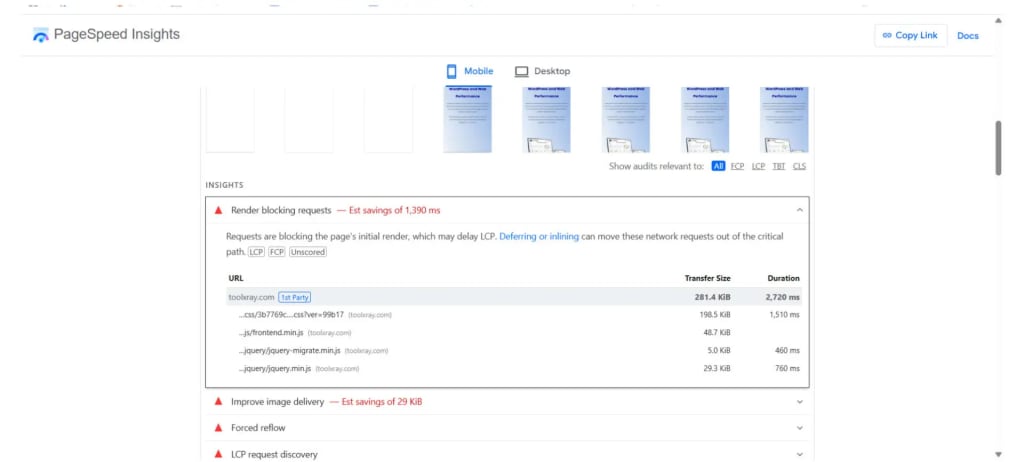
If your CSS or JavaScript files load before your page can render, the browser cannot display anything — including your LCP element — until those files finish loading. This is the “resource load delay” phase. On my site, this was causing a 2,710ms delay. Enabling async CSS loading and deferring JavaScript through LiteSpeed Cache fixed this completely.
3. Lazy Loading the LCP Element
This is a sneaky one. Lazy loading is great for images below the fold — it delays loading them until the user scrolls down. But if your LCP element (usually the hero image) is lazy loaded, the browser deliberately delays loading your most important image. Always make sure your above-the-fold images are excluded from lazy loading.
4. No Image Preloading
By default, the browser does not know which image is your LCP element until it has already parsed most of the HTML. Preloading tells the browser to start downloading the LCP (Largest Contentful Paint) image immediately — before it even reads the rest of the page. This can save 1-2 seconds of LCP time on its own.
5. Slow Server / Hosting
If your web hosting server responds slowly (high TTFB), every other metric suffers — including LCP. Shared hosting plans with overcrowded servers are a common culprit. Enabling full-page caching is the fastest free fix for slow TTFB.
6. Too Much Unused CSS
WordPress themes and plugins load CSS rules for every possible feature — even on pages where those features are not used. This bloated CSS file must be downloaded before your page can render. My site had 198KB of CSS loading on every page, most of it completely unused. QUIC.cloud’s Unique CSS generation stripped this down dramatically.
How to Fix LCP (Largest Contentful Paint) in WordPress — Step by Step
These are the exact steps I followed to bring my LCP from 11.1 seconds down to under 2 seconds. All free.
Fix 1: Compress and Convert Your Hero Image to WebP
This single fix had the biggest impact on my Largest Contentful Paint score.
- Go to squoosh.app — it is free, no signup needed
- Upload your hero image
- Set format to WebP
- Set quality to 75%
- Resize width to 768px for mobile (or 1200px for full-width desktop)
- Download and replace the original image in your WordPress media library
In LiteSpeed Cache → Image Optimization, also enable: Auto Request Cron (ON), Next-Gen Format → WebP, Optimize Original Images (ON). This automatically handles all future uploaded images.
Fix 2: Stop Lazy Loading Your LCP (Largest Contentful Paint) Element
In LiteSpeed Cache → Page Optimization → Media Settings, find the “Lazy Load Image Exclude” field. Add your hero image URL or the CSS class of your above-fold image section. This tells LiteSpeed Cache to load that image immediately instead of deferring it.
Fix 3: Enable Async CSS Loading via QUIC.cloud
This fixes the render-blocking CSS that causes the “resource load delay” phase of LCP.
- In LiteSpeed Cache → Dashboard, click “Link to QUIC.cloud”
- Create a free QUIC.cloud account
- Enable “Generate UCSS” (Unique CSS)
- Enable “Load CSS Asynchronously”
- Go back to LiteSpeed Dashboard → Unique CSS → Force Cron
QUIC.cloud will now generate page-specific CSS files that contain only the rules actually needed for each page — eliminating the unused CSS that was blocking your LCP (Largest Contentful Paint).
Fix 4: Defer JavaScript (Especially jQuery)
In LiteSpeed Cache → Page Optimization → JS Settings:
- JS Minify: ON
- Load JS Deferred: Set to “Deferred” — NOT “Delayed” (Delayed breaks mobile menus!)
- JS Combine: OFF for Elementor sites (increases file size significantly)
Deferring JavaScript means the browser loads and renders your page content first, then executes JavaScript after. This removes the JavaScript-caused element render delay that was adding seconds to my largest contentful paint.
Fix 5: Enable Full-Page Caching
Full-page caching means your server sends a pre-built HTML file to visitors instead of building the page from scratch on every request. This dramatically improves TTFB — the first phase of largest contentful paint. In LiteSpeed Cache → Cache Settings, enable Public Cache, Browser Cache, and set cache TTL to 604800 (7 days).
Fix 6: Force Cron After Every New Post
This is the most overlooked step. Every time you publish a new blog post, new images and CSS are added that QUIC.cloud has not processed yet. Go to LiteSpeed Cache → Dashboard and click “Force cron” on three items: Critical CSS, Unique CSS, and Viewport Image. If you skip this, your largest contentful paint can spike back up on new pages.
How to Check Your LCP Score Right Now
There are three free ways to check your Largest Contentful Paint score:
1. Google PageSpeed Insights (Recommended)
Go to pagespeed.web.dev, enter your URL, and click Analyze. Click the Mobile tab — this is what Google uses for ranking. Scroll down to see your LCP time and which element is causing it. This is your primary LCP diagnostic tool.
2. ToolXray — Full Technical Audit
ToolXray.com gives you a complete technical SEO audit including LCP, Core Web Vitals, server health, and WordPress-specific issues — all in 10 seconds, completely free. It is especially useful for getting a full picture of everything affecting your site speed, not just LCP.
3. Google Search Console
Google Search Console has a Core Web Vitals report that shows real user LCP data from actual visitors — not just a lab simulation. Once your site gets enough traffic, this becomes the most accurate measure of your actual LCP performance.
My LCP Results — Before and After All Fixes
Here are the actual numbers from my WordPress site (Elementor + LiteSpeed hosting) after applying every fix described in this guide:
| Metric | Before | After |
| LCP | 11.1 seconds ❌ | 1.9 seconds ✅ |
| FCP | 7.0 seconds ❌ | 0.8 seconds ✅ |
| TBT | 1,450ms ❌ | 0ms ✅ |
| Mobile Score | 58 / 100 🟠 | 96 / 100 🟢 |
| SEO Score | 92 / 100 | 100 / 100 ✅ |
Every single improvement was achieved using free tools: LiteSpeed Cache, QUIC.cloud, and Squoosh. No WP Rocket. No paid CDN. No developer.
3 Common LCP Mistakes Beginners Make
Mistake 1: Lazy Loading the Hero Image
Enabling lazy loading sitewide is one of the most common beginner mistakes. Lazy loading is great — but never for your LCP element. Always explicitly exclude above-the-fold images from lazy loading in your caching plugin settings.
Mistake 2: Using JS Combine with Elementor
JS Combine sounds like it should help — combining files means fewer requests, right? But with Elementor, enabling JS Combine inflates your JavaScript file from ~200KB to ~400KB or more. This makes LCP worse, not better. Always turn off JS Combine on Elementor sites.
Mistake 3: Fixing Desktop But Ignoring Mobile
Desktop LCP is almost always faster than mobile because it simulates a faster network. Many site owners optimize until their desktop LCP is green, then stop — without checking mobile. Since Google uses Mobile-First Indexing, your mobile LCP is what actually matters for rankings. Always check the Mobile tab in PageSpeed Insights.
Final Thoughts — Start Fixing Your LCP Today
Largest Contentful Paint is not as complicated as it sounds once you break it into its four phases and understand what causes each one.
The reality is that most WordPress LCP problems come from just three things: oversized images, render-blocking CSS, and lazy-loaded hero images. Fix those three, and you will see dramatic improvements in both your LCP time and your overall PageSpeed score.
Here is your action plan for today:
- Run a free audit at toolxray.com to see your current LCP time and element
- Check your mobile score in PageSpeed Insights — look at the LCP breakdown by phase
- Compress your hero image with Squoosh.app and convert to WebP
- Make sure your hero image is NOT lazy loaded
- Set up LiteSpeed Cache with proper CSS async and JS defer settings
- Connect QUIC.cloud for Unique CSS generation
A fast LCP is not just a technical win — it is a direct investment in your Google rankings, your user experience, and your business. The sites that load fast get found first, retain visitors longer, and convert better. Your Largest Contentful Paint fix starts right now. Go check your score — and then come back and fix it.

