
You have been publishing content consistently for months. Blog posts, landing pages, product pages — all live on your WordPress site. Then you open Google Search Console and see something that stops you cold:
“Couldn’t fetch.” “0 URLs submitted.” “Has errors.”
Your WordPress XML sitemap is not working — and until it is, Google is crawling your site without a roadmap. New content goes unnoticed. Rankings stall. Indexing delays stretch from days to weeks.
The worst part about a WordPress XML sitemap not working is that the problem is completely invisible from the frontend. Your site looks normal. Visitors browse normally. But Googlebot cannot find your pages efficiently — and you have no idea how long this has been going on.
This guide covers every reason a WordPress XML sitemap stops working, the exact diagnostic steps to find the cause, and the proven fixes — in the right order.
WordPress Duplicate Content: How to Find & Fix It (2026)
WordPress duplicate content silently kills rankings. Find every duplicate URL, fix canonical tags & clean up GSC warnings.

What Is a WordPress XML Sitemap and Why Does It Matter?
A WordPress XML sitemap is a structured file — located at yourdomain.com/sitemap.xml or yourdomain.com/sitemap_index.xml — that lists every important URL on your site. It tells Google which pages exist, when they were last updated, and how often they change.
WordPress does not generate a sitemap on its own. The sitemap is created and maintained by your SEO plugin — RankMath, Yoast SEO, or All in One SEO. When the sitemap works correctly, you submit its URL to Google Search Console and Google uses it to crawl and index your content efficiently.
When your WordPress XML sitemap is not working, Google still crawls your site — but it relies entirely on finding links between pages. New posts, freshly updated pages, and deep content that lacks internal links are consistently the last to get indexed. For a site publishing content regularly, a broken WordPress XML sitemap directly delays rankings.
Why Is Your WordPress XML Sitemap Not Working?
🔴 Sitemap Feature Disabled
The sitemap toggle in RankMath or Yoast was turned OFF — after an update, migration, or fresh install. No toggle = no sitemap generated at all.
🔴 SEO Plugin Conflict
RankMath and Yoast both installed — even one deactivated. Their sitemap routines conflict directly, producing a blank or broken XML file.
🟡 Stale Cache
Caching plugin stored an old sitemap snapshot. New posts added but sitemap still shows old URLs. Google keeps indexing the outdated version.
🟡 Broken Permalink Rules
After a migration or plugin install, WordPress rewrite rules become stale. Sitemap URL generation breaks and returns 404 or blank output.
🔵 Blocked in robots.txt
A security plugin or migration tool added a Disallow rule for /sitemap.xml. Sitemap exists but Googlebot is being told not to read it.
🟢 PHP Memory / Firewall
Large sites hit PHP memory limits mid-generation — producing incomplete XML. Or a Cloudflare/firewall rule blocks the sitemap URL entirely.
Quick Diagnosis — Which Type Do You Have?
| What You See | Most Likely Cause | Fix To Use |
|---|---|---|
| Sitemap URL returns 404 | Sitemap feature disabled or permalinks broken | Fix 1 then Fix 3 |
| Sitemap URL shows blank white page | Plugin conflict (two SEO plugins) or PHP memory | Fix 2 then Fix 5 |
| Sitemap loads but XML parsing error | PHP memory limit — output cut off mid-file | Fix 5 |
| GSC shows “Couldn’t fetch” | robots.txt blocking or Cloudflare/firewall rule | Fix 4 then Fix 6 |
| GSC shows 0 submitted / indexed | Stale cache or GSC submission not refreshed | Fix 3b + Fix 7 |
| Sitemap fine but new posts missing | Caching plugin serving old sitemap | Fix 3b |
Fix 1: Verify the Sitemap Feature Is Enabled in Your SEO Plugin
This is the most common reason a WordPress XML sitemap is not working — and the easiest to miss. After plugin updates, fresh installs, or site migrations, the sitemap generation toggle in your SEO plugin can get reset to OFF. No toggle = no sitemap file generated at all.
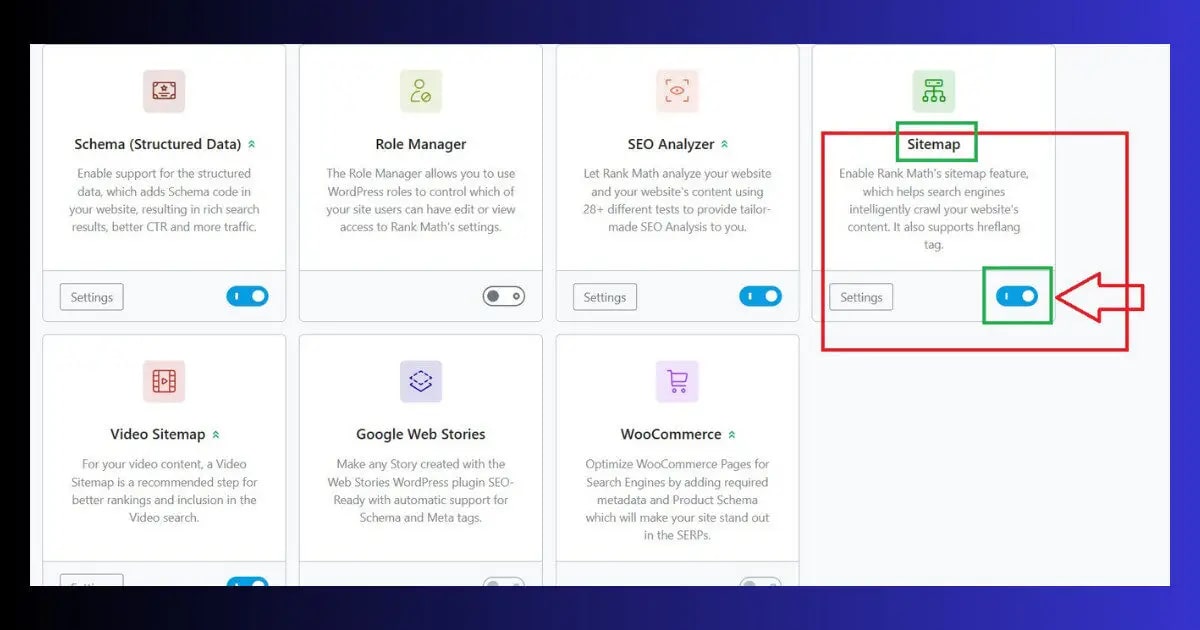
For RankMath Users
- Go to WordPress Dashboard → RankMath → General Settings
- Click the Sitemap tab in the left sidebar
- Verify the main Sitemap toggle at the top is turned ON (blue)
- Save changes → visit yourdomain.com/sitemap_index.xml to confirm it loads
For Yoast SEO Users
- Go to SEO → Features in your WordPress dashboard
- Find XML Sitemaps in the features list
- Verify the toggle is turned ON
- Save changes → visit yourdomain.com/sitemap_index.xml to confirm

For All in One SEO Users
- Go to All in One SEO → Sitemaps → XML Sitemap
- Verify Enable Sitemap is toggled ON
- Save → check yourdomain.com/sitemap.xml
Fix 2: Resolve the SEO Plugin Conflict
If you have both RankMath and Yoast SEO installed — even if one appears deactivated — your WordPress XML sitemap will not work correctly. Both plugins register their own sitemap generation routines with WordPress. When both are present, these routines conflict. The output is either a blank sitemap, a partial XML file, or an XML parsing error.
- Go to WordPress Dashboard → Plugins → Installed Plugins
- Check if both RankMath and Yoast SEO (or All in One SEO) appear in the list
- Decide which SEO plugin you want to keep — the one you actively configure and use
- For the plugin you are removing: click Deactivate → then click Delete
- After deleting — visit your sitemap URL again: yourdomain.com/sitemap_index.xml
- If the sitemap now loads cleanly — the conflict was the cause
Fix 3: Flush Permalink Rules and Purge Sitemap Cache
Two separate but related issues can cause a WordPress XML sitemap to stop working or show outdated URLs: stale WordPress permalink rewrite rules, and a caching plugin serving an old cached version of your sitemap.
Fix 3a — Flush Permalink Rules (Fixes 404 and Blank Sitemap)
WordPress builds your sitemap URLs using the same rewrite rule system that creates your post and page URLs. After a migration, server move, or certain plugin installations, these rules become stale. The sitemap URL returns a 404 or a blank page until the rules are rebuilt.
- Go to WordPress Dashboard → Settings → Permalinks
- Do not change your permalink structure — just click Save Changes with the existing setting
- This flushes and rebuilds all WordPress rewrite rules including sitemap URL routing
- Visit your sitemap URL again to confirm it now loads
Fix 3b — Purge Sitemap Cache (Fixes Missing New Posts in Sitemap)
If your sitemap loads but newly published content is not appearing in it, your caching plugin has stored a snapshot of the old sitemap. New posts exist on your site but are invisible to Google until the cache is purged and regenerated.
- LiteSpeed Cache: Dashboard → LiteSpeed Cache → Purge → Purge Sitemap. Then in your SEO plugin — regenerate the sitemap manually.
- WP Rocket: WP Rocket → Tools → Clear Cache → Clear All. Then regenerate sitemap from your SEO plugin settings.
- W3 Total Cache: Performance → Purge All Caches. Then regenerate sitemap.
Fix 4: Check Your robots.txt for Sitemap Blocking
This is the most surprising cause of a WordPress XML sitemap not working in Google Search Console — and it costs sites weeks of SEO progress before the owner discovers it. A robots.txt file that contains a Disallow rule matching your sitemap URL tells Googlebot not to access your sitemap — even though the file itself exists perfectly on your server.
How to Check Your robots.txt
- Open a new browser tab
- Navigate to yourdomain.com/robots.txt
- Read every line of the file carefully
- Look for any Disallow line that includes /sitemap, /sitemap.xml, or /sitemap_index.xml
- Also check for wildcard rules like Disallow: /*.xml — this blocks all XML files including your sitemap

What a Correct robots.txt Should Look Like
The Sitemap: line at the bottom actively tells Googlebot where your sitemap is located. Most SEO plugins add this line automatically when the sitemap feature is enabled. Verify it is present — and that no Disallow rule above it contradicts it.
How to Fix a Blocked robots.txt
- In RankMath: go to RankMath → General Settings → Edit robots.txt → remove any Disallow line blocking the sitemap URL
- In Yoast SEO: go to SEO → Tools → File Editor → edit robots.txt → remove conflicting Disallow rules
- Via cPanel File Manager: open public_html/robots.txt → edit directly → save
Fix 5: Increase PHP Memory Limit for Large Sites
On large WordPress sites — those with hundreds of posts, WooCommerce stores with many products, or sites with multiple custom post types — PHP can run out of allocated memory while generating the sitemap. When this happens, the XML output gets cut off mid-file. The sitemap URL loads, but the XML is incomplete and unparseable — causing an XML parsing error in Google Search Console.
How to Confirm This Is the Cause
- Open your sitemap URL: yourdomain.com/sitemap_index.xml
- View the page source (Ctrl + U in Chrome)
- Scroll to the very end of the source — if the XML does not end with a proper closing tag like </sitemapindex> — the output was cut off
- A missing closing tag confirms the PHP memory limit is the cause
How to Fix the PHP Memory Limit
- Open cPanel File Manager → public_html → wp-config.php
- Add this line before the /* That’s all, stop editing! */ comment:
- For WooCommerce stores or very large sites — use 512M instead of 256M
- Save wp-config.php
- Go to your SEO plugin settings and manually trigger a sitemap regeneration
- Visit the sitemap URL again and check the source for the proper closing tag
Growing site hitting PHP memory limits repeatedly?
Hostinger Business and Cloud plans offer higher PHP memory allocations, dedicated resources, and better MySQL performance — built for sites that have outgrown shared hosting constraints.
Fix 6: Check for Cloudflare or Firewall Blocking
If your sitemap loads fine in your browser but Google Search Console consistently shows “Couldn’t fetch” — the issue may not be your WordPress setup at all. A Cloudflare WAF rule or a WordPress security plugin can be blocking Googlebot’s IP range from accessing /sitemap.xml, treating it as automated bot traffic.
How to Diagnose a Firewall Block
- Open your sitemap URL in an incognito browser window — if it loads normally, your browser is fine
- Go to Google Search Console → URL Inspection Tool
- Enter your sitemap URL → click Test Live URL
- If GSC’s live test shows an error but your browser loads it fine — a firewall is blocking Google’s crawlers specifically
Cloudflare Fix
- Log into your Cloudflare dashboard → select your domain
- Go to Security → WAF → Custom Rules
- Review any rules that match URL paths containing sitemap or .xml
- Add an exception or bypass rule for /sitemap*.xml to allow Googlebot through
- Also check Security → Bots → Bot Fight Mode — if enabled, it can challenge Googlebot. Add Google’s crawlers to the allowlist.
Security Plugin Fix
- Wordfence: Wordfence → Firewall → Web Application Firewall → check for any rules blocking the sitemap URL pattern. Add an exclusion if needed.
- iThemes Security: Security → Settings → 404 Detection — aggressive 404 blocking can flag sitemap URLs from new crawlers. Add sitemap paths to the whitelist.
- All In One WP Security: Firewall → Basic Firewall Rules — check for any XML file blocking rules and add an exception for your sitemap.
Fix 7: Resubmit Your Sitemap in Google Search Console
After fixing the underlying cause — do not wait for Google to discover the change on its own. Google Search Console caches sitemap error states, and a “Couldn’t fetch” or “Has errors” status can persist for days even after your sitemap is fully functional again. Resubmitting forces an immediate fresh crawl attempt.
- Open Google Search Console → Sitemaps in the left sidebar
- Find your existing sitemap submission — note the current error status
- Click on the sitemap URL → click the three-dot menu → select Remove sitemap
- After removing — click Add a new sitemap
- Enter your sitemap URL: sitemap_index.xml (for RankMath and Yoast) or sitemap.xml
- Click Submit
- Monitor the Coverage report over the next 24–48 hours to confirm URLs are being queued for indexing

ToolXray Free WordPress Technical Audit
Check your sitemap health alongside Core Web Vitals, PageSpeed, TTFB, broken links and 80+ SEO signals — all in one free scan. No signup required.
How to Prevent WordPress XML Sitemap Issues
- Never run two SEO plugins simultaneously: RankMath, Yoast, and All in One SEO cannot coexist. Pick one and fully delete the others. Check your plugin list quarterly — developers sometimes install a second SEO plugin for testing and forget to remove it.
- Purge sitemap cache after every content publish: Configure your caching plugin to exclude sitemap URLs from caching — or build a habit of purging the sitemap cache every time you publish a batch of new content. LiteSpeed Cache has a dedicated Purge Sitemap button for this reason.
- Check robots.txt after every security plugin update: Security plugins can add or modify robots.txt rules during updates. Verify yourdomain.com/robots.txt still contains a proper Sitemap: line and no conflicting Disallow rules after any security plugin update.
- Monitor GSC Coverage report weekly: The Coverage report shows you the exact number of submitted vs indexed URLs. A sudden drop or a “Has errors” status is the earliest warning sign that your WordPress XML sitemap has stopped working. Catching it early minimizes indexing delays.
- Check INP and Core Web Vitals after fixing: A sitemap outage can temporarily suppress rankings. After fixing — monitor your performance signals and read Fix INP in WordPress and Fix LCP in WordPress to ensure your recovery is complete.
- Use a site monitoring tool: Tools that regularly fetch your sitemap URL and alert you if it returns an error give you instant notification when the sitemap breaks — before Google has been crawling blind for days.
The Bottom Line
A WordPress XML sitemap not working is almost always caused by one of seven issues: sitemap feature disabled in your SEO plugin, plugin conflict between two SEO tools, stale permalink rules, cached outdated sitemap, robots.txt blocking, PHP memory limits, or a Cloudflare/firewall rule intercepting Googlebot. Work through the fixes in order and you will identify the cause before you reach Fix 5 in most cases.
The most important step after any fix is to resubmit your sitemap in Google Search Console immediately — not passively wait for Google to rediscover the change. A fresh submission triggers an immediate crawl attempt and clears the cached error state from your GSC dashboard.
The broader lesson: your WordPress XML sitemap is one of the most important files on your site for SEO, yet most site owners never check it after the initial setup. A monthly 30-second check of your GSC Sitemaps panel is enough to catch any issue before it causes meaningful ranking damage.
🔍 Free WordPress Technical Audit
Check your sitemap health, Core Web Vitals, PageSpeed, broken links and 80+ SEO signals — free, no signup
Run Free Audit at ToolXray →Related Articles
Complete Technical SEO Audit
Sitemap fixed — now audit the full technical stack. Crawlability, indexing, schema and 80+ signals.
ERR_TOO_MANY_REDIRECTS Fix
Another WordPress error that silently blocks Googlebot. 7-step diagnosis and fix guide.
WordPress Speed Optimization
After fixing your sitemap — optimize for PageSpeed 90+ scores and faster indexing signals.
Advanced Schema Markup Guide
Sitemap gets Google to your pages — schema gets you rich results. The next SEO layer to implement.
Mobile-Friendly Website Check
Once Google indexes your pages via sitemap — confirm they pass mobile usability checks too.
Free Alternative to Ahrefs
Monitor your site’s indexing recovery and rankings with free SEO tools — no paid subscription needed.

