
Technical SEO for beginners starts with one simple idea: before Google can rank your content, it needs to find it, read it, and understand it. Technical SEO is everything you do to make that process as smooth and fast as possible.
Technical SEO for beginners is the missing piece that most beginner guides skip entirely — yet it is the foundation that determines whether all your other SEO efforts actually produce results. You can write the best post in your niche, but if technical SEO for beginners fundamentals are not in place on your site, Google will never show that post to the people searching for it.
Most SEO guides start with keywords and content. But here is what they miss: even the best-written post will never rank if Google cannot crawl it, cannot index it, or cannot load it fast enough. Technical SEO for beginners is the foundation that makes every other SEO effort actually work.
This guide explains every core concept of technical SEO for beginners in plain language — what it is, why it matters, and exactly what to check and fix on your WordPress site. No jargon. No $100/month tools. Just the practical steps that move the needle.

Why Technical SEO for Beginners Matters More Than Ever in 2026
The reason technical SEO for beginners produces faster results than content SEO is simple: technical fixes remove active blockers. When you fix a crawlability issue, Google can immediately start indexing pages it previously could not reach. When you improve Core Web Vitals, Google’s ranking algorithm responds within weeks. Technical SEO for beginners is not incremental improvement — it is removing ceilings that were preventing any growth at all.
In 2026, technical SEO for beginners is more important — not less — than it was five years ago. Three major shifts have happened:
- Core Web Vitals are confirmed ranking signals: Google now uses your page speed, layout stability, and interaction responsiveness as direct ranking factors. A slow, unstable page loses rankings regardless of how good the content is.
- Mobile-First Indexing is universal: Google crawls and ranks your mobile version first. If your site breaks on mobile, your rankings suffer — even for desktop searches.
- AI search engines are crawling your site too: ChatGPT, Perplexity, and Google’s AI Overviews all crawl your site and use technical signals to decide whether to surface your content. Good technical SEO now means visibility in both traditional search and AI search.
The 7 Core Areas of Technical SEO for Beginners
1️⃣ Crawlability
Can Google find and access your pages? Robots.txt, sitemaps, and internal linking all control how well Googlebot navigates your site.
2️⃣ Indexability
Are your pages actually stored in Google’s database? Noindex tags, canonicals, and duplicate content determine what gets indexed and what does not.
3️⃣ Site Speed
How fast do your pages load? Core Web Vitals (LCP, INP, CLS) are direct ranking signals. Slow sites rank lower — period.
4️⃣ Mobile-Friendliness
Does your site work perfectly on phones? Google indexes your mobile version first. A broken mobile experience directly hurts all your rankings.
5️⃣ HTTPS Security
Is your site served over HTTPS? Google treats HTTP sites as not secure — a ranking disadvantage and a visitor trust problem simultaneously.
6️⃣ Structured Data
Are you using schema markup to help Google understand your content? Schema enables rich results — stars, FAQs, breadcrumbs — that increase click-through rates.
Area 1: Crawlability — Help Google Find Your Pages
The first step in technical SEO for beginners is making sure Google can actually find your content. Googlebot discovers pages by following links — from your sitemap, from other pages on your site, and from external sites linking to you.
XML Sitemap
Your XML sitemap is a map of your entire site that you submit directly to Google. It tells Googlebot which pages exist and how often they are updated — dramatically speeding up the discovery of new content.
- In WordPress with RankMath: RankMath → Sitemap Settings → enable XML Sitemap
- Your sitemap URL will be: yoursite.com/sitemap_index.xml
- Submit it in Google Search Console → Sitemaps → Add sitemap
- Check the status — GSC will confirm how many pages are submitted and indexed
Robots.txt
Your robots.txt file tells search engines which pages they can and cannot crawl. A mistake in this file can accidentally block your entire site from Google.
- Access it at: yoursite.com/robots.txt
- Make sure it does NOT disallow the root: Disallow: / — this blocks everything
- Standard WordPress robots.txt should allow all:
Internal Linking
Every page on your site should be reachable within 3 clicks from the homepage. Orphan pages — pages with no internal links pointing to them — are often never discovered by Googlebot even if they are published.
Area 2: Indexability — Make Sure Your Pages Appear in Search
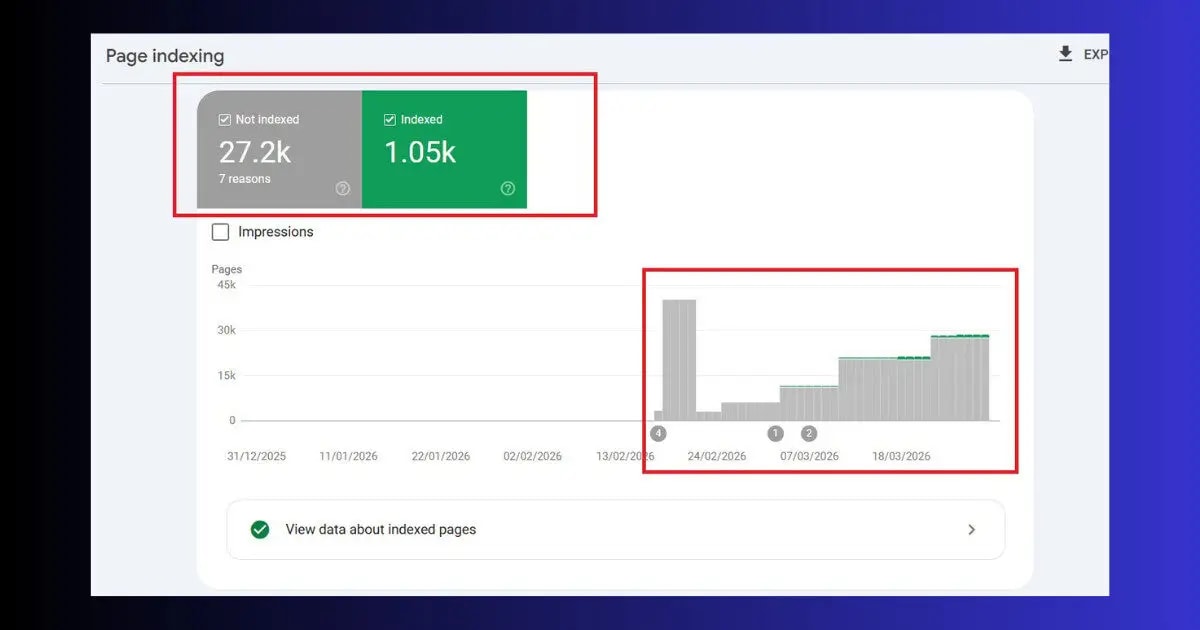
Crawling and indexing are different. Googlebot may crawl a page but still choose not to index it. Understanding why is a critical part of technical SEO for beginners.
Common Indexing Issues to Check
| Issue | What It Means | How to Fix |
|---|---|---|
| Noindex tag on page | You told Google not to index this page | Remove noindex from RankMath settings |
| Crawled — not indexed | Google visited but chose not to index | Improve content quality and internal links |
| Duplicate content | Two pages with same/similar content | Add canonical tag pointing to main version |
| Blocked by robots.txt | Googlebot cannot access the page | Fix robots.txt to allow the URL |
| Soft 404 | Page exists but has no real content | Add substantial content or redirect to relevant page |
Area 3: Site Speed — Core Web Vitals Explained for Beginners
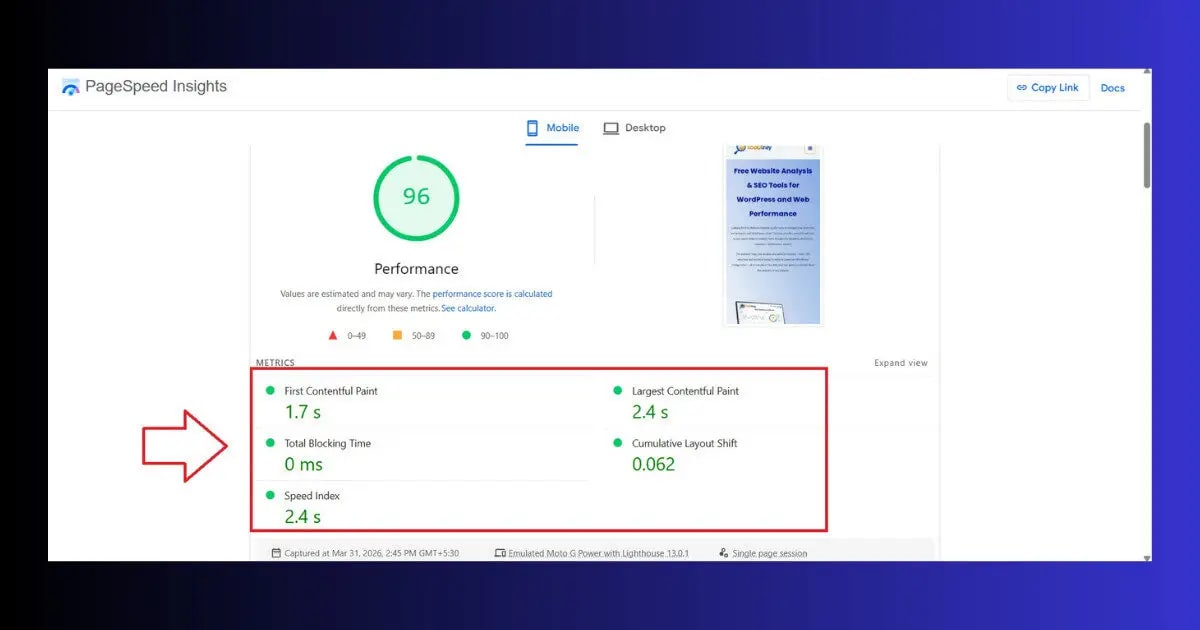
Site speed is one of the most important areas of technical SEO for beginners — and also one of the most measurable. Google uses three specific speed metrics called Core Web Vitals as direct ranking signals.
The Three Core Web Vitals
⚡ LCP — Largest Contentful Paint
What it measures: How long it takes for the largest visible element (usually your hero image or heading) to load.
Target: Under 2.5 seconds
WordPress fix: Optimize images, enable caching, use a CDN
👆 INP — Interaction to Next Paint
What it measures: How quickly your page responds when a visitor taps or clicks something.
Target: Under 200 milliseconds
WordPress fix: Reduce JavaScript, remove unused plugins
📐 CLS — Cumulative Layout Shift
What it measures: How much your page layout shifts while loading (e.g., buttons jumping around).
Target: Under 0.1
WordPress fix: Set image dimensions, avoid injecting content above fold
How to Check Your Core Web Vitals
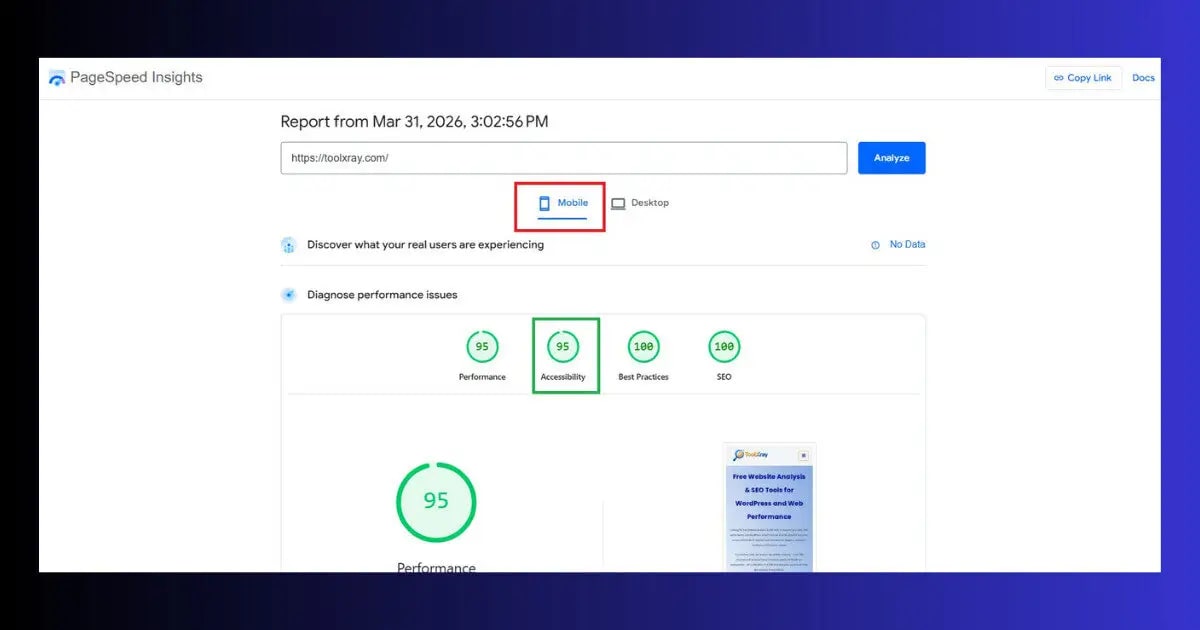
- Go to pagespeed.web.dev → enter your URL → click Analyze
- Click the Mobile tab — this is what Google actually uses for ranking
- Look for the Core Web Vitals section — green is good, orange needs work, red is urgent
- Scroll down to Opportunities section — these are your specific actionable fixes
Diagnose and resolve 404 errors, blank pages, and caching conflicts to restore your SEO indexing instantly.
Area 4: Mobile-Friendliness — Google’s Top Priority
Mobile-first indexing means Google crawls and ranks your mobile version first. For technical SEO beginners on WordPress, this is one of the easiest wins — most modern WordPress themes are responsive by default. But you still need to verify it.
How to Check Mobile-Friendliness
- Go to search.google.com/test/mobile-friendly
- Enter your URL → click Test URL
- “Page is mobile friendly” = you are good ✅
- “Page is not mobile friendly” → the results show exactly what is wrong
Common Mobile Issues to Fix
- Text too small to read: Set base font size to 16px minimum in your theme settings
- Tap targets too small: Buttons must be at least 44×44px — increase padding around buttons and links
- Content wider than screen: Usually caused by an image or table — add max-width: 100% to the element
- Viewport not set: Add <meta name=”viewport” content=”width=device-width, initial-scale=1″> to your theme’s header
Area 5: HTTPS Security — Non-Negotiable in 2026
HTTPS (the padlock icon in your browser) is a confirmed Google ranking signal and a basic visitor trust requirement. Any WordPress site still running on HTTP in 2026 is both ranking lower and actively losing visitor trust.
Check Your HTTPS Status
- Look for the padlock icon in your browser’s address bar — green padlock = HTTPS active
- Your URL should start with https:// not http://
- In Hostinger hPanel — go to SSL → Manage to see your certificate status
Fix Mixed Content Warnings
Mixed content happens when your pages load mostly over HTTPS but some elements (images, scripts) still load over HTTP. This triggers browser security warnings and reduces Google’s trust in your site.
- Go to WordPress → Settings → General → confirm both URLs use https://
- Install Better Search Replace plugin → replace all http://yoursite.com with https://yoursite.com in the database
- Clear all caches → test your site
Area 6: URL Structure — Clean URLs That Google Loves
Clean, readable URLs are a fundamental part of technical SEO for beginners. They help Google understand what a page is about before even crawling it — and they help visitors decide whether to click.
WordPress URL Best Practices
- Use Post name structure: yoursite.com/post-title/ — go to Settings → Permalinks → select Post name → Save Changes
- Keep URLs short: Remove stop words (a, the, in, of) from your slug. /fix-wordpress-errors/ beats /how-to-fix-the-common-wordpress-errors/
- Use hyphens, not underscores: Google treats hyphens as word separators. /technical-seo/ not /technical_seo/
- Include your focus keyword: Your URL slug should contain your main keyword — WordPress sets this automatically based on your post title
- Never change URLs on live pages: Changing an indexed URL creates a 404 error — always use 301 redirects if you must change a URL
Area 7: TTFB — The Speed Signal Most Beginners Miss
Time to First Byte (TTFB) is how long it takes your server to start responding after a visitor requests a page. Most beginners focus on PageSpeed scores but ignore TTFB — and it is one of the most impactful technical SEO signals on your entire site.
- Good TTFB: Under 800ms
- Needs improvement: 800ms–1,800ms
- Poor: Over 1,800ms
On Hostinger with LiteSpeed — enable LiteSpeed Cache → Object Cache and make sure QUIC.cloud CDN is active. These two changes typically reduce TTFB from 1,200ms to under 300ms on a standard WordPress site.
Technical SEO Beginner Checklist — Run This Today
Use this checklist to audit your WordPress site right now. Each item takes under 10 minutes to check and fix:
- 1XML sitemap created and submitted in Google Search Console
- 2Robots.txt not accidentally blocking your site (yoursite.com/robots.txt)
- 3WordPress → Settings → Reading → “Discourage search engines” is UNCHECKED
- 4All key pages indexed in GSC (check Coverage → Pages report)
- 5HTTPS active — padlock visible in browser address bar
- 6No mixed content warnings (check in Chrome DevTools → Console)
- 7PageSpeed Insights mobile score above 75
- 8LCP under 2.5 seconds on mobile
- 9Google Mobile-Friendly Test passes
- 10Permalink settings set to Post name
- 11TTFB under 800ms (check in PageSpeed Insights → Server response time)
- 12Schema markup active on key pages (FAQ schema on blog posts)
- 13No 404 errors on important pages (check GSC Coverage report)
- 14No redirect chains (A→B→C — should be direct A→C)
- 15Images have alt text on every post

Run Your Free Technical SEO Audit — ToolXray
Check all 15 checklist items above automatically — Core Web Vitals, TTFB, mobile, broken links, 80+ signals. Free, no signup needed.
Free Technical SEO Tools Every Beginner Needs
| Tool | What It Checks | Cost |
|---|---|---|
| ToolXray | Core Web Vitals, TTFB, mobile, 80+ signals | Free ✅ |
| Google Search Console | Indexing, crawl errors, Core Web Vitals, sitemaps | Free ✅ |
| PageSpeed Insights | LCP, INP, CLS, performance opportunities | Free ✅ |
| Google Mobile-Friendly Test | Mobile layout and usability | Free ✅ |
| Rich Results Test | Schema markup validation | Free ✅ |
| Ahrefs/SEMrush | Full crawl, backlinks, keyword data | Paid 💰 |
Most Common Technical SEO Mistakes Beginners Make
- Checking “Discourage search engines” in WordPress: The single most common technical SEO mistake. Every new WordPress site has this option — it is meant for development, not live sites. Check Settings → Reading right now.
- Ignoring mobile performance: Running PageSpeed Insights on Desktop only. Always check the Mobile tab — this is what Google ranks you on.
- Not submitting a sitemap: Google can discover your pages through links, but a submitted sitemap dramatically speeds up indexing of new content. Submit yours in Google Search Console immediately.
- Changing URLs on live pages: Every URL change on an indexed page breaks that page’s rankings and backlinks. Change URL structure only on new sites.
- Ignoring error pages: Broken links, 404 errors, and 500 server errors waste crawl budget and signal low quality to Google. Check GSC Coverage weekly.
- Installing too many plugins: Each plugin adds JavaScript and database queries. Too many plugins is the most common cause of poor Core Web Vitals on WordPress sites.
- Skipping image optimization: Broken images and oversized images both hurt Core Web Vitals. Every image needs alt text and should be compressed before uploading.
- Not monitoring GSC weekly: Technical issues — crawl errors, manual actions, indexing drops — appear in GSC before they show up as traffic drops. Check weekly, not monthly.
Hosting affects your technical SEO more than most beginners realize
Hostinger Business and Cloud plans include LiteSpeed servers (3x faster than Apache), free CDN, NVMe SSD storage, and PHP 8.x — all of which directly improve TTFB, LCP, and Core Web Vitals scores without any plugin changes.
The Bottom Line
The beauty of technical SEO for beginners is that you do not need to do everything at once. Fix the critical blockers first — the accidentally checked “discourage search engines” setting, the missing sitemap, the failing Core Web Vitals. Each fix compounds on the previous one. Technical SEO for beginners practiced consistently — monthly GSC checks, quarterly full audits — keeps your site’s foundation strong as it grows.
Technical SEO for beginners does not require expensive tools, developer skills, or years of experience. It requires checking seven specific areas — crawlability, indexing, speed, mobile-friendliness, HTTPS, URL structure, and TTFB — and fixing the issues you find in each one.
Start with the free tools: Google Search Console, PageSpeed Insights, and ToolXray’s free audit. Run the 15-item checklist above. Fix the red items first, then the orange. Once your technical foundation is solid, every piece of content you publish and every link you build will actually work — because Google can find, read, and trust your site.
Technical SEO is not something you do once. WordPress updates, plugin changes, and new content can all introduce technical issues. A monthly check of Google Search Console and a quarterly full audit keeps your technical foundation strong over time.
🔍 Free Technical SEO Audit — ToolXray
Check all Core Web Vitals, TTFB, mobile performance, broken links and 80+ signals — free, no signup
Run Free Audit at ToolXray →Related Articles
Complete Technical SEO Audit Guide
After learning the basics — run a full audit with exact steps for WordPress sites.
Fix LCP in WordPress
LCP is the most impactful Core Web Vital — exact WordPress fixes that move the needle.
WordPress Speed Optimization Guide
Complete performance guide — caching, images, JavaScript, CDN and PageSpeed 90+.
How to Check Mobile-Friendliness
4 free tools to verify mobile performance — pass Google’s mobile-first indexing test.
Why TTFB Is Critical in 2026
The speed signal most beginners miss — what TTFB is and how to fix it on WordPress.
How to Use PageSpeed Insights
Master reading the PageSpeed report — understand every metric and what to fix first.
Content to Code Ratio Guide
Technical SEO signal beginners often miss — affects both speed and crawl efficiency.
How to Find Any WordPress Theme
Find which themes have the best technical SEO foundations before choosing one.

