
You land on a website. Clean design. Fast load. Perfect layout.
And your first thought is — how do I get my site to look like this?
Here is something most people do not know: if that site runs on WordPress, you can find out its exact theme, the plugins powering its design, and even its page builder — in under 10 seconds. No coding. No browser extensions. Just a WordPress theme detector and a URL.
And copying that design for your own site? Completely legal. The themes are publicly available. The plugins are publicly available. There is nothing stopping you from building an almost identical site — as long as you are not copying the actual written content.
This guide shows you exactly how to do it — step by step.
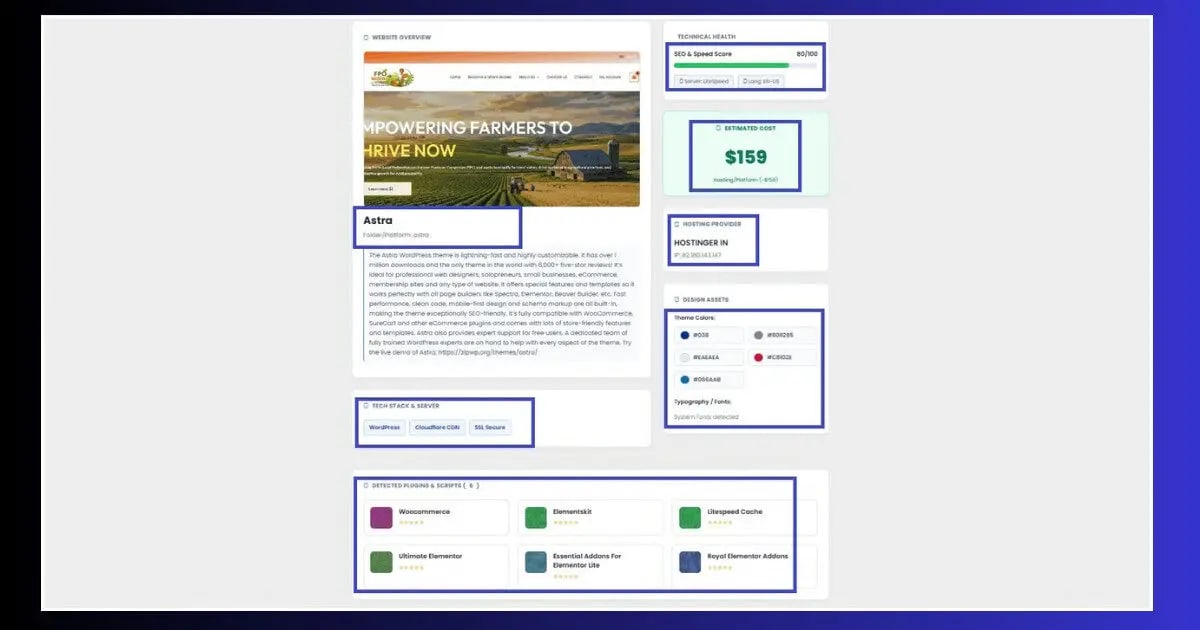
What Is a WordPress Theme Detector?
A WordPress theme detector is a free online tool that scans any website’s source code and identifies the WordPress theme powering its design. Most good detectors also reveal the active plugins — so you can see not just what the site looks like, but exactly how it was built.
The way a WordPress theme detector works is straightforward: every WordPress site loads a file called style.css from its theme folder. This file contains the theme name, version, and author in a standard format — publicly visible in the page source. A detector reads this file and cross-references it against a database of known themes to return full details.
Why Would You Want to Detect Someone’s WordPress Theme?
There are more legitimate reasons to use a WordPress theme detector than most people realize:
Design Inspiration
You found a site with a layout you love. Detect the theme → buy or download it → build your site with the same foundation.
Competitor Research
Find out what theme and plugins your direct competitors use. Understand their technical stack before you build your own.
Client Work
Client points to a site they like and says “I want something like this.” A wordpress theme detector tells you exactly what to use in 10 seconds.
Plugin Discovery
That smooth scroll effect. That sticky header. That popup. A plugin detector reveals exactly which plugin is creating every feature you admire.
Performance Research
A competitor’s site loads in 0.8 seconds. What caching plugin are they using? What CDN? A theme and plugin scan tells you immediately.
Audit Your Own Site
Not sure which plugins are actually active on your site? Run your own URL — useful for quickly confirming your current technical setup.
How to Use ToolXray’s WordPress Theme & Plugin Analyzer
ToolXray’s WordPress theme detector is the fastest way to find any site’s theme and plugins in one scan. Here is the exact process:
- Go to toolxray.com/detect-wordpress-theme/
- Paste the URL of any website you want to analyze into the input box
- Click Detect Theme — the scan takes 5–10 seconds
- View the results: theme name, version number, author, and active plugins all in one screen
- Click the theme name to go directly to its download or purchase page
- Use the plugin list to identify which plugins you want to install on your own site
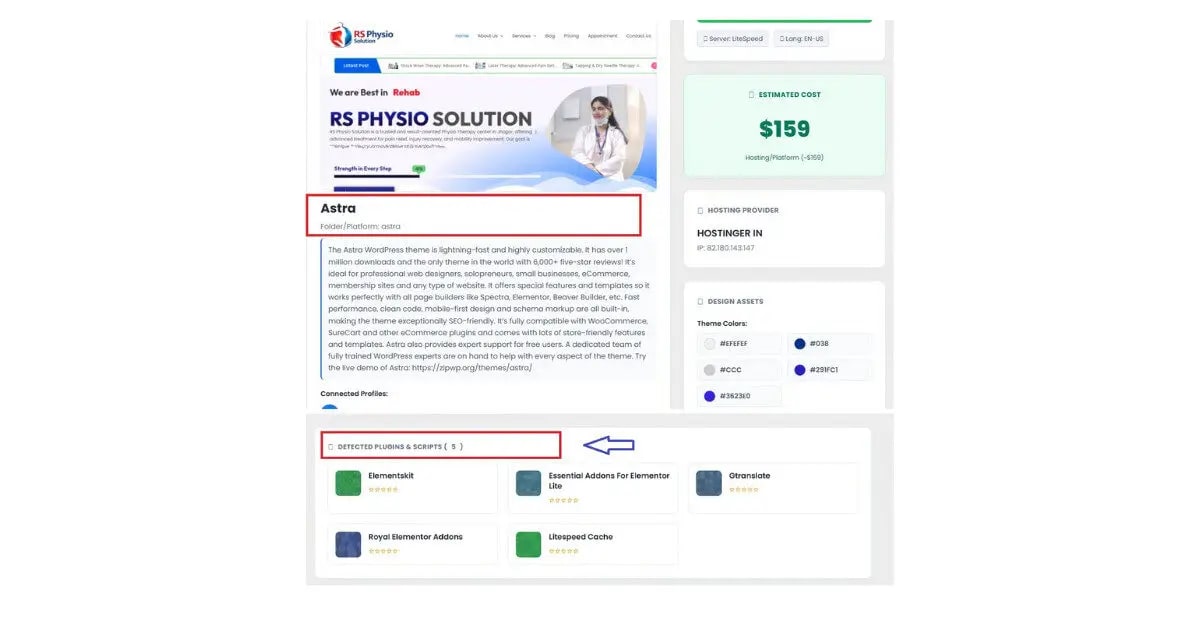
ToolXray WordPress Theme & Plugin Analyzer
Detect any site’s theme, version, plugins, and page builder — free, no signup, instant results
How to Find a WordPress Theme Manually (Without a Detector)
If you want to understand how a WordPress theme detector works under the hood — or if a tool is not returning results for a specific site — here is how to find the theme manually using your browser.
Method 1 — View Page Source
- Open the website in your browser
- Press Ctrl + U (Windows) or Cmd + Option + U (Mac) to view the page source
- Press Ctrl + F and search for wp-content/themes/
- The text immediately after themes/ is the theme folder name — which is usually the theme name
- Search that theme name on WordPress.org Themes or browse ThemeForest for premium options or Google to find the full theme details

Method 2 — Check the style.css File Directly
Once you know the theme folder name from Method 1, you can get the full theme details — name, version, author, description — by accessing the theme’s stylesheet directly:
Replace THEMENAME with the folder name you found. This file contains all the theme metadata in a standard WordPress format — exactly what any wordpress theme detector reads automatically.

What Can a this tool Actually Reveal?
A good the detector goes well beyond just the theme name. Here is everything ToolXray’s analyzer can surface from a single scan:
| What Gets Detected | What It Tells You | Why It’s Useful |
|---|---|---|
| Theme name | Exact theme being used | Find and buy/download the same theme |
| Theme version | Which version is installed | Check if they’re running an outdated version |
| Theme author | Who made the theme | Find other themes from the same developer |
| Parent theme | Child theme’s base | Understand the full theme stack |
| Active plugins | Plugins visible in source | Replicate features you admire |
| Page builder | Elementor, Divi, Gutenberg | Match their editing experience |
| SEO plugin | Rank Math, Yoast, etc. | Use the same SEO setup |
| Caching plugin | LiteSpeed, W3 Total Cache | Copy their performance stack |
How to Copy a WordPress Site’s Design Legally — Step by Step
Once your a theme scanner reveals the theme and plugins, here is how to legally and correctly replicate that design on your own site:
- Run the scan — Use ToolXray’s it on the site you want to replicate. Note the theme name, page builder, and key plugins.
- Install the theme — Go to your WordPress dashboard → Appearance → Themes → Add New → search the theme name → Install → Activate. For premium themes, purchase from the author’s site and upload the zip file.
- Install matching plugins — Plugins → Add New → install the same page builder (Elementor, Divi, etc.) and any functional plugins you want to replicate.
- Import a demo — Most premium themes include a one-click demo import. This gives you the exact layout, sections, and design structure of the theme’s showcase site — a massive shortcut.
- Customize with your brand — Replace the demo content with your own text, images, logo, and colors. This is where your site becomes uniquely yours.
- Do NOT copy written content — The theme and plugins are freely available to anyone. The original site’s written content — blog posts, page copy, product descriptions — is copyrighted. Never copy it.

When a this tool Cannot Find Results
A the detector works on the vast majority of sites — but there are cases where detection is limited or unavailable:
- Custom / bespoke themes: Large sites like WPBeginner, TechCrunch, or major news sites use themes built from scratch by their development teams — not available anywhere for purchase.
- Heavy caching or CDN obfuscation: Some hosting configurations strip theme information from the source. Try running the scan on a specific internal page rather than the homepage.
- Child themes with unusual naming: The folder name may not match the theme’s public name. Search the folder name directly on Google and WordPress.org.
- Headless WordPress setups: Sites using WordPress as a backend with a custom React or Next.js frontend will not expose standard theme file paths in the HTML.
- Non-WordPress sites: A a theme scanner only works on WordPress sites. Wix, Squarespace, Webflow, and Shopify sites cannot be detected by these tools.
Go Beyond Theme Detection — Full Technical Audit
A it tells you what a site is built with. But it does not tell you how well that site is performing technically — its Core Web Vitals, PageSpeed score, TTFB, missing meta tags, or crawl errors.
For that, ToolXray’s full SEO audit tool runs a complete technical analysis covering 80+ signals — free, no signup, results in under 10 seconds.
Free WordPress Technical Audit — ToolXray
Core Web Vitals, PageSpeed, TTFB, LCP, INP, broken links, meta tags — 80+ checks in one free scan
Best Free theme detectors — Honest Comparison
There are several this tool tools available. Here is how the main options compare:
| Tool | Theme Detection | Plugin Detection | SEO Audit | Speed |
|---|---|---|---|---|
| ToolXray | ✅ Yes | ✅ Yes | ✅ Yes (80+ checks) | ⚡ Very Fast |
| WPThemeDetector | ✅ Yes | ✅ Yes | ❌ No | Medium |
| IsItWP | ✅ Yes | ✅ Yes | ❌ No | Medium |
| ScanWP | ✅ Yes | ✅ Yes | ❌ No | Slow |
| Kinsta Detector | ✅ Yes | ❌ No | ❌ No | Fast |
The Bottom Line
A the detector is one of the most practical tools a site owner can use — whether you are building your first WordPress site and want to replicate a design you love, doing competitive research, or helping a client match a reference site they admire.
The process is simple: find a site you like, run it through a a theme scanner, install the same theme and plugins, import the demo, and customize with your own content. Completely legal, completely practical, and done in an afternoon.
The one rule: never copy written content. The theme is freely available. The words are not.
Start with ToolXray’s free WordPress Theme & Plugin Analyzer — paste any URL and get instant results with no signup required. Then run a full technical audit to make sure your new theme is not quietly hurting your rankings.
🔍 Detect Any WordPress Theme Instantly
Free • No signup • Theme + plugins + page builder in one scan
Try Theme Detector Free →Related Articles
WordPress 404 Error Fix
7 proven fixes for pages that return “not found” — from permalink regeneration to .htaccess repair.
White Screen of Death Fix
Blank white page after installing a new theme? 9 fixes that work — no coding required.
WordPress Speed Optimization
Found a fast theme? Here’s how to optimize it for PageSpeed 90+ scores.
Complete Technical SEO Audit
After installing a new theme — run this audit to catch any technical issues it introduced.
Free Alternative to Ahrefs
ToolXray vs Ahrefs vs SEMrush — full comparison for site owners on a budget.

