
WordPress permalink settings control the URL structure of every post, page, and category on your site. When they break — or are configured incorrectly — every page on your site returns a 404 error, your SEO rankings take an immediate hit, and your visitors see nothing but “Page Not Found” where your content used to be.
The good news: fixing broken WordPress permalink settings is one of the simplest repairs in all of WordPress. In the majority of cases, it takes under 60 seconds. This guide covers every scenario — from the one-click fix to advanced cases involving .htaccess corruption and database overrides — so you can restore your site regardless of what caused the problem.
Understanding WordPress permalink settings correctly from the start also prevents these issues from recurring — because most permalink problems are caused by one of three easily avoidable mistakes that beginners make when first setting up their site.
Every WordPress site owner needs to understand WordPress permalink settings — not just to fix them when they break, but to configure them correctly from the start. Correct WordPress permalink settings are the foundation of every clean URL on your site, every internal link, and every page Google crawls and indexes.
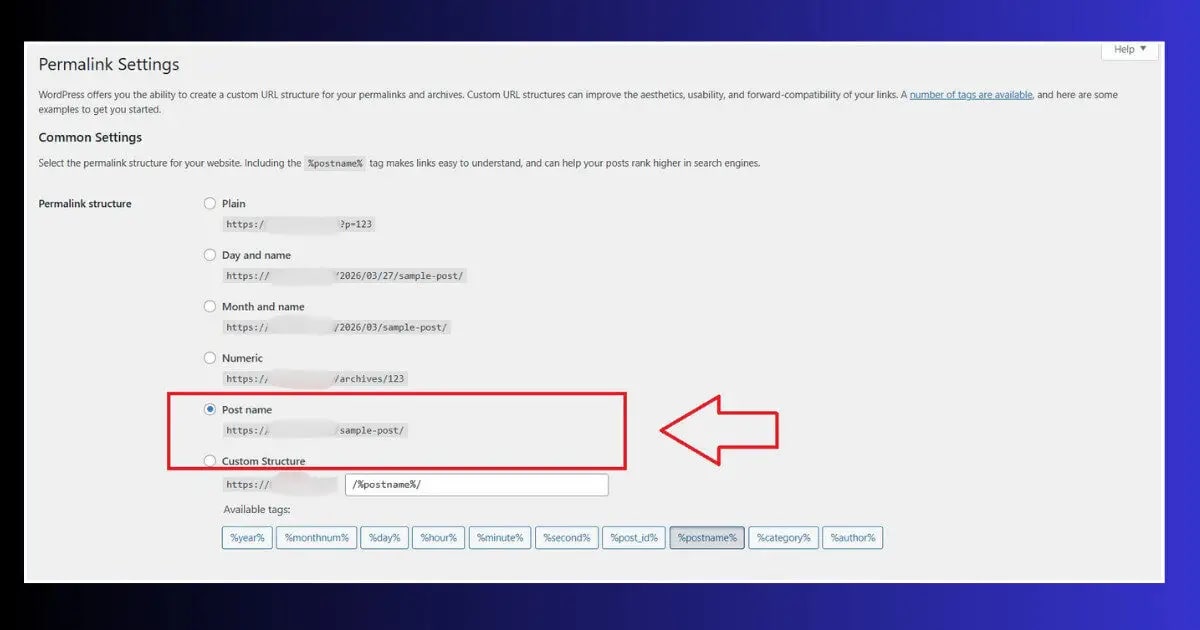
What Are WordPress Permalink Settings?
WordPress permalink settings define the URL structure for your content. Instead of showing visitors a URL like yoursite.com/?p=123, good permalink settings create clean, readable URLs like yoursite.com/how-to-fix-permalinks/.
Every time you publish a post or page, WordPress uses your WordPress permalink settings to generate its URL. WordPress then stores rules in the .htaccess file that tell your server how to translate those clean URLs into actual page content. When either the settings or the .htaccess file becomes incorrect — every URL on your site stops working.
| Permalink Structure | Example URL | SEO Impact |
|---|---|---|
| Plain | yoursite.com/?p=123 | ❌ Poor — no keywords in URL |
| Day and name | yoursite.com/2026/03/27/post-name/ | ⚠️ OK — date makes URLs long |
| Month and name | yoursite.com/2026/03/post-name/ | ⚠️ OK — still date-heavy |
| Numeric | yoursite.com/archives/123 | ❌ Poor — no keywords |
| Post name ✅ | yoursite.com/post-name/ | ✅ Best — clean, keyword-rich |
| Custom structure | yoursite.com/category/post-name/ | ✅ Good — if needed |
Why Do WordPress Permalink Settings Break?
Understanding why WordPress permalink settings break is what separates a developer who fixes the problem in 60 seconds from one who spends hours trying random solutions. In every case of broken WordPress permalink settings, the root cause is the same: the .htaccess rewrite rules that translate your clean URLs into database queries are missing, corrupted, or conflicting with another rule on the server.
🔴 Plugin Modifies .htaccess
Security plugins, SEO plugins, and redirect managers all write rules to .htaccess. A conflict between two plugins’ rules corrupts the file and breaks all permalink routing.
🔴 Site Migration
Moving WordPress to a new domain or server leaves old URLs in the database. The permalink structure works but points to the wrong domain — causing 404 errors on every page.
🟡 .htaccess Permission Issue
If WordPress cannot write to .htaccess, permalink setting changes never save properly. Every attempt to update permalink settings silently fails.
🟡 WordPress Update
Occasionally, a WordPress core update overwrites or resets the .htaccess file — wiping out the rewrite rules that make WordPress permalink settings work.
🔵 Hosting Change
Different servers handle mod_rewrite differently. Moving to a new host without verifying mod_rewrite is enabled breaks all WordPress permalink settings that use clean URLs.
🟢 Manual .htaccess Edit
A single typo in a manually edited .htaccess file breaks the rewrite rules — causing all WordPress permalink settings to fail site-wide.
Fix 1: Save Permalink Settings — The One-Click Fix
The WordPress permalink settings page has a built-in repair mechanism: clicking Save Changes regenerates the .htaccess rewrite rules from scratch — even if you do not change any setting. This single action resolves the majority of broken permalink situations.
- Go to WordPress Dashboard → Settings → Permalinks
- Do not change anything — simply click Save Changes at the bottom
- Test your site — open a blog post or page and confirm it loads correctly
- If still broken — change to a different structure (e.g., switch from Post name to Plain) → Save Changes → then switch back → Save Changes again
- This double-save forces WordPress to completely rebuild the .htaccess rewrite rules
Fix 2: Reset the .htaccess File Manually
When clicking Save Changes does not fix the broken your URLs, the .htaccess file is corrupted beyond what WordPress can repair automatically. You need to manually reset it to the clean WordPress default.
- Open Hostinger hPanel → File Manager → public_html
- Click Settings (top right) → enable Show Hidden Files
- Find the .htaccess file → right-click → Rename → rename to .htaccess_backup
- Create a New File named .htaccess
- Open the new file → paste this clean WordPress default content:
- Save the file → go back to WordPress → Settings → Permalinks → Save Changes
- WordPress will now write fresh rewrite rules into the clean .htaccess
- Test your site — all URLs should resolve correctly

Fix 3: Fix permalink configuration After Migration
Site migration is the most common cause of widespread URL structure failures across an entire site. When you move WordPress to a new domain, your posts and pages exist in the database with old domain URLs — creating broken links on the new domain even when the permalink structure itself is correct.
- Go to Settings → General → confirm both WordPress Address and Site Address show your new domain
- Go to Settings → Permalinks → Save Changes to regenerate rewrite rules for the new domain
- Install Better Search Replace plugin (free)
- Go to Tools → Better Search Replace
- Search for: https://olddomain.com
- Replace with: https://newdomain.com
- Select all database tables → uncheck Run as dry run → click Run Search/Replace
- Clear all caches → test your site thoroughly
Fix 4: Fix permalink rules When .htaccess Is Not Writable
Sometimes the Save Changes button on the these settings page shows a warning message — or works silently but does not actually update .htaccess — because WordPress does not have write permission to the file.
- Open hPanel → File Manager → public_html
- Enable Show Hidden Files → find .htaccess
- Right-click .htaccess → Change Permissions
- Set permissions to 644 → Save
- Go back to WordPress → Settings → Permalinks → Save Changes
- Check that the rewrite rules were written correctly to .htaccess
- Set .htaccess permissions back to 644 after saving (this is the correct secure setting)
Fix 5: Fix your URLs via WP-CLI
For developers comfortable with command-line access, WP-CLI provides the fastest way to flush and rebuild the configuration without using the dashboard — useful when wp-admin is inaccessible or when automating permalink fixes across multiple sites.
The –hard flag forces WP-CLI to regenerate the physical .htaccess file — not just the database rules. Without –hard, the rewrite rules are updated in the database but the .htaccess file may not be updated. Always use –hard when diagnosing .htaccess-related permalink structure failures.
Choosing the Right permalink configuration for SEO
Once your URL structure are working again, take a moment to confirm you are using the best structure for SEO. The wrong permalink structure costs you rankings every day — and changing it after the fact requires redirects for every existing URL.
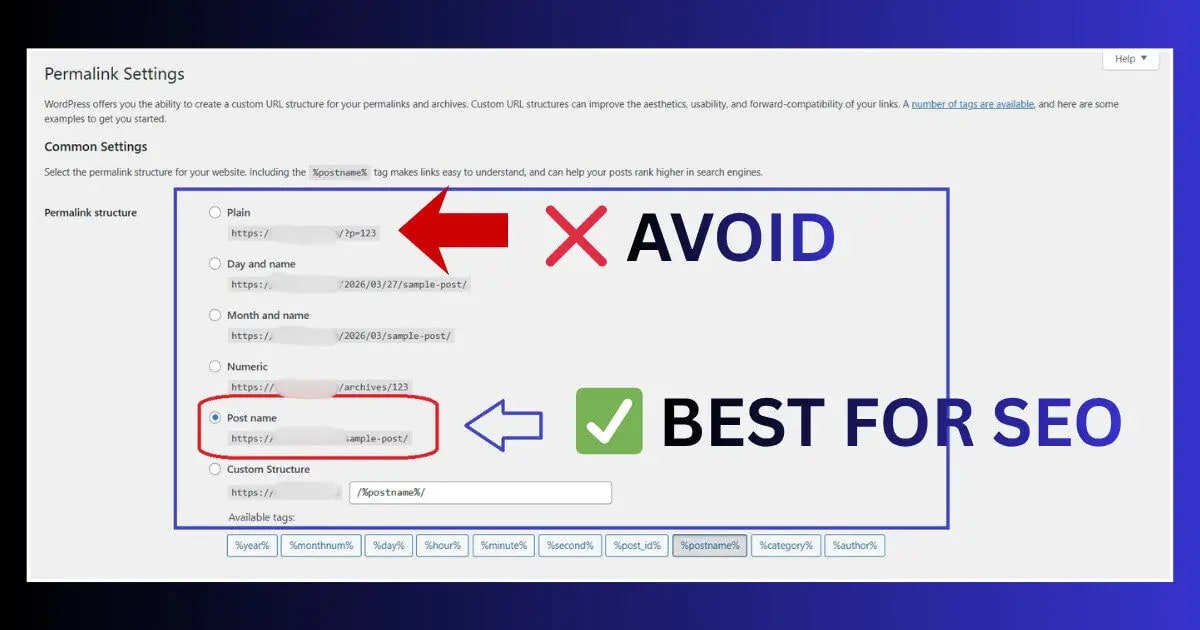
- Use Post name: yoursite.com/post-name/ — this is the recommended permalink rules structure for virtually all sites. Short, clean, keyword-focused URLs that Google can read easily.
- Avoid date-based structures: Date-based URLs make your content look outdated as time passes — a 2021 publication date in the URL signals to visitors that the content may be stale, reducing click-through rates even if the content is updated.
- Never use Plain: yoursite.com/?p=123 provides zero SEO value and zero readability for visitors. It is the worst possible these settings choice for any public-facing site.
- Do not change structure after launch: Changing your your URLs after your site has indexed pages creates 404 errors for every existing URL — requiring a redirect for every post and page. Set it correctly before publishing any content.
How Broken permalink structure Affect SEO
Broken permalink configuration cause immediate and measurable SEO damage — faster than almost any other WordPress issue:
- All pages return 404: Every single URL on your site becomes a broken link simultaneously. Googlebot cannot access any content, new or existing — effectively making your entire site disappear from crawls.
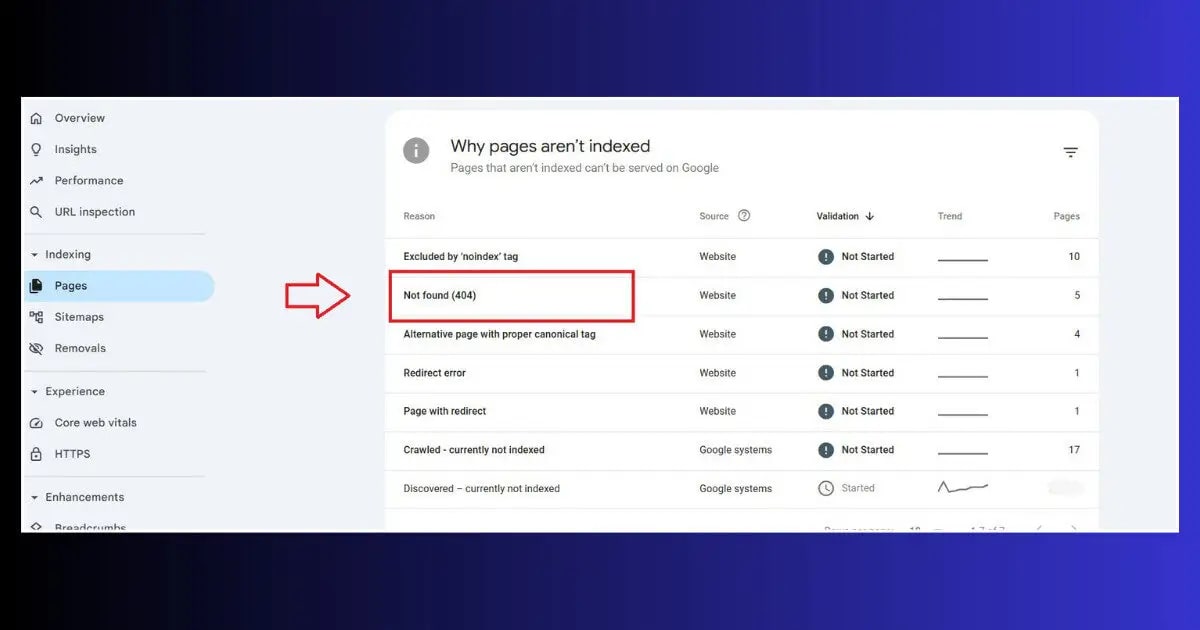
- Indexed pages show 404 in GSC: Google Search Console will flag all previously indexed pages as 404 errors within days — requiring manual resubmission and recrawl after the fix.
- Backlinks become worthless: Every external site linking to your content now points to a 404 page — losing all the link equity those backlinks provided.
- Internal links break: Every internal link across your site — in posts, menus, widgets, and footers — stops working until URL structure are restored.
- Social traffic drops to zero: Every shared link on social media, newsletters, and external posts returns a 404 — stopping all referral traffic from those sources.

Free WordPress Technical Audit — ToolXray
After fixing permalink settings — check for remaining 404 errors, Core Web Vitals, PageSpeed and 80+ technical signals. Free, no signup.
After Fixing permalink structure — Recovery Checklist
- Clear all caches: LiteSpeed Cache → Purge All immediately after saving permalink settings. Cached 404 pages will keep serving to visitors until the cache is cleared.
- Resubmit sitemap in GSC: Google Search Console → Sitemaps → resubmit your sitemap. This signals Google to recrawl all your pages now that URLs are working again.
- Check for 404 errors in GSC: Go to Coverage → Excluded → Page with redirect → look for pages that should not be 404. Request indexing for key pages individually.
- Run a technical audit: Use ToolXray’s free audit to confirm all major pages are returning 200 status codes and no crawl errors remain.
- Check your most important pages: Manually test your homepage, top 5 blog posts, and key landing pages by visiting each URL directly.
Permalink issues caused by your hosting configuration?
Hostinger Business and Cloud plans include LiteSpeed with mod_rewrite pre-configured, automatic .htaccess management, and priority support — eliminating the server-side causes of recurring permalink failures.
How to Prevent URL structure From Breaking
- Fix INP after permalink changes: Permalink fixes can affect page load timing. After restoring URLs, check Fix INP in WordPress and Fix LCP in WordPress to confirm Core Web Vitals are healthy.
- Set Post name structure from day one: Configure your permalink rules to Post name before publishing any content. Changing structure after launch requires redirects for every existing URL.
- Backup before any major plugin update: SEO plugins, security plugins, and redirect managers are the most common sources of .htaccess conflicts. Take a full backup before updating any plugin that you know modifies .htaccess.
- Only use one redirect manager: Multiple plugins writing to .htaccess simultaneously is the primary cause of .htaccess corruption. Choose one plugin for redirects and disable the redirect features in all others.
- Always run Better Search Replace after migration: Any time your domain changes, run Better Search Replace immediately — before testing, before publishing, before anything. This prevents the database URL mismatch that causes site-wide 404s after moves.
- Test after every WordPress core update: A WordPress update occasionally overwrites .htaccess. Open a few key pages in incognito immediately after any WordPress update to confirm your permalink settings are still functioning.
The Bottom Line
Mastering WordPress permalink settings is a one-time investment that pays off for the entire life of your site. Set the structure correctly once, know the Save Changes fix, keep a clean .htaccess backup — and WordPress permalink settings will never cost you more than 60 seconds to resolve, no matter what causes them to break.
these settings control how every URL on your site works. When they break — from a plugin conflict, a migration, a corrupted .htaccess, or a permission issue — every page returns a 404 error simultaneously. The fix is almost always one of five straightforward actions, with the one-click Save Changes method resolving the majority of cases in under 60 seconds.
Set your your URLs to Post name from the beginning, backup before every major update, use only one redirect manager, and run Better Search Replace after any domain change. These four habits prevent permalink failures entirely for most sites.
After any permalink issue — however brief — resubmit your sitemap in Google Search Console and run a technical audit to confirm your recovery is complete and no 404 errors remain in Google’s index.
🔍 Free WordPress Technical Audit
Check for 404 errors, Core Web Vitals, PageSpeed and 80+ signals after fixing your permalink settings
Run Free Audit at ToolXray →Related Articles
WordPress 404 Error Fix
Complete guide to every type of WordPress 404 — permalink issues are the most common cause.
ERR_TOO_MANY_REDIRECTS Fix
.htaccess conflicts cause both redirect loops and permalink failures — fix both together.
WordPress Database Error Fix
Database issues after migration also break permalink URLs — fix both simultaneously.
WordPress 500 Error Fix
.htaccess corruption causes both permalink failures and 500 errors — one fix resolves both.
Complete Technical SEO Audit
Full audit after permalink fix — confirm crawlability, indexing and no remaining errors.
WordPress Maintenance Mode Fix
Plugin update during permalink fix caused maintenance mode? 60-second fix here.
WordPress Memory Limit Fix
Low memory can prevent permalink settings from saving correctly. Fix memory first.
Free Alternative to Ahrefs
Monitor your site’s recovery after permalink fixes — free SEO tools, no subscription.

