
WordPress Multisite is a built-in WordPress feature that converts a single WordPress installation into a network of multiple websites — all managed from one dashboard, sharing one set of core files, plugins, and themes. If you manage multiple related websites and spend hours repeating the same updates, plugin installations, and configurations across separate WordPress installs — WordPress Multisite is the solution built specifically for your situation.
This guide covers everything you need to set up and manage a WordPress Multisite network from scratch: when to use it, how to enable it step by step, subdomain vs subdirectory structure, adding sites, managing plugins and themes, and the common mistakes that cause Multisite setups to fail.
Understanding WordPress Multisite correctly before enabling it is essential — because unlike most WordPress features, WordPress Multisite is difficult to reverse once activated on a site with significant content. Taking 10 minutes to read this guide before starting will save you hours of troubleshooting later.

Should You Use WordPress Multisite?
WordPress Multisite is powerful but not the right choice for every situation. Understanding when it helps — and when it adds unnecessary complexity — saves you from a difficult migration later.
WordPress Multisite is genuinely powerful for the right use case — but it is overused by developers who set it up because it sounds impressive rather than because it solves a real problem. The most common WordPress Multisite mistake is enabling it for 2-3 sites that would be simpler and more manageable as independent installations.
Use WordPress Multisite When:
✅ Multiple Related Sites
University departments, company regional offices, franchise locations, or language-specific versions of the same site — all using the same themes and plugins.
✅ Agency Managing Client Sites
Manage all client WordPress sites from one dashboard. Update plugins, themes, and WordPress core once — applies to all sites simultaneously.
✅ Blog Network or SaaS
Building a platform where users create their own sites — like WordPress.com. Users get their own blog under your domain without separate installations.
✅ Shared User Base
Users need accounts across multiple sites. Multisite shares the wp_users table — one registration works across all network sites.
Do NOT Use WordPress Multisite When:
❌ Sites Need Different Plugins
Plugins are installed once for the whole network. If Site A needs WooCommerce but Site B should not have it, separate installations are cleaner.
❌ Only 2-3 Sites
Multisite overhead is not worth it for a small number of sites. Separate installations are simpler to manage, backup, and troubleshoot.
⚠️ Very Different Traffic Levels
One high-traffic site can affect performance for all sites since they share the same database. Monitor carefully and scale hosting accordingly.
⚠️ Different Hosting Needs
All Multisite sites run on the same server. If different sites need different server configurations, separate installations are required.
| Factor | WordPress Multisite | Separate Installations |
|---|---|---|
| Updates (core/plugins/themes) | ✅ Once for all sites | ❌ Each site separately |
| Plugin flexibility per site | ❌ Shared plugin pool | ✅ Independent per site |
| Shared user accounts | ✅ Built-in | ❌ Manual sync needed |
| Setup complexity | ❌ Higher | ✅ Simple |
| Backup complexity | ❌ More complex | ✅ Independent |
| Performance isolation | ❌ Shared database | ✅ Independent |
| Hosting cost | ✅ One plan for all | ❌ Per site |
Subdomain vs Subdirectory — Which to Choose?
Before enabling WordPress Multisite, you must decide between two URL structures. This decision is permanent after setup — you cannot change it later without significant migration work.
| Structure | URL Example | Best For | Requirement |
|---|---|---|---|
| Subdirectory | yoursite.com/site2/ | Closely related sites, shared SEO authority | None — works out of the box |
| Subdomain | site2.yoursite.com | Separate brand identities, distinct sites | Wildcard DNS record required |
Diagnose and resolve 404 errors, blank pages, and caching conflicts to restore your SEO indexing instantly.
Step-by-Step: How to Set Up WordPress Multisite
Step 1: Deactivate All Plugins
- Go to WordPress Dashboard → Plugins → Installed Plugins
- Select all plugins → Bulk Actions → Deactivate → Apply
- This is required before enabling Multisite — active plugins can cause conflicts during the conversion
Step 2: Enable Multisite in wp-config.php
- Go to hPanel → File Manager → public_html → wp-config.php → Edit
- Find the line /* That’s all, stop editing! Happy publishing. */
- Add this line ABOVE that comment:
- Save the file → return to WordPress Dashboard → refresh your browser
- You will now see Tools → Network Setup in the left sidebar

Step 3: Run Network Setup
- Go to Tools → Network Setup
- Choose your URL structure: Sub-domains or Sub-directories
- Enter your Network Title and confirm your admin email
- Click Install
- WordPress will show you two code blocks — one for wp-config.php and one for .htaccess

Step 4: Update wp-config.php with Network Configuration
WordPress shows you the exact code to add. Copy the code from the wp-config.php section of the Network Setup screen and paste it into your wp-config.php file, above the /* That’s all, stop editing! */ line. It will look similar to this:
Step 5: Update .htaccess
- Copy the .htaccess code from the Network Setup screen (second code block)
- Go to hPanel → File Manager → public_html
- Enable Show Hidden Files (Settings toggle)
- Open .htaccess → Edit
- Replace the entire existing content with the code from your Network Setup screen
- Save the file
Step 6: Log Back In
- Return to your WordPress Dashboard — you will be logged out automatically
- Clear your browser cookies and cache (Ctrl+Shift+Delete → All time)
- Log in again at yoursite.com/wp-login.php
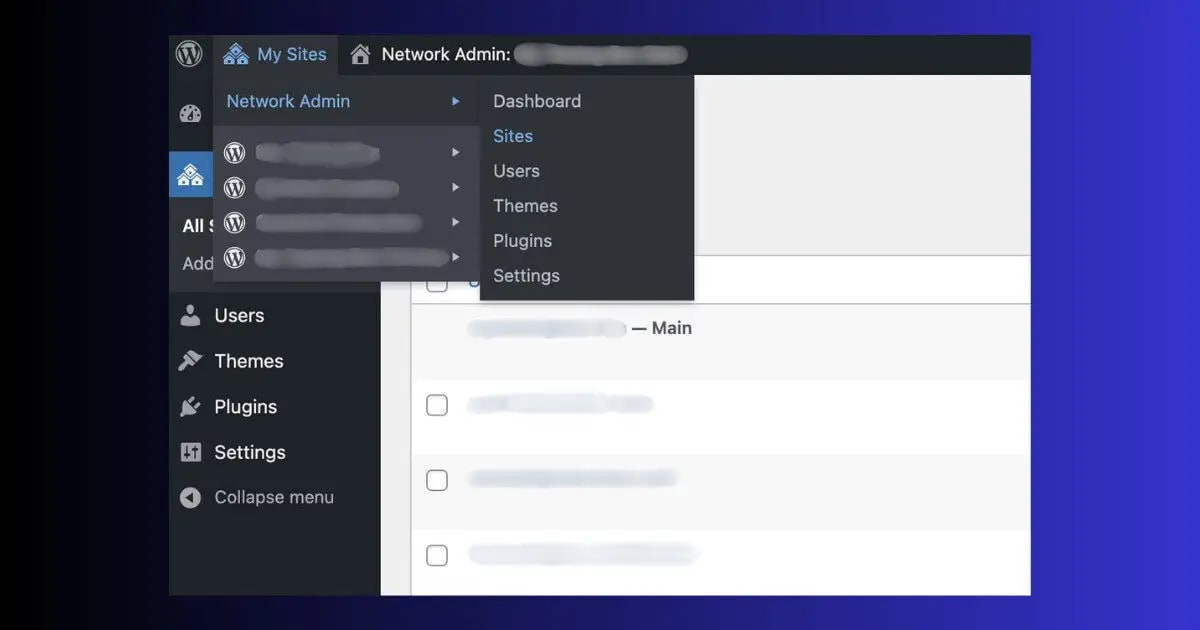
- You will now see My Sites → Network Admin in the top toolbar — your Multisite network is active ✅
Adding New Sites to Your it Network
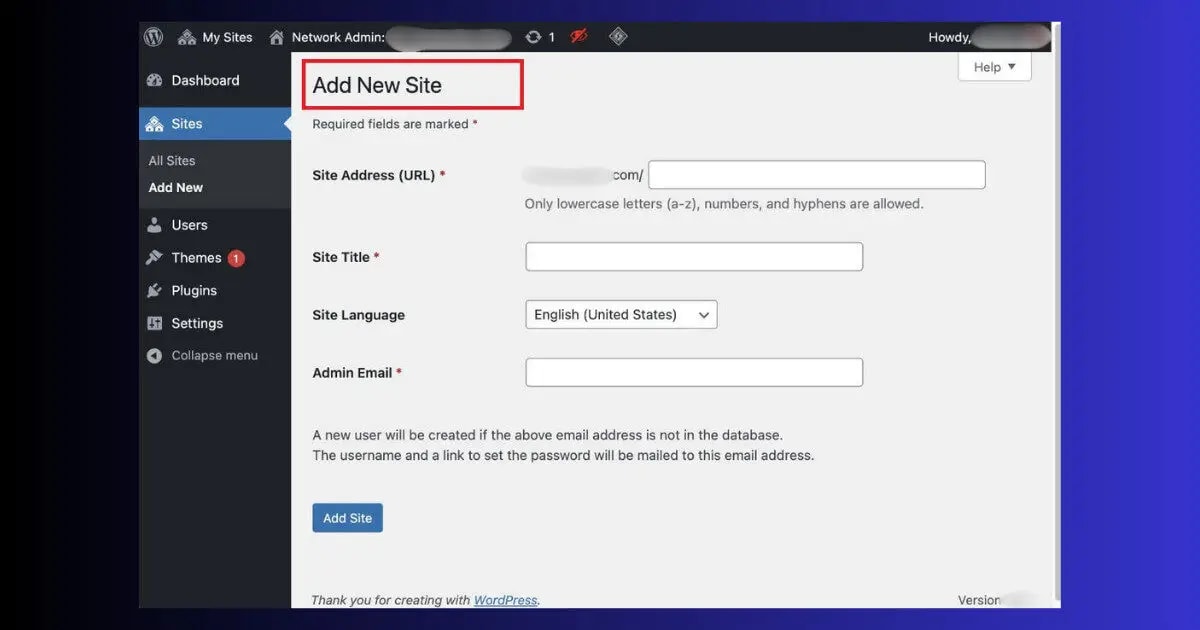
- Go to My Sites → Network Admin → Sites → Add New
- Enter the Site Address (the slug for subdirectory or subdomain prefix)
- Enter the Site Title and Admin Email
- Click Add Site
- The new site is now accessible at yoursite.com/new-site/ (subdirectory) or new-site.yoursite.com (subdomain)
Managing Plugins in this setup
Plugin management in the installation works differently from single-site WordPress. Plugins are installed once at the network level, then activated in one of two ways:
- Network Activate: The plugin is active on ALL sites in the network simultaneously. Site admins cannot deactivate it. Use this for SEO plugins, security plugins, and performance plugins you want consistent across all sites.
- Site Activate: The plugin is available to be activated individually on each site. Site admins can enable or disable it for their own site (if the Super Admin allows it). Use this for plugins that only some sites need.
Managing Themes in Multisite network
Themes in it follow a similar model to plugins — installed once, available network-wide:
- Enable a theme for the network: Network Admin → Themes → click Network Enable next to any theme. This makes it available for all sites but does not activate it anywhere automatically.
- Set a default theme: Network Admin → Settings → Network Settings → Default Theme — this theme is automatically activated on every new site added to the network.
- Activate per site: Each site admin activates their preferred theme from the enabled themes in their own Appearance → Themes panel.
User Roles in the network
your network adds a new user role that does not exist in single-site WordPress — the Super Admin:
| Role | Access Level | Can Do |
|---|---|---|
| Super Admin | Entire Network | Install plugins/themes, create sites, manage network settings, access all sites |
| Site Admin | One Site | Manage content, users, and site-specific settings for their assigned site only |
| Editor/Author/Subscriber | One Site | Standard WordPress roles — same permissions as in single-site WordPress |
Performance and SEO in this setup
Running a the installation network adds database complexity — each site creates 10+ database tables. A 20-site network has 200+ tables, and every database query must filter by site ID. This adds overhead that single-site installations do not have.
Performance Best Practices for Multisite network:
- Enable Object Cache: LiteSpeed Cache → General → Object Cache → ON. Object caching stores database query results in server memory — critical for Multisite because of the additional per-site queries on every page load.
- Network-activate LiteSpeed Cache: Activate LiteSpeed Cache at the network level so all sites benefit from caching simultaneously. Each site can fine-tune its own cache settings within the network framework.
- Fix permalink issues: Multisite sometimes breaks permalink settings after adding new sites. Run Settings → Permalinks → Save Changes on each new site after creation.
- Regular database cleanup: Multisite databases accumulate post revisions, transients, and orphaned data much faster than single-site installations. Run WP-Optimize monthly across the network.
- Monitor individual site performance: Use ToolXray’s free audit on each site in your network separately — Core Web Vitals can vary significantly between sites even though they share infrastructure.
SEO in it:
- Subdirectory structure: Sites share the main domain’s authority — yoursite.com/site2/ benefits from yoursite.com’s domain age and backlink profile.
- Subdomain structure: Each subdomain builds its own independent domain authority — site2.yoursite.com is treated as a separate domain by Google for ranking purposes.
- Install RankMath network-wide: Network-activate RankMath or Yoast SEO so all sites have SEO capabilities, then configure each site’s settings individually from their own dashboards.
Check Every Site in Your Network — Free
ToolXray checks Core Web Vitals, TTFB, mobile performance and 80+ signals per site. Run it on each site in your Multisite network to find performance gaps.
Common the network Mistakes to Avoid
- Ignoring mobile performance: Check mobile-friendliness and LCP for each network site individually — they can vary significantly.
- Converting a complex site without backup: The most common Multisite disaster. Always take a complete backup and test the conversion on a staging environment first. Reverting from Multisite to single-site is significantly more complex than enabling it.
- Choosing subdomain when you needed subdirectory: This choice cannot be changed after setup. Think carefully — subdirectory is simpler and works for most use cases.
- Using cheap shared hosting: Multisite’s additional database tables and queries require more server resources than single-site WordPress. Shared hosting that struggles with a single site will perform poorly as a Multisite network.
- Not testing plugins before network-activating: Network-activating a broken plugin crashes every site in the network simultaneously. Always test on a staging network first.
- Too many Super Admin accounts: Super Admin access on Multisite is the highest permission level in WordPress. Treat it like server root access — only two or three trusted people maximum.
your network needs more server resources than single-site
Hostinger Business and Cloud plans include LiteSpeed servers, Object Cache, NVMe SSD, and QUIC.cloud CDN — the infrastructure requirements for a fast, stable Multisite network at competitive pricing.
The Bottom Line
WordPress Multisite rewards careful planning and punishes impulsive decisions. The sites that run successfully on WordPress Multisite for years are the ones where the administrator thought clearly about the use case, chose the correct URL structure, tested plugins on staging, and kept Super Admin access limited before ever enabling the feature on a production site.
this setup is the right solution when you manage multiple related sites that benefit from shared infrastructure — shared themes, plugins, updates, and user management from one dashboard. The setup process is more complex than a single WordPress installation, but the long-term management efficiency for 5+ sites makes it worthwhile.
Choose subdirectory structure unless you have a specific reason for subdomains. Take a full backup before enabling Multisite. Test every plugin on a staging network before network-activating it. Keep Super Admin accounts to a minimum. These four practices prevent the vast majority of Multisite failures.
After setting up your the installation network, run a technical audit on each site individually to confirm Core Web Vitals, speed, and crawlability are healthy across the entire network.
🔍 Audit Every Site in Your Multisite Network
Free — Core Web Vitals, TTFB, PageSpeed, crawlability and 80+ signals per site
Run Free Audit at ToolXray →Related Articles
How to Speed Up WordPress
Multisite adds database overhead — optimize speed across every site in your network.
Technical SEO for Beginners
Each Multisite site needs its own technical SEO foundation — start here.
WordPress Security Guide
Security is more critical in Multisite — a vulnerability affects all network sites.
WordPress 500 Error Fix
Plugin conflicts in Multisite can cause network-wide 500 errors — fix guide here.
Free Alternative to Ahrefs
Monitor each Multisite network site’s rankings and performance — free tools.
WordPress Permalink Settings
Fix permalink issues that appear after adding new sites to your network.
How to Find Any WordPress Theme
Identify fast themes used by successful Multisite networks before choosing yours.

