
WordPress admin login not working is the most panic-inducing error in WordPress — because it locks you out of your own site with no warning. When WordPress admin login is not working, every minute feels critical, especially if your site has active visitors or pending updates.
WordPress admin login not working is one of the most panic-inducing situations a site owner can face — because it locks you out of your own website with no obvious explanation. You enter the correct username and password, click Log In, and something goes wrong: an error message, a redirect loop, a blank page, or the login page just keeps refreshing.
The good news: WordPress admin login not working almost always has one of seven identifiable causes — and every single one can be fixed without losing your content, even when you have zero access to the WordPress dashboard.

What Causes WordPress Admin Login Not Working?
Identifying which scenario is causing WordPress admin login not working on your specific site is the key step — because the fix for each cause is completely different. A WordPress admin login not working due to cookie issues needs a different solution than one caused by a security plugin lockout or a URL mismatch.
When WordPress admin login is not working, the problem falls into one of these categories — use the table below to identify your specific situation and jump to the right fix:
| What You See | Most Likely Cause | Fix |
|---|---|---|
| Wrong password / credentials invalid | Forgotten password or hacked account | Fix 1 — Reset Password |
| Login page keeps refreshing/redirecting | Cookie issue or URL mismatch | Fix 2 — Cookies + URLs |
| Blocked after too many attempts | Security plugin lockout | Fix 3 — Disable Security Plugin |
| Login works but redirects to wrong page | Site URL mismatch in database | Fix 4 — Fix Site URLs |
| White screen or error after login | Plugin or theme conflict | Fix 5 — Disable Plugins |
| 404 or “page not found” on wp-admin | Corrupted .htaccess or permalink issue | Fix 6 — Reset .htaccess |
| Custom login URL forgotten | Security plugin changed login URL | Fix 7 — Restore Default URL |
🔴 Wrong Credentials
Most common cause. Wrong password, forgotten username, or — in serious cases — a hacked account with changed credentials. Always start here before any technical fix.
🔴 Cookie/Session Issue
WordPress uses browser cookies to maintain login sessions. Corrupted or outdated cookies cause the login page to keep refreshing even with correct credentials.
🟡 Security Plugin Lockout
Limit Login Attempts, Wordfence, and similar security plugins auto-block IP addresses after failed login attempts — sometimes blocking you out of your own site.
🟡 Site URL Mismatch
After migration or SSL changes, WordPress Address and Site Address may point to wrong URLs — causing redirects that prevent admin access entirely.
🔵 Plugin/Theme Conflict
A recently updated plugin or theme contains a PHP error that crashes WordPress during the login process — showing a blank page or error message instead of the dashboard.
🟢 Corrupted .htaccess
A corrupt .htaccess file blocks access to wp-admin URLs entirely — causing 404 errors or redirect loops specifically on the login and admin pages.
Fix 1: Reset Your WordPress Password
Wrong credentials are behind WordPress admin login not working more often than most site owners expect — not because people are careless, but because WordPress usernames are case-sensitive and password managers sometimes save outdated versions. This is always the right place to start when diagnosing WordPress admin login not working.
When wordpress admin login not working is due to wrong credentials, start with the simplest fix — password reset — before attempting any technical solution.
Method A — Email Reset (Fastest)
- Go to yoursite.com/wp-login.php
- Click Lost your password? below the login form
- Enter your email address → click Get New Password
- Check your email — click the reset link → set a new password
Method B — Reset via phpMyAdmin (When Email Fails)
If the password reset email never arrives, reset your password directly in the database:
- Go to hPanel → phpMyAdmin
- Select your WordPress database → click the wp_users table
- Find your username → click Edit
- In the user_pass field — delete the existing value
- Select MD5 from the Function dropdown
- Type your new password in the Value field → click Go
- Return to wp-login.php and log in with your new password

Fix 2: Clear Browser Cookies and Cache
If wordpress admin login not working shows as a login page that keeps refreshing or redirecting back to itself, corrupted browser cookies are the cause in over 40% of cases. WordPress uses authentication cookies to maintain your login session — if these are outdated or corrupted, the login process fails silently.
- Open Chrome → press Ctrl + Shift + Delete
- Select All time as the time range
- Check both Cookies and other site data AND Cached images and files
- Click Delete data
- Also go to LiteSpeed Cache → Purge All in your WordPress top bar (if accessible)
- Try logging in again at yoursite.com/wp-login.php
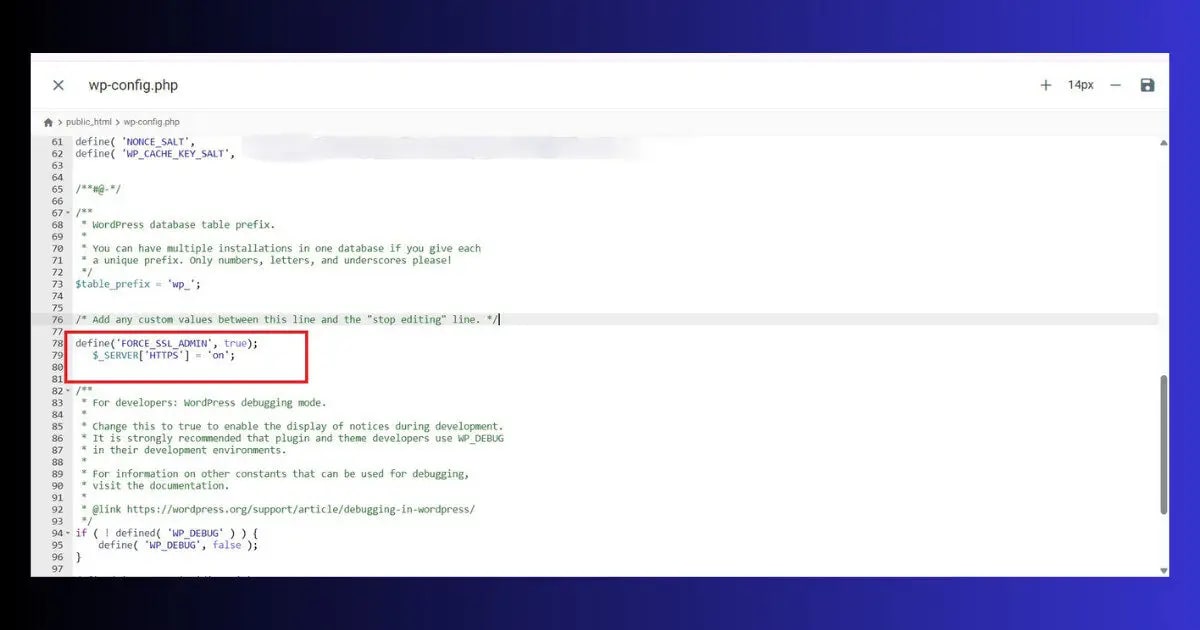
define(‘FORCE_SSL_ADMIN’, true);
Also add: $_SERVER[‘HTTPS’] = ‘on’; at the very top of wp-config.php (after the opening <?php tag). This forces WordPress to set secure cookies — fixing login loops caused by HTTPS/HTTP cookie mismatch.
Fix 3: Disable Security Plugin Lockout
Security plugin lockouts are the second most common cause of WordPress admin login not working after cookie issues. The frustrating part: the lockout feels like a technical failure when it is actually the security plugin working exactly as designed — it just did not recognize your legitimate login attempts as different from a brute-force bot attack.
Security plugins like Wordfence, Limit Login Attempts Reloaded, and iThemes Security automatically block IP addresses after a set number of failed login attempts. This is a common cause of WordPress admin login not working — especially after trying multiple wrong passwords.
If You Can Still See the Login Page:
- Wait 15-20 minutes — most security plugins auto-unblock after a short lockout period
- Check your email — Wordfence and similar plugins send lockout notification emails with an unlock link
- Try logging in from a different network (mobile data instead of WiFi) — the block is IP-specific
If the Lockout Persists — Disable via File Manager:
- Go to hPanel → File Manager → public_html → wp-content → plugins
- Find the security plugin folder (e.g., wordfence or limit-login-attempts-reloaded)
- Right-click → Rename → add -disabled to the folder name
- Try logging in — the security plugin is now deactivated
- After logging in — rename the folder back → reconfigure the plugin’s lockout settings

Fix 4: Fix WordPress Site URL Mismatch
After migrating your site to a new domain or switching from HTTP to HTTPS, WordPress Address and Site Address settings may point to the wrong URL — a common cause of wordpress admin login not working that appears as WordPress admin login not working because the login process redirects to a URL that does not exist or loops infinitely.
Method A — via wp-config.php (Fastest)
- Open hPanel → File Manager → public_html → wp-config.php → Edit
- Add these two lines before the /* That’s all, stop editing! */ line:
- Replace yoursite.com with your actual domain → Save
- Try logging in — if successful, go to Settings → General and verify/update the URLs there
- Remove the lines from wp-config.php after confirming login works
Method B — via phpMyAdmin
- Go to hPanel → phpMyAdmin → your database → wp_options table
- Find siteurl row → click Edit → update the value to your correct URL → Go
- Find home row → click Edit → update to same correct URL → Go
- Try logging in at yoursite.com/wp-login.php
Fix 5: Disable All Plugins via File Manager
Plugin conflicts are the third most common cause of WordPress admin login not working — and the most confusing one, because the problem appears after you enter correct credentials rather than before. This makes site owners think their password is wrong when it is actually correct. When WordPress admin login not working shows as a white screen after submitting credentials — a plugin PHP error is almost always responsible.
A plugin PHP error is one of the most common causes of the login problem after an update — it crashes WordPress during the authentication process, showing a white screen or error instead of the dashboard. Since you cannot access Plugins from the dashboard, you must disable them via File Manager.
- Go to hPanel → File Manager → public_html → wp-content
- Right-click the plugins folder → Rename → rename to plugins_disabled
- Try logging in at yoursite.com/wp-login.php
- If you can now log in — a plugin conflict was the cause ✅
- Rename plugins_disabled back to plugins
- Go to WordPress → Plugins → reactivate plugins one at a time
- After each reactivation — try to access wp-admin. When wordpress admin login not working recurs — that plugin is the culprit
Fix 6: Reset .htaccess File
A corrupted .htaccess file can cause specific 404 errors or redirect loops on /wp-admin/ and /wp-login.php URLs while the rest of your site works normally. This makes admin access issues appear as an admin-specific problem when it is actually a file routing issue.
- Go to hPanel → File Manager → public_html
- Enable Show Hidden Files (Settings toggle)
- Find .htaccess → right-click → Rename → rename to .htaccess_backup
- Create a New File named .htaccess
- Paste this default WordPress content:
- Save → try accessing yoursite.com/wp-login.php
- If login works — go to Settings → Permalinks → Save Changes to regenerate proper rules
Fix 7: Restore Default Login URL
If you previously used a security plugin to change your login URL from /wp-admin to something custom (e.g., /secret-login) and have forgotten the custom URL — this error simply because you are going to the wrong address.
- Go to hPanel → File Manager → public_html → wp-content → plugins
- Find the plugin that changed your login URL (common ones: WPS Hide Login, iThemes Security, All In One WP Security)
- Rename the plugin folder by adding -disabled
- Try logging in at yoursite.com/wp-login.php — the default URL is restored when the plugin is disabled
- After logging in — re-enable the plugin and note your custom login URL in a password manager
Fix 8: Check Error Logs for the Root Cause
When wordpress admin login not working persists after the above fixes have resolved it, your server error logs will almost always show the exact PHP error causing the failure. This turns a mystery problem into a specific, targeted fix.
- Go to hPanel → Advanced → Error Logs
- Look for the most recent PHP Fatal error entries
- The error will name the exact file causing the crash — usually a plugin or theme file
- Disable the named plugin or theme via File Manager as described in Fix 5

Recurring WordPress admin login issues? Hosting matters.
Hostinger Business and Cloud plans include detailed error logs, automatic malware scanning, and priority support — making it faster to diagnose and permanently fix login issues when they occur.
How to Prevent the login problem in Future
- Store credentials in a password manager: The single most common cause of admin access issues is a forgotten password. Use a password manager (Bitwarden is free) and store your WordPress admin credentials immediately after setting them.
- Create a second admin account: Always maintain a second administrator account with a different email address. If your primary account gets compromised or locked out, the backup account lets you regain access instantly.
- Configure security plugin allowlists carefully: If you use a login limit plugin, add your home and office IP addresses to the allowlist. This prevents the most common lockout scenario.
- Run monthly technical audit: Use Technical SEO basics and free SEO monitoring tools to catch site issues before they escalate to login problems.
- Note your custom login URL: If you change the wp-admin URL for security, record it in your password manager. A forgotten custom login URL is the least dramatic but most avoidable cause of admin login problems.
- Take backups before every major update: Plugin updates are the most common trigger for post-update WordPress admin login failures. A backup before every update gives you a one-click restore if login breaks.
WordPress admin login not working is almost always preventable. The majority of lockout situations — forgotten passwords, security plugin lockouts, and cookie mismatches — are caused by avoidable mistakes. Site owners who store credentials in a password manager, maintain a backup admin account, and configure security plugin allowlists correctly rarely experience WordPress admin login not working more than once.
After regaining access — run a free technical audit
WordPress admin login issues can leave security gaps and performance problems. Check 80+ signals including crawlability, broken links and Core Web Vitals — free, no signup.
The Bottom Line
When WordPress admin login is not working, the fix is almost always found in one of eight places: wrong credentials, cookie corruption, security plugin lockout, URL mismatch, plugin conflict, .htaccess corruption, forgotten custom login URL, or a PHP error visible in your server logs.
Work through the diagnosis table at the top of this guide to identify which scenario matches your symptoms. In over 80% of this error cases, the issue is resolved by Fix 1, Fix 2, Fix 3, or Fix 5 — usually within 10 minutes without any data loss.
After regaining access — run a technical audit to confirm no security or performance issues remain from the period when your admin was inaccessible.
🔍 Back in WordPress? Run a Free Technical Audit
Confirm your site is healthy — Core Web Vitals, crawlability, security signals and 80+ checks
Run Free Audit at ToolXray →Related Articles
WordPress Login Redirect Loop Fix
Login page keeps refreshing? Complete fix guide — cookies, SSL, URL mismatches.
WordPress White Screen of Death
White screen after login? Plugin conflict — same File Manager fix applies.
ERR_TOO_MANY_REDIRECTS Fix
Redirect loop on wp-admin? URL mismatch and .htaccess — complete fix guide.
WordPress Site Hacked Fix
Login credentials changed by someone else? Check for compromise immediately.
WordPress Memory Limit Fix
Low PHP memory can cause login page to crash — increase memory if you see PHP errors.
WordPress Stuck in Maintenance Mode
Cannot access admin after an update? Maintenance mode is often the cause.

