
You click a link on your own website and land on a page that says “404 — Page Not Found.”
Your page exists. You can see it in the WordPress dashboard. But when someone visits it, they hit a dead end.
The WordPress 404 error is one of the most frustrating problems because it feels random — pages that were working yesterday suddenly return a “not found” message with no obvious explanation. And when it happens to your important blog posts, landing pages, or product pages, it can silently kill your traffic and rankings before you even notice.
This guide explains exactly what causes a WordPress 404 error, how to diagnose which type you have in under 60 seconds, and how to fix it permanently — step by step, no coding experience required.

What Is a WordPress 404 Error and Why Does It Happen?
A WordPress 404 error means the server received the request for a page but could not find it. The server is working fine — it just cannot locate what was asked for at that specific URL.
What makes the WordPress 404 error confusing is that the page often exists perfectly in your dashboard. The problem is not the content — it is the connection between the URL and the content. Something broke that connection.
🔴 Site-Wide 404
Every page returns 404. Almost always a permalink or .htaccess problem. Fix in 2 minutes.
🟡 Specific Pages Only
One or a few pages return 404. Usually a deleted page, changed slug, or plugin conflict.
🔵 After Migration
Moved host or domain? Old URLs no longer work. Need 301 redirects across the board.
Here are all the common causes behind a WordPress 404 error — knowing which one applies to you cuts your fix time dramatically:
| Cause | How Common | Pages Affected |
|---|---|---|
| 🔴 Corrupted permalink structure | Most common — 90% of cases | All pages or posts |
| 🟠 Missing or broken .htaccess file | Very common | All pages site-wide |
| 🟡 Page deleted without redirect | Common | Specific URLs only |
| 🟡 Plugin or theme conflict | Common | Specific post types |
| 🟢 Changed permalink slug | Frequent | Single page or post |
| 🟢 Domain or hosting migration | After migrations | Entire site |
| 🔵 Incorrect file permissions | Less common | Specific files |
Fix 1: Regenerate Permalinks — Solves 90% of WordPress 404 Errors
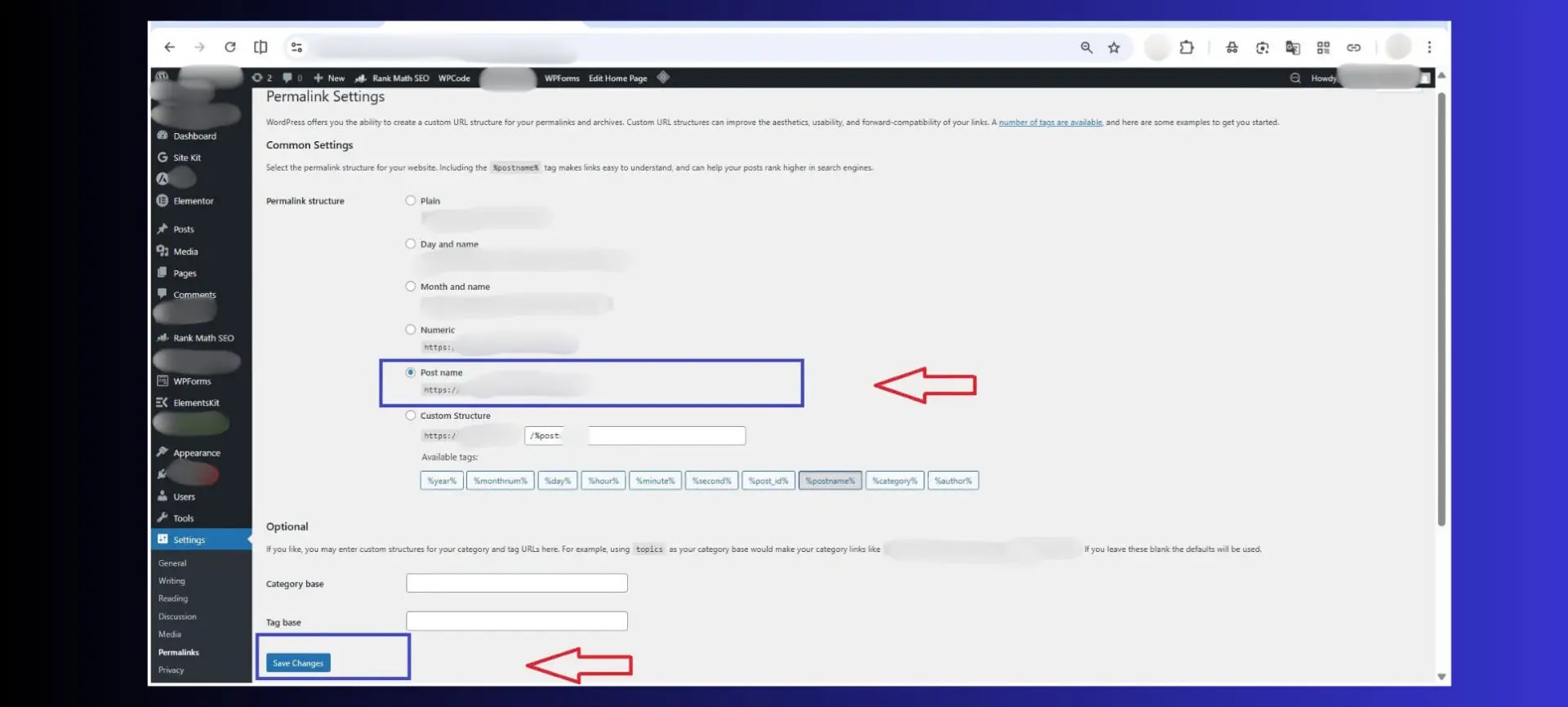
This is the single most important fix for any WordPress 404 error. Permalinks are the URL structure WordPress uses to connect your content to its address. When this structure gets corrupted — which happens after plugin updates, theme changes, or WordPress core updates — pages that exist in your database become unreachable at their URLs.
Regenerating permalinks forces WordPress to rebuild this connection. It takes 30 seconds and changes nothing about your content or design.
- Log into your WordPress Dashboard
- Go to Settings → Permalinks in the left sidebar
- Do not change any settings — just scroll to the bottom
- Click Save Changes
- Visit the affected page — it should now load
Fix 2: Fix or Recreate Your .htaccess File
If regenerating permalinks did not resolve the WordPress 404 error, the next most likely cause is a corrupted or missing .htaccess file. The .htaccess file is a server configuration file that tells Apache exactly how to handle every incoming URL request. Without it — or with a broken version — WordPress cannot route any URL to the correct page, producing site-wide 404 errors.
Step 1 — Find Your .htaccess File
- Open cPanel → File Manager → public_html
- Click Settings (top right) → enable Show Hidden Files
- Look for the file named .htaccess in public_html
- If it exists — right-click → Edit → check if it contains the WordPress rules below
- If it is missing entirely — create a new file named .htaccess

Step 2 — Replace With the Default WordPress .htaccess Content
Delete everything in the file and paste this clean default WordPress .htaccess content (sourced from the official WordPress documentation):
- Save the file
- Go back to Settings → Permalinks → Save Changes in WordPress (this regenerates a fresh .htaccess automatically)
- Test the affected pages
Fix 3: Set Up 301 Redirects for Deleted or Moved Pages
When a page is deleted, renamed, or moved to a new URL without a redirect in place, the old URL produces a WordPress 404 error for every visitor and search engine bot that still has the old address. This is particularly damaging for SEO — any backlinks pointing to the old URL lose their value entirely.
A 301 redirect permanently forwards the old URL to a new one — preserving traffic, backlinks, and search rankings.
Using Rank Math Redirections (Recommended)
- Go to Rank Math → Redirections → Add New
- In the Source URL field, enter the old broken URL (just the path, e.g. /old-page-name/)
- In the Destination URL field, enter the new URL where you want to send visitors
- Set Redirect Type to 301 Permanent Move
- Click Add Redirect → Save Changes
- Test the old URL in your browser — it should redirect to the new page
Fix 4: Check for Plugin and Theme Conflicts
Some plugins — particularly those that create custom post types, custom taxonomies, or modify URL structures — can interfere with WordPress’s permalink routing and cause a WordPress 404 error on specific page types. This is especially common with membership plugins, WooCommerce, portfolio plugins, and event management plugins.
- Go to Plugins → Installed Plugins in wp-admin
- Deactivate all plugins using Bulk Action → Deactivate
- Test the pages that were showing the 404 error
- If the pages load — one of your plugins was the cause
- Reactivate plugins one at a time, testing after each — when the 404 returns, you found the culprit
- Go to Settings → Permalinks → Save Changes after reactivating each plugin
Fix 5: Fix 404 Errors After a Site Migration
Moving your WordPress site to a new domain, new hosting, or new server is one of the most common triggers of a this error affecting the entire site. The problem is that WordPress stores your site’s URL in the database — and after a migration, the stored URL no longer matches the new location.
Update WordPress Site URL in Settings
- Go to Settings → General in wp-admin
- Check that both WordPress Address (URL) and Site Address (URL) match your new domain exactly
- If they still show the old domain — update both fields to the new URL
- Click Save Changes
- Go to Settings → Permalinks → Save Changes again
If You Cannot Access wp-admin — Fix via wp-config.php
Add these two lines to wp-config.php before the “stop editing” comment:
Replace yournewdomain.com with your actual new domain. Save the file, then access wp-admin and update the URLs in Settings → General, then remove these lines from wp-config.php.
Fix 6: Fix Individual Page 404 Errors — Slug Issues
Sometimes only one specific page or post shows a the error while the rest of the site is fine. This almost always happens when a page’s slug was changed or when the page was saved as a draft and then published with an incorrect permalink.
- Go to Pages or Posts in wp-admin
- Find and open the page that is showing the a 404
- In the right sidebar, click on the Permalink / URL section
- Check the slug — make sure it matches what visitors are trying to access
- If the slug was changed recently, either change it back or set up a 301 redirect from the old slug to the new one
- Click Update → go to Settings → Permalinks → Save Changes
Fix 7: Find and Fix All 404 Errors Using Google Search Console
If you want to find every broken link error on your site — not just the ones you happen to notice — Google Search Console is the most reliable tool. It shows you exactly which URLs Google tried to crawl and found missing, with timestamps and crawl frequency data.
- Log into Google Search Console
- Select your property (your site)
- Go to Indexing → Pages in the left sidebar
- Scroll to Why pages aren’t indexed section
- Look for “Not found (404)” in the list — click it
- You will see every URL Google found returning a 404, with the last crawl date
- For each important URL: either restore the page, or set up a 301 redirect to a relevant working page


Free WordPress Technical Audit — Find All 404 Errors
Check broken links, Core Web Vitals, PageSpeed, TTFB and 80+ signals — free, no signup needed
Quick Diagnosis: Which Fix Do You Need?
Use this table to find your exact fix based on what you are experiencing:
How a the error Hurts Your Google Rankings
A a 404 on an occasional unimportant URL will not significantly damage your rankings. But when important pages return a broken link error, the SEO impact is immediate and measurable.
- Lost backlink value: Every backlink pointing to a 404 URL delivers zero SEO value. If a page with 50 backlinks returns a 404, all 50 links become worthless until the page is restored or redirected.
- Wasted crawl budget: Googlebot has a limited crawl budget for each site. If it spends time crawling 404 pages, it has less budget to discover and index your working content.
- Higher bounce rate: Visitors who land on a 404 page leave immediately. A high bounce rate on crawled URLs signals to Google that your site has quality issues.
- Lost internal link equity: A broken internal link to a 404 page stops the flow of PageRank through your site — weakening the pages that depend on that internal link for authority.
How to Prevent page not found errors From Coming Back
Always Redirect Before Deleting
Before deleting any page or post, set up a 301 redirect via Rank Math → Redirections. Takes 30 seconds and saves the backlink value of every link pointing to that URL.
Enable Rank Math 404 Monitor
Rank Math → General Settings → enable 404 Monitor. It automatically logs every 404 a real visitor hits — with the referrer URL so you know exactly which link is broken.
Check GSC Weekly
Google Search Console → Indexing → Pages → “Not found (404)” — review weekly. Catching a 404 error within days prevents weeks of lost traffic and rankings.
Never Change Slugs on Live Posts
Changing the URL slug of a published post creates a 404 at the old URL immediately. If you must change a slug, set a 301 redirect from the old slug before publishing the change.
Test After Every Plugin Update
After any plugin update, click through your main page types — posts, pages, category archives, custom post types. A 404 error caused by a plugin update is easiest to fix when caught immediately.
Monthly Technical Audit
Run a free monthly audit at ToolXray — catches broken links, crawl errors, and 404 errors before they accumulate into a serious ranking problem.
Free Alternative to Ahrefs & SEMrush
Paying $99/month for SEO tools is not necessary for most site owners. ToolXray gives you technical audits, Core Web Vitals, PageSpeed, LCP, TTFB and 80+ checks — completely free, no signup needed.
Read Full Comparison →The Bottom Line
A this error is almost never a sign of serious damage — it is almost always a permalink, .htaccess, or redirect issue that can be resolved in a few minutes once you know the cause.
Start with Fix 1 — regenerating your permalinks. It resolves the the error in 90% of cases and takes under 60 seconds. If that does not work, move to Fix 2 and recreate your .htaccess file. Between these two fixes, the vast majority of a 404s are resolved without needing any advanced troubleshooting.
For pages that were deleted or moved, Fix 3 (301 redirects) is your most important long-term action — protecting both your user experience and your search rankings from the damage that unresolved broken link errors cause over time.
And once everything is fixed — set up Rank Math’s 404 Monitor and check Google Search Console weekly. A page not found error caught in 24 hours costs you nothing. One that goes unnoticed for 3 months costs you traffic, rankings, and backlink value that takes months to recover.
🔍 Free WordPress Technical Audit
Find all 404 errors, broken links, Core Web Vitals issues, and 80+ technical signals — free, no signup
Run Free Audit at ToolXray →Related Articles
WordPress White Screen of Death Fix
Blank white page on your site? 9 real fixes that work — no coding required.
WordPress Speed Optimization Guide
Complete guide — caching, image optimization, JS deferral, CDN setup and more.
Complete Technical SEO Audit
80+ technical signals — crawlability, indexing, schema, and Core Web Vitals.
Advanced Schema Markup Guide
Rich snippets, structured data — rank higher with proper schema implementation.

