
If you want to speed up WordPress — your site is almost certainly slow for one of five fixable reasons: unoptimized images, no caching, cheap hosting, too many plugins, or a bloated database. This guide covers every proven method to speed up WordPress in the right order — from the fastest wins to server-level optimizations — so you get the maximum improvement in the minimum time.
Website speed directly affects three things that matter: your Google rankings (Core Web Vitals are confirmed ranking signals), your visitor experience (53% of users leave a site that takes more than 3 seconds to load), and your conversions (a 1-second delay reduces conversions by up to 7%). Learning how to speed up WordPress is not optional in 2026 — it is one of the highest-ROI improvements you can make to your site.
The reason most guides fail to help you speed up WordPress is that they treat it as a single problem with a single fix. In reality, when you need to speed up WordPress, you are solving multiple performance bottlenecks simultaneously — and fixing them in the wrong order means each fix delivers far less impact than it should.

Why Is Your WordPress Site Slow?
Every WordPress site that needs to speed up WordPress performance has a unique combination of these bottlenecks — but the distribution is predictable. Image issues affect nearly every slow site. Caching is missing on most beginner sites. And slow hosting is the hidden ceiling that prevents any optimization from reaching its full potential when you try to speed up WordPress on budget shared hosting.
Before you can effectively speed up WordPress, you need to know what is actually slowing it down. Most slow WordPress sites have the same root causes:
🔴 Unoptimized Images
Images are 50-80% of total page weight. One smartphone photo can weigh 4-5MB — more than everything else on the page combined. The #1 cause of poor LCP scores.
🔴 No Caching
WordPress rebuilds every page from scratch on every visit by default. Without caching, every visitor triggers PHP execution and database queries — even when nothing has changed.
🟡 Slow Hosting
Cheap shared hosting on overcrowded servers is often the single biggest performance bottleneck. No amount of optimization fully overcomes a server with poor TTFB.
🟡 Too Many Plugins
Each plugin adds HTTP requests, JavaScript, CSS, and database queries. 30+ active plugins on a shared host is a common cause of PageSpeed scores below 40.
🔵 Render-Blocking JS/CSS
JavaScript and CSS files that load before the page content delay the time visitors see anything. Browser sees the script → must execute it → only then renders the page.
🔵 Bloated Database
Post revisions, spam comments, transient options, and orphaned metadata accumulate over time — making every database query slower as the database grows.
Find What Is Slowing Your Site — Free
ToolXray checks Core Web Vitals, TTFB, PageSpeed and 80+ performance signals in one free scan — shows exactly what to fix first.
Step 1: Choose the Right Hosting — The Foundation
No plugin or optimization can fully overcome the performance ceiling set by your hosting. To speed up WordPress meaningfully, your server needs three things: fast storage (NVMe SSD), a server-level cache (LiteSpeed with LSCache), and modern PHP (8.1 or 8.2).
Upgrading from PHP 7.4 to PHP 8.2 alone improves WordPress performance by 20-30% — zero code changes required. Check your current PHP version at WordPress → Tools → Site Health → Info → Server. If it shows anything below PHP 8.0, update it immediately in your hosting panel’s PHP Configuration.
| Hosting Factor | Why It Matters | What to Look For |
|---|---|---|
| Storage Type | NVMe SSD delivers 3-5x faster database reads than SATA SSD | NVMe SSD storage |
| Server Software | LiteSpeed handles WordPress 3x faster than Apache on identical hardware | LiteSpeed server |
| PHP Version | PHP 8.2 is 20-30% faster than PHP 7.4 for WordPress | PHP 8.1 or 8.2 |
| Server Location | Physical distance adds latency — choose a server closest to your audience | India/Asia-Pacific datacenter |
| CDN Included | CDN serves static files from edge servers near visitors worldwide | Free CDN (QUIC.cloud or Cloudflare) |
Hosting is the single biggest lever to speed up WordPress
Hostinger Business and Cloud plans include LiteSpeed servers with LSCache, NVMe SSD, QUIC.cloud CDN, and PHP 8.x — all the infrastructure requirements for a fast WordPress site, pre-configured.
Step 2: Enable LiteSpeed Cache — The Most Powerful Free Plugin
LiteSpeed Cache is the most effective way to speed up WordPress on Hostinger and any LiteSpeed-powered server. Unlike other caching plugins that work at the PHP level, LiteSpeed Cache integrates directly with the server — serving cached pages before PHP even loads, which is dramatically faster.
- Go to Plugins → Add New → search LiteSpeed Cache → Install → Activate
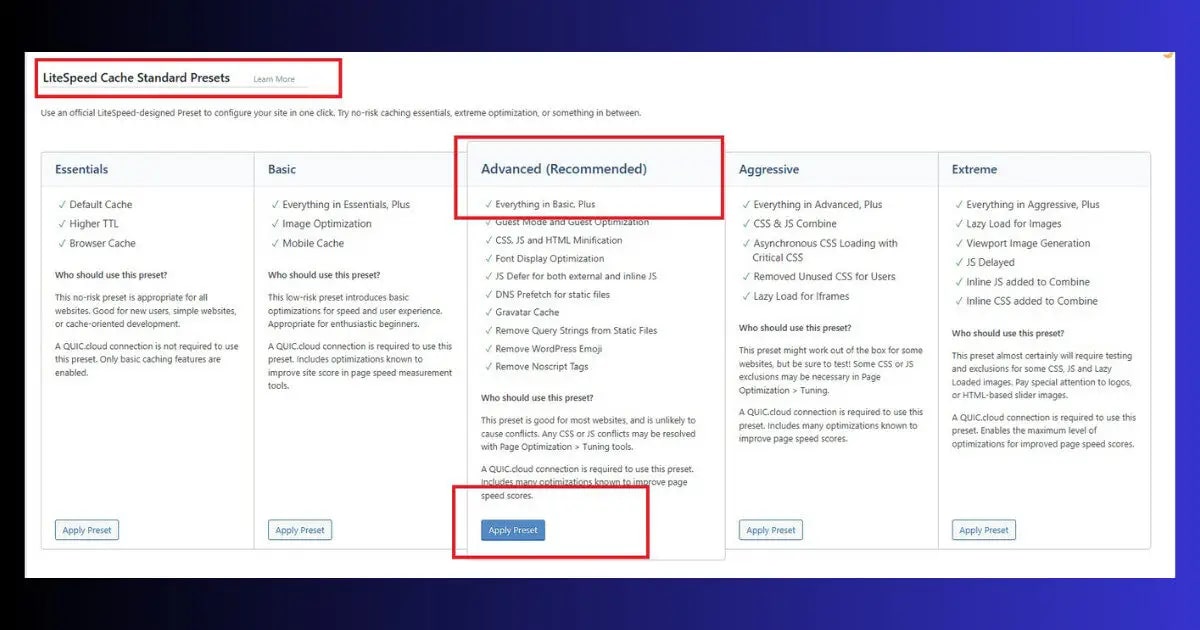
- Go to LiteSpeed Cache → Presets
- Click Apply Preset → Recommended — this enables the most impactful settings automatically
- Go to LiteSpeed Cache → CDN → enable QUIC.cloud CDN (free tier available)
- Go to LiteSpeed Cache → Image Optimization → enable WebP Replacement and Lazy Load
- Go to LiteSpeed Cache → Page Optimization → enable CSS/JS Minify and Combine CSS
- Run PageSpeed Insights before and after — expect 15-30 point improvement
Step 3: Optimize Images — Fix 50-80% of Page Weight
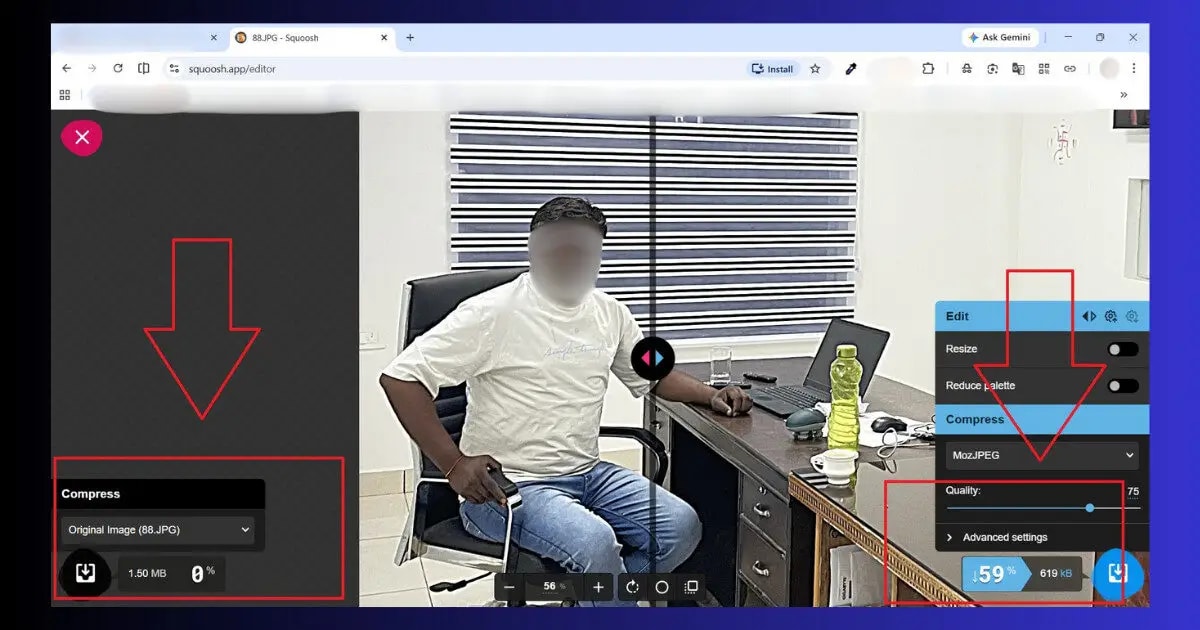
Images are typically 50-80% of a WordPress page’s total file size. A single unoptimized hero image from a modern smartphone weighs 4-5MB. Five such images on one page = 20-25MB total. Properly optimized, those same five images should weigh 200-400KB — a 97% reduction.
Three-Step Image Optimization Process
- Resize before uploading: If your content area is 800px wide, never upload a 4,000px photo. Resize to actual display dimensions first using Squoosh (free, browser-based)
- Convert to WebP: WebP provides 25-35% better compression than JPEG with no visible quality loss. Enable WebP conversion in LiteSpeed Cache → Image Optimization → WebP Replacement
- Enable lazy loading: Images below the fold should only load when the user scrolls to them. Enable in LiteSpeed Cache → Image Optimization → Lazy Load Images
Step 4: Use a Lightweight Theme
Your WordPress theme is loaded on every single page request. A bloated theme with dozens of JavaScript files, animation libraries, and unused CSS adds 500KB-2MB of dead weight to every page — before any content loads. Switching to a lightweight theme is one of the highest-impact ways to speed up WordPress permanently.
- Detect theme first: Before switching themes, use ToolXray Theme Detector or WordPress Theme Detector to check which lightweight theme your fastest competitors use — then switch to it.
- GeneratePress — under 10KB HTML, consistently achieves 90+ PageSpeed scores, highly customizable. Best all-around for speed.
- Kadence — lightweight, excellent Core Web Vitals out of the box, good Elementor compatibility
- Blocksy — block-editor native, fast defaults, good WooCommerce support
- Astra — popular, fast, extensive template library, works well with Elementor and Bricks
- Twenty Twenty-Five — WordPress default block theme, minimal by design, excellent for pure Gutenberg builds
Step 5: Remove Unused Plugins and Audit Active Ones
Every active plugin adds HTTP requests, JavaScript, CSS files, and database queries to every page load. 30+ active plugins on a shared host is a common cause of PageSpeed scores below 40. The most effective way to speed up WordPress without any technical work: ruthlessly audit your plugin list.
- Go to Plugins → Installed Plugins
- Deactivate and delete every plugin you have not used in the past 30 days
- For each remaining plugin, check: does it load on every page or only specific ones?
- Install Query Monitor (free) → check which plugins are generating the most database queries
- Consider replacing multiple single-function plugins with one multipurpose alternative
Step 6: Optimize Your Database
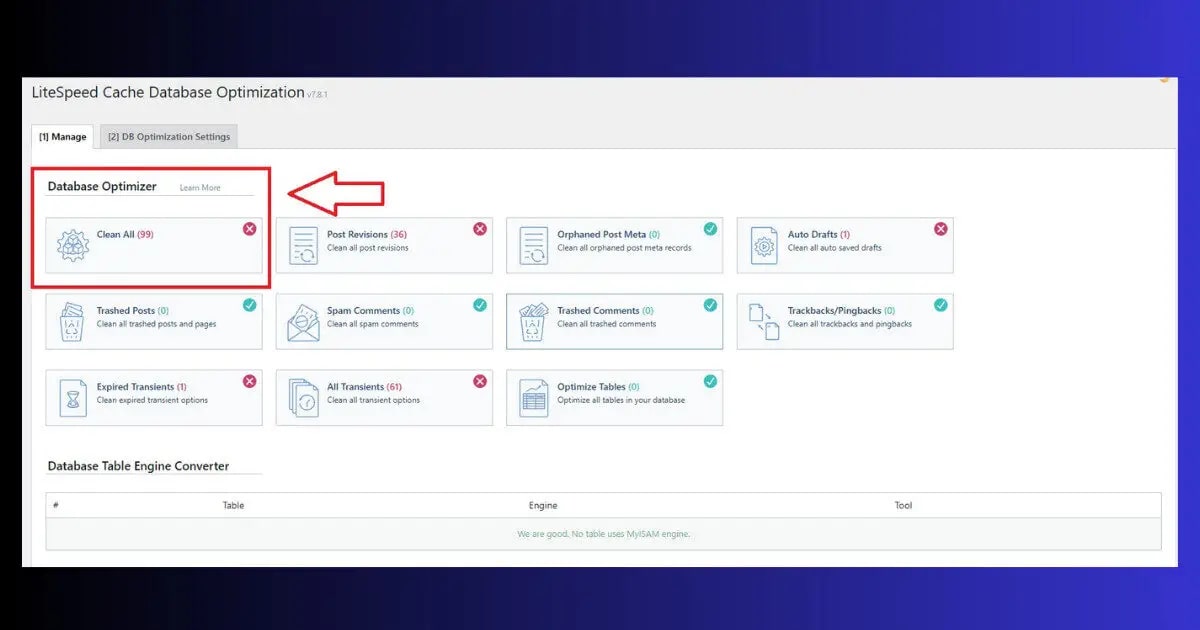
WordPress databases accumulate bloat over time — post revisions (WordPress saves a new revision every time you edit a post), auto-drafts, spam comments, transient options, and orphaned metadata. A large, bloated database makes every database query slower — contributing to WordPress database errors and high TTFB — directly impacting TTFB and overall load time.
- Install WP-Optimize plugin (free) → go to Database tab
- Click Run all optimizations to clean post revisions, drafts, spam comments, and transients
- After cleaning, go to LiteSpeed Cache → Toolbox → Purge All to clear cached data
- To prevent future bloat: go to Settings → Writing and reduce Post revisions to 5
- Or add to wp-config.php: define(‘WP_POST_REVISIONS’, 5);
Step 7: Eliminate Render-Blocking Resources
Render-blocking resources are JavaScript and CSS files that prevent the browser from showing any content until they are fully loaded and executed. Every render-blocking file delays the moment visitors first see your page — directly hurting LCP and First Contentful Paint.
- Go to LiteSpeed Cache → Page Optimization → JS Settings
- Enable Load JS Deferred — moves all non-critical JavaScript to load after the page renders
- Enable Inline CSS Async — loads non-critical CSS asynchronously
- Test your site after enabling — check that forms, menus, and interactive elements still work
- If anything breaks — use JS Excludes to exempt specific scripts from deferral
Step 8: Fix TTFB — Server Response Time
TTFB (Time to First Byte) is how long your server takes to start responding. Poor TTFB drags down every other speed metric simultaneously — because nothing on your page can start loading until the server responds. To truly speed up WordPress at the server level, TTFB must be under 800ms.
- Go to LiteSpeed Cache → General → enable Object Cache
- Go to LiteSpeed Cache → General → enable Browser Cache
- In hPanel → PHP Configuration → ensure PHP 8.1 or 8.2 is selected
- Enable QUIC.cloud CDN in LiteSpeed Cache settings — serves cached pages from edge servers near visitors
- Check TTFB in PageSpeed Insights → Diagnostics → Server response time — target under 800ms

WordPress Speed Optimization Priority Order
| Step | Optimization | Impact | Difficulty |
|---|---|---|---|
| 1 | Enable LiteSpeed Cache (Recommended preset) | 🟢 Very High | Easy |
| 2 | Optimize images (resize + WebP + lazy load) | 🟢 Very High | Easy |
| 3 | Update PHP to 8.2 | 🟢 High | Easy |
| 4 | Remove unused plugins | 🟢 High | Easy |
| 5 | Enable Object Cache + QUIC.cloud CDN | 🟢 High | Easy |
| 6 | Switch to lightweight theme | 🟡 High | Medium |
| 7 | Enable JS/CSS Defer + Minify | 🟡 Medium | Medium |
| 8 | Database cleanup (WP-Optimize) | 🟡 Medium | Easy |
| 9 | Upgrade hosting to LiteSpeed server | 🟢 Very High | Medium |
How Fast Should Your WordPress Site Be?
- Under 1.5 seconds: Excellent — faster than the majority of websites. LCP should be in the green zone.
- 1.5–2.5 seconds: Good for most WordPress sites. Competitive in most niches.
- 2.5–3 seconds: Acceptable on desktop but likely failing mobile Core Web Vitals. Needs optimization.
- Over 3 seconds: 53% of mobile visitors will leave before the page loads. Actively hurting rankings and conversions. Fix urgently.
The Bottom Line
The sites that successfully speed up WordPress to 90+ PageSpeed scores are not the ones that installed the most plugins or made the most complex optimizations. They are the ones that followed the priority order — images first, caching second, PHP update third — and measured their results after each step. You can speed up WordPress dramatically without any technical expertise by simply following this sequence.
To speed up WordPress effectively, work through the optimization steps in order of impact. Enable LiteSpeed Cache first — this single action delivers the largest improvement with the least effort. Then optimize images, update PHP, remove unused plugins, and clean your database. These five steps alone resolve 80-90% of WordPress performance problems.
The goal is not a perfect 100 PageSpeed score — it is fast, stable performance that passes Core Web Vitals in the green zone on mobile. A consistent 85+ mobile score with green Core Web Vitals puts you ahead of the majority of WordPress sites competing for the same keywords.
After each optimization, run ToolXray’s free audit and PageSpeed Insights to measure your improvement. Track your LCP, INP, and CLS scores specifically — these are what Google uses to rank your site, not the overall PageSpeed number.
🔍 Check Your WordPress Speed Right Now
Free audit — Core Web Vitals, TTFB, PageSpeed and 80+ performance signals
Run Free Audit at ToolXray →Related Articles
Fix LCP in WordPress
LCP is the most important speed metric — detailed WordPress-specific fixes for 2026.
Why TTFB Is Critical in 2026
Server response time is the foundation of all other speed metrics — fix it first.
Mobile-Friendly Check
Speed optimization targets mobile first — confirm your site passes Google’s test.
How to Use PageSpeed Insights
Read every metric correctly and know which Opportunities to prioritize.
Free Alternative to Ahrefs
Monitor your speed improvements and rankings after optimizations — free tools.
Complete Technical SEO Audit
Speed is one of 80+ signals — run a full audit after speed optimizations.

