
By Vikas Rohilla | Updated: March 2026 | Reading time: ~10 minutes
If you have been trying to fix INP in WordPress and hitting a wall, you are not alone.
INP — Interaction to Next Paint — replaced FID as Google’s official Core Web Vital in March 2024. Unlike FID, which only measured your site’s first interaction, INP measures every single click, tap, and keypress across the entire page session and reports the worst one.
Most WordPress speed guides focus on LCP and PageSpeed scores. But if your site has a ‘Poor’ or ‘Needs Improvement’ INP score, Google is actively using that signal to rank you lower than competitors — even if your PageSpeed score is 95+.
This guide covers everything you need to fix INP in WordPress: what it is, why it matters, what causes it, and the exact step-by-step fixes that move your score from ‘Poor’ to ‘Good’ — without touching a single line of code.
Quick check: Before you fix INP in WordPress, find out your current score. Run a free Core Web Vitals audit at toolxray.com — LCP, INP, CLS, TTFB all in 10 seconds, no signup needed.
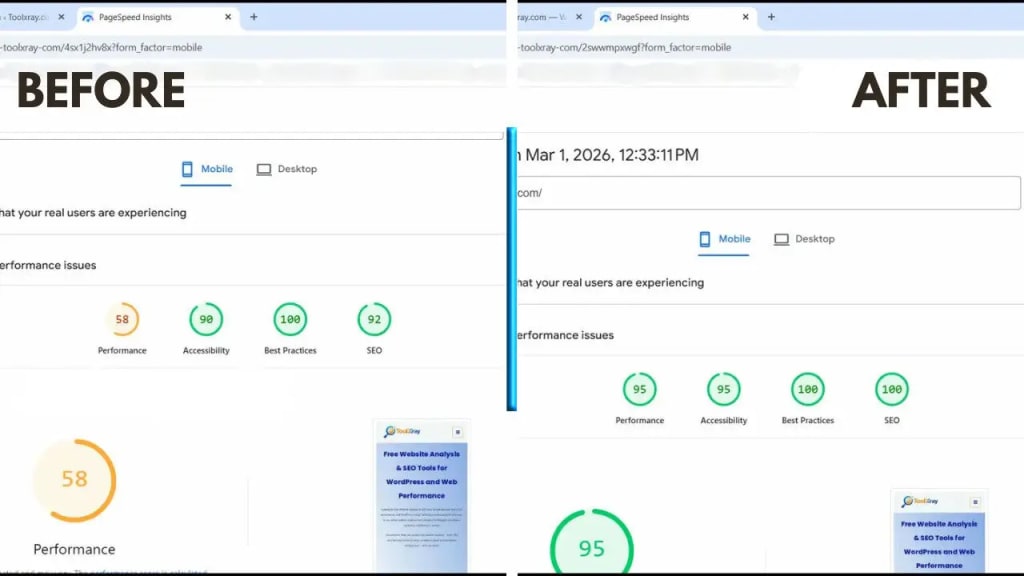
What Is INP (Interaction to Next Paint)?
INP measures how quickly your website visually responds to a user’s interaction — a click, a tap, or a keyboard press. Specifically, it measures the time from when a user initiates an interaction to when the browser paints the next visual update on screen.
Unlike its predecessor FID, which captured only the first interaction on a page, INP watches every interaction throughout the session and reports the worst one. This makes it a far more accurate picture of how your site actually feels to real users during a full visit.
Practical example: if a user clicks your mobile navigation menu and it takes 650 milliseconds to open, that delay is your INP score. If they later click a form submit button and nothing visually responds for 900 milliseconds — INP captures that too.
INP Score Thresholds — Google’s Official Benchmarks
| INP Score | Rating | What It Means |
| 0 – 200ms | Good ✅ | Excellent — Google rewards this |
| 201 – 500ms | Needs Improvement ⚠️ | Noticeable lag — improve soon |
| 500ms+ | Poor ❌ | Users frustrated — rankings hurt |
Google’s target is under 200ms for a ‘Good’ INP rating. The average unoptimized WordPress site with multiple plugins typically scores between 400–800ms — well into ‘Needs Improvement’ or ‘Poor’ territory.
Why Google Replaced FID With INP in 2024
FID (First Input Delay) was useful but had a critical blind spot: it only measured the delay before the browser started processing the first interaction — not how long the full interaction actually took. A site could have a perfect FID score and still feel painfully slow to every user who clicked anything after the first tap.
INP fixes this by measuring three phases of every interaction:
- Input Delay: Time from user interaction to when browser starts processing — caused by JavaScript blocking the main thread
- Processing Duration: Time spent running JavaScript event handlers in response to the interaction
- Presentation Delay: Time from processing complete to visual update painted on screen — caused by complex DOM and CSS repaints
By replacing FID with INP, Google now has a complete picture of real interaction responsiveness across the entire page session — not just a partial view of the first tap.
Key fact: A site can score ‘Good’ on FID and still have a ‘Poor’ INP rating. If you were optimizing for FID, you may have never addressed the responsiveness issues INP now measures.
Why WordPress Sites Struggle to Fix INP — 5 Root Causes
Before you can fix INP in WordPress, you need to understand what is causing it. WordPress has specific characteristics that make INP harder to optimize than on simpler sites:
1. Plugin JavaScript Competing for Main Thread Time
Every plugin that adds interactive functionality — contact forms, cookie banners, live chat widgets, popup builders, social sharing buttons, review plugins — registers JavaScript event listeners on your page. When a user clicks anything, all these listeners may fire simultaneously, flooding the main thread and causing input delay.
The most common WordPress INP killers: live chat widgets (Tidio, Intercom, Crisp), GDPR cookie consent plugins, newsletter popup plugins (OptinMonster, Sumo), and social sharing plugins that load their full JavaScript SDK on every page.
2. Elementor’s JavaScript Footprint
Elementor loads JavaScript globally to power interactive elements — tabs, toggles, accordions, sliders, animated counters, and forms. On pages with many widgets, this JavaScript pushes INP into the 400–700ms range even on reasonably fast devices.
Elementor has built-in performance settings specifically designed to reduce this footprint — but most site owners have never enabled them.
3. Unoptimized Third-Party Scripts
Google Analytics 4, Facebook Pixel, Google Tag Manager, Hotjar, and similar tracking scripts each add JavaScript that runs continuously on your page. When loaded synchronously, they block the main thread during the exact window when users are most likely to interact.
4. Oversized DOM (Too Many Page Elements)
Google recommends keeping total DOM elements under 1,500. Many WordPress pages — with complex headers, mega-menus, sidebar widgets, elaborate footers, and Elementor section stacks — exceed 3,000–5,000 DOM elements. Every extra element forces more expensive layout calculations on each interaction.
5. Heavy JavaScript Loaded Synchronously
Premium themes often load jQuery UI, animation libraries, slider libraries, and icon font libraries globally — on every page, even pages that use none of these features. This unnecessary JavaScript blocks the main thread and inflates input delay across the entire site.
How to Fix INP in WordPress — 6 Exact Steps
Here is the complete step-by-step process to fix INP in WordPress, ordered from highest impact to lowest. Work through these in sequence and test your INP score after each step.
Fix 1: Enable Elementor Performance Settings
This is the fastest single action to fix INP in WordPress if you use Elementor. Two settings make a significant difference:

- Elementor → Settings → Performance tab
- Improved Asset Loading: ON — loads Elementor CSS and JavaScript only on pages that actually use Elementor widgets, not globally
- Improved CSS Loading: ON — reduces inline CSS output significantly
- Elements tab → Disable any widgets your site never uses. Each disabled widget removes its JavaScript from every page load.
- Test INP after enabling — most Elementor sites see 100–250ms improvement from this step alone.
Fix 2: Defer JavaScript Using LiteSpeed Cache
The second most impactful way to fix INP in WordPress is preventing JavaScript from blocking the main thread during page load:
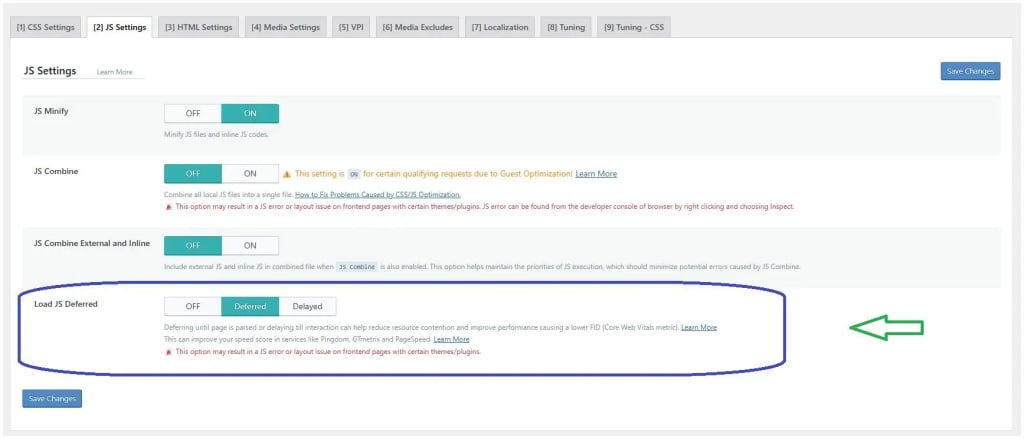
- LiteSpeed Cache → Page Optimization → JS Settings
- JS Minify: ON
- Load JS Deferred: ‘Deferred’ — IMPORTANT: select ‘Deferred’, NOT ‘Delayed’. Delayed mode breaks Elementor mobile menus.
- JS Combine: OFF — always off for Elementor sites. Combining Elementor JS inflates rather than reduces file size.
- Deferring JavaScript prevents scripts from blocking the main thread while the page loads — directly reducing input delay, which is Phase 1 of INP.
Fix 3: Remove or Delay Live Chat and Popup Plugins
Live chat widgets are one of the top causes of poor INP in WordPress. To fix INP in WordPress sites that use live chat:
- Option A — Remove the chat widget from all pages except Contact and Support. No need for live chat on every blog post.
- Option B — Load the chat widget on user interaction only. Most chat platforms support this: the widget loads only when the user scrolls 50% or clicks a trigger, not on page load.
- Option C — Replace heavy chat widgets with a simple WhatsApp button or a contact form link. 90% lighter, zero INP impact.
- Similarly, set newsletter popup plugins to trigger after 30 seconds or on exit intent — not immediately on page load.
Fix 4: Audit and Remove Unnecessary Plugins
Every plugin adds JavaScript. To fix INP in WordPress you must aggressively audit which plugins actually need to run on the frontend:
- Install Query Monitor plugin (free)
- Visit any page on your site → open Query Monitor → Scripts tab
- Every script listed is loading on that page. Ask: does this page actually use this plugin’s feature?
- Deactivate plugins one at a time and test INP after each deactivation
- Use Plugin Load Filter or Asset CleanUp Pro to disable specific plugins on specific pages where they are not needed
Fix 5: Reduce DOM Size
Reducing DOM size is an often-overlooked step to fix INP in WordPress, but it directly reduces presentation delay — Phase 3 of INP:
- Check DOM size: Chrome DevTools (F12) → Performance → click record → interact → stop → look for ‘DOM Content’ count
- Target: under 1,500 total DOM elements
- Simplify your header: remove unnecessary nav items, dropdown levels, and decorative elements
- Simplify footer: remove widget columns that add dozens of elements
- Use Elementor Flexbox Containers instead of Section/Column structure — fewer wrapper divs, fewer DOM nodes
- Remove hidden elements that exist in the DOM but are never shown to users
Fix 6: Optimize Google Tag Manager and Tracking Scripts
If you use Google Tag Manager, it is likely loading 4–8 tracking scripts on every page. Each script adds to main thread congestion:
- GTM → Triggers → change all non-critical tags from ‘Page View’ to ‘DOM Ready’ or ‘Window Loaded’
- Remove tags for tools you no longer actively use
- Consolidate: if you have separate GA4, Facebook Pixel, and LinkedIn Insight tags — manage all through GTM to reduce script requests
- Use Consent Mode v2 — this defers tracking scripts until after user consent, keeping the main thread free during initial load
After completing all 6 fixes, run your audit again at toolxray.com to see the INP improvement. Most WordPress sites move from ‘Poor’ (500ms+) to ‘Good’ (under 200ms) by completing fixes 1, 2, and 3 alone. To fix INP in WordPress completely, work through all 6.
Before and After: Typical Results When You Fix INP in WordPress
Here is what typical results look like when you fix INP in WordPress using the steps above:
| Metric | Before Fix | After Fix |
| INP Score | 620ms ❌ | 160ms ✅ |
| INP Rating | Poor ❌ | Good ✅ |
| Input Delay | 380ms | 40ms |
| Processing Time | 190ms | 80ms |
| Presentation Delay | 50ms | 40ms |
| Mobile PageSpeed | 72 ⚠️ | 94 ✅ |
How to Check Your INP Score
There are three ways to check your INP score before and after you fix INP in WordPress:
- Google PageSpeed Insights: pagespeed.web.dev → enter URL → scroll to ‘Core Web Vitals Assessment’. Field INP data appears if your site has 28+ days of traffic.
- Chrome DevTools: F12 → Performance tab → Record → interact with page → Stop → look for ‘Interactions’ in timeline to see exact breakdown of input delay, processing, and presentation delay.
- ToolXray: Free Core Web Vitals audit including INP, LCP, CLS, FCP, and TTFB — 10 seconds, no account needed. Shows WordPress-specific recommendations.
3 Mistakes to Avoid When You Fix INP in WordPress
Mistake 1: Setting JS to ‘Delayed’ Instead of ‘Deferred’
In LiteSpeed Cache, ‘Delayed’ mode holds JavaScript execution until after user interaction — which sounds good for INP but actually breaks Elementor mobile menus and other interactive elements. Always use ‘Deferred’, not ‘Delayed’.
Mistake 2: Testing Only on Desktop
INP is almost always significantly worse on mobile. Google’s field data is mobile-weighted. Always test your INP score on a real mobile device or use Chrome DevTools mobile emulation — not just desktop PageSpeed Insights.
Mistake 3: Fixing INP Once and Forgetting It
Every new plugin you install, every new widget you add, every new tracking script your marketing team adds — each one can push INP back into ‘Poor’ territory. Run a Core Web Vitals check monthly at toolxray.com to catch regressions before they affect rankings.
The Bottom Line
INP is the Core Web Vital that most WordPress site owners have never optimized — and that is exactly why it is such a significant ranking opportunity right now. The competitors you are trying to outrank have almost certainly not fixed INP in WordPress yet.
The good news: you do not need to be a developer to fix INP in WordPress. The six fixes above require no coding — just the right plugin settings, the right plugin choices, and the discipline to remove what is not needed.
Start with Fix 1 (Elementor settings) and Fix 2 (JS Defer in LiteSpeed Cache). These two steps alone move most WordPress sites from ‘Poor’ to ‘Needs Improvement’ or better. Complete all six and ‘Good’ INP is achievable on virtually any WordPress site. Common WordPress errors like the WordPress White Screen of Death can also affect your site’s performance.
The first step is knowing your current score. Check your INP right now — free:👉 toolxray.com — Fix INP in WordPress: Free Core Web Vitals Audit
FAQ
What is INP and why does it matter for WordPress sites?
INP (Interaction to Next Paint) is Google’s newest Core Web Vital, replacing FID in March 2024. It measures how quickly your site responds to every user interaction — clicks, taps, keypresses. A poor INP score directly affects your Google rankings. To fix INP in WordPress, focus on reducing JavaScript that blocks the main thread.
What is a good INP score for a WordPress site?
Google considers INP under 200ms as ‘Good’, 201-500ms as ‘Needs Improvement’, and above 500ms as ‘Poor’. Most unoptimized WordPress sites score 400-800ms. You can fix INP in WordPress to under 200ms without any coding using the steps in this guide.
How long does it take to fix INP in WordPress?
The fastest fixes — enabling Elementor performance settings and setting JavaScript to Deferred in LiteSpeed Cache — take under 10 minutes. Complete all 6 fixes in this guide in 1-2 hours. Most sites see INP improvement within 24 hours of Google recrawling.
Does fixing INP improve Google rankings?
Yes. INP is an official Core Web Vital and part of Google’s Page Experience ranking signals. Moving from ‘Poor’ to ‘Good’ INP can improve rankings, especially in competitive niches where other technical signals are similar across competing sites.
What is the difference between INP and FID?
FID measured only the input delay on the very first interaction. INP measures the worst interaction across the entire session. A site could have perfect FID and terrible INP. Google replaced FID with INP in March 2024 because INP more accurately reflects real user experience.

