
The Frustration of the Infinite Loading Spinner
We have all been there. You have successfully mapped out the perfect wireframe for a client’s landing page. You’ve gathered the optimized images, written high-converting copy, and you are finally ready to bring it all to life. You navigate to your WordPress dashboard, go to Pages, and click that familiar “Edit with Elementor” button. You sit back, take a sip of coffee, and wait.
And you wait. And you wait some more.
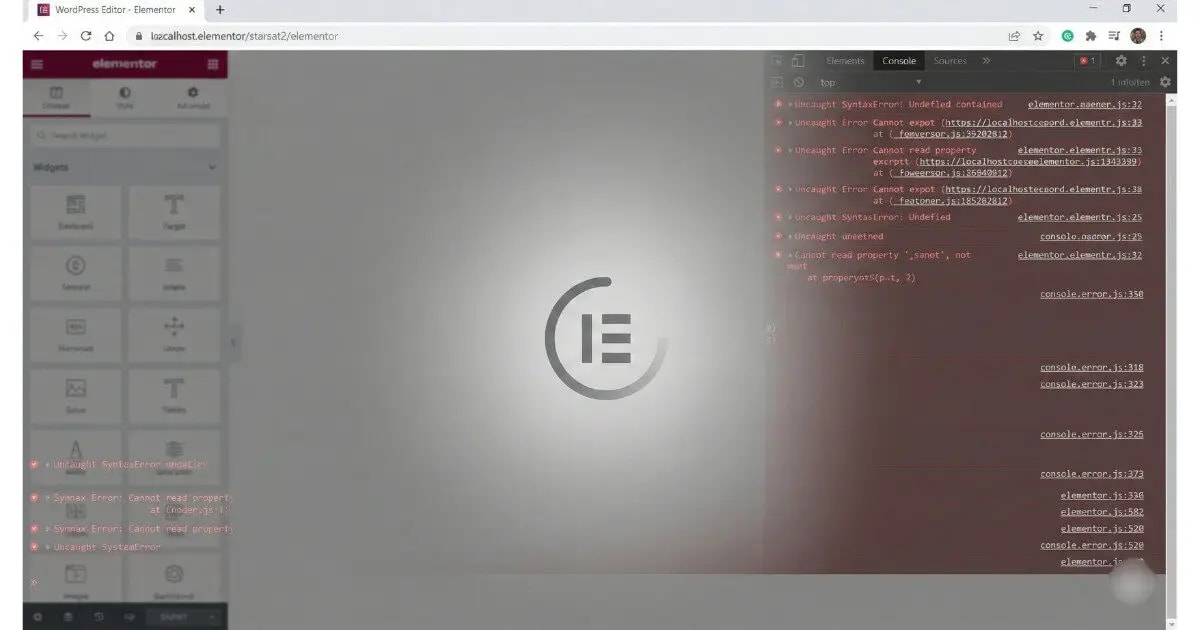
Instead of the vibrant, intuitive drag-and-drop interface you are expecting, you are staring at a grey screen with a pulsing ‘E’ logo that just keeps spinning. Or perhaps worse, you are staring at a completely blank white screen. Welcome to the nightmare that developers call the elementor not working error.
If you build websites for a living, or even if you are just managing your own business site, encountering an elementor not working issue is incredibly disruptive. It halts your workflow entirely. You cannot edit content, you cannot fix typos, and you certainly cannot optimize your Largest Contentful Paint (LCP) or adjust your layouts for better conversions.
But before you panic, delete the plugin, or start questioning your career choices, take a deep breath. After years of running an IT and web development agency, I can assure you of one thing: Elementor is rarely broken on its own. It is a highly robust, well-coded plugin. When you experience elementor not working, it is almost always a symptom of a larger environmental issue. It is your server, your database, your browser, or a conflicting plugin throwing a wrench into the gears.
In this massive, definitive 2026 guide, we are not going to just give you the basic “turn it off and on again” advice. We are going to dive deep into the technical architecture of WordPress. We will diagnose exactly why the editor is failing, look at server logs, adjust PHP configurations, and systematically eliminate every single bottleneck. By the end of this 2800+ word technical guide, you will not only fix your current elementor not working problem, but you will also understand your WordPress ecosystem well enough to prevent it from ever happening again.
Phase 1: Diagnosing Your Specific “Elementor Not Working” Error
In the medical world, a doctor wouldn’t prescribe medication without first identifying the specific symptoms. The same logic applies to web development. “Elementor not working” is an umbrella term. To apply the correct fix, we first need to categorize how exactly it is failing. Different visual cues point to entirely different underlying server or code issues.
Let’s break down the five most common variations of this error:
1. The Infinite Loading Spinner (The Gray Screen)
This is the most widespread issue. The WordPress interface disappears, the Elementor pre-loader screen appears, but the actual editing canvas and widget panel never materialize. The ‘E’ logo just pulses endlessly. This almost always points to a resource exhaustion issue (your server ran out of memory) or a severe JavaScript conflict caused by a third-party plugin attempting to load scripts simultaneously with Elementor.
2. The Widget Panel is Blank or Missing
In this scenario, the editing canvas (your actual website preview) loads perfectly fine. You can see your content. However, the dark grey panel on the left side—where you drag widgets like headings, images, and buttons from—is either completely blank or continuously displays a loading icon. This specific elementor not working variation is usually related to server security configurations, a redirect loop, or strict firewall rules (like ModSecurity) blocking the admin-ajax.php file.
3. The White Screen of Death (WSoD)
You click ‘Edit with Elementor’ and the entire browser window goes stark white. No logo, no spinner, no WordPress admin bar. Just a terrifying white void. This indicates a Fatal PHP Error. Your server encountered an instruction it could not process and simply aborted the entire operation. This usually happens when a deeply incompatible Add-on (perhaps an outdated GPL plugin) tries to call a function that no longer exists in current versions of Elementor. For a deeper dive into this, see our dedicated WordPress White Screen of Death guide.
4. The “Update” Button Does Nothing (Saving Failure)
This is perhaps the most frustrating. The editor loads fine. You spend an hour designing a beautiful section. But when you click the green “Update” button at the bottom left, it either spins endlessly or throws a generic “Server Error 403” or “500”. This means the frontend editor is working, but it cannot communicate with your backend database to save the data. It is a communication failure, often tied to a database error or REST API blockage.
5. The Editor Looks “Broken” or Unstyled
The editor loads, but it looks like a chaotic mess of text and overlapping images. The CSS styling of the editor itself has failed to load. This variation of elementor not working is heavily associated with caching plugins minifying scripts they shouldn’t be touching, or an issue where WordPress images are not showing due to mixed content (HTTP vs HTTPS) errors.
Phase 2: Fixing PHP Memory Exhaustion (The Heavyweight Champion of Errors)
Let’s tackle the biggest culprit first. Elementor is an incredibly powerful piece of software. It allows you to visually manipulate the Document Object Model (DOM) in real-time. To do this, it requires significant server resources. If you are on cheap, shared hosting that restricts your server’s RAM, you are going to encounter the elementor not working error constantly.
By default, WordPress attempts to set its own memory limit (usually around 40MB for single sites and 64MB for multisite). In 2026, 40MB is not even enough to load a standard WordPress dashboard comfortably, let alone a heavy page builder with multiple third-party add-ons installed.
Elementor’s official minimum requirement is 128MB, but they strongly recommend 256MB. However, in my professional experience, if you are running WooCommerce, an SEO plugin like RankMath, and a few Elementor Add-on packs, you need 512MB to 1024MB to ensure stability.
How to Safely Increase the WordPress Memory Limit
You cannot usually fix this from inside the WordPress dashboard. We have to dive into the core files. If you are uncomfortable with this, check out our comprehensive guide on the WordPress Memory Limit.
- Log into your hosting control panel (like Hostinger’s hPanel or standard cPanel).
- Open the File Manager and navigate to the root directory of your website (usually public_html).
- Locate the file named wp-config.php. This is the central nervous system of your WordPress installation.
- Right-click it and select Edit. (Always download a copy as a backup first).
- Scroll down until you see the line that says: /* That’s all, stop editing! Happy publishing. */
- Just above that line, paste the following two lines of code exactly as shown:
What did we just do? We told WordPress: “For standard frontend operations, you can use up to 512 Megabytes of RAM. But for heavy backend admin tasks (like opening the Elementor editor), you are allowed to pull up to 1 Gigabyte (1024M) of RAM.”
Save the file, clear your caches, and try opening Elementor again. If memory was the bottleneck, your editor should now load instantly.
Is Your Hosting Provider Choking Your Site?
Even if you add the code above, some cheap shared hosts place a hard cap on physical RAM at the server level, meaning your code changes are ignored. If you face constant elementor not working errors, it is time to upgrade. Hostinger’s Cloud & Business plans allow massive PHP memory limits and utilize LiteSpeed caching for incredibly fast Elementor performance.
Phase 3: The Plugin Isolation Protocol (Finding the Saboteur)
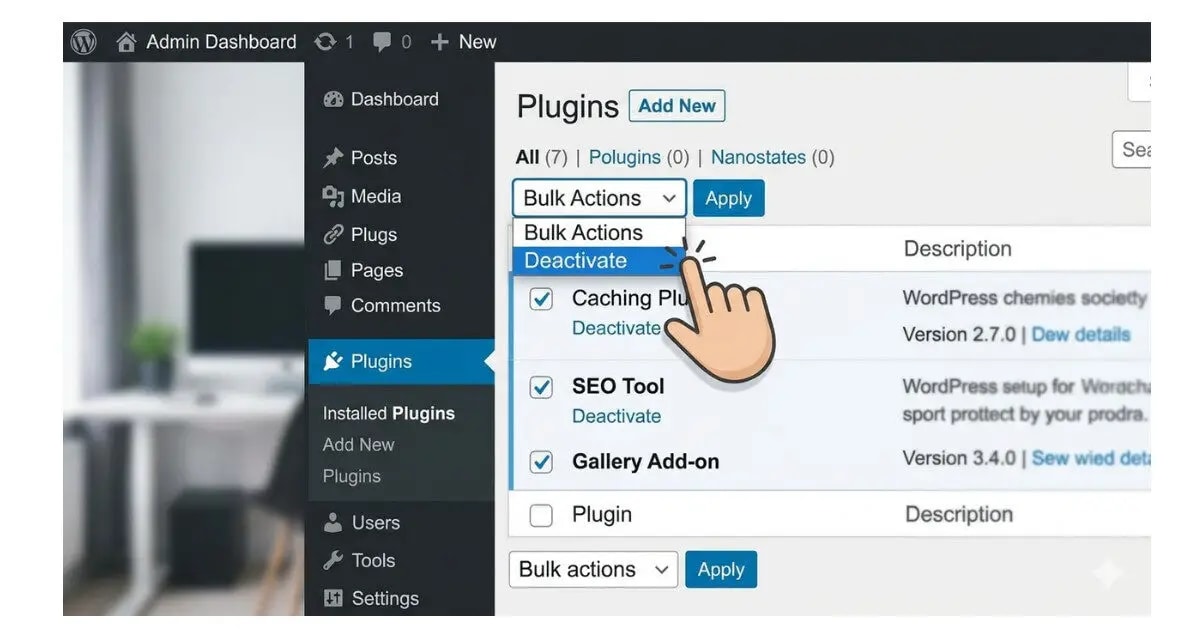
If you have upgraded your memory and you are still staring at a loading screen, the next most likely cause of elementor not working is a plugin conflict. WordPress is an open-source ecosystem. Thousands of different developers write plugins, and unfortunately, they don’t always play nicely together.
A common scenario is a “script collision.” For example, both Elementor and a random gallery plugin might try to load different versions of a JavaScript library called jQuery at the exact same time. The browser gets confused, throws an error, and the entire loading process halts.
The Health Check & Troubleshooting Method (Zero Downtime)
Many guides tell you to deactivate all your plugins. The problem with that advice? If your site is live, you just broke the frontend for all your visitors. Instead, we are going to use the official WordPress troubleshooting tool to isolate the issue without affecting your live traffic.
- Go to Plugins → Add New and search for the official Health Check & Troubleshooting plugin by the WordPress.org community. Install and activate it.
- Navigate to Tools → Site Health → Troubleshooting tab.
- Click “Enable Troubleshooting Mode”.
Here is the magic: Troubleshooting mode disables all plugins and switches to a default theme (like Twenty Twenty-Four) only for your specific user session. Your visitors still see the normal, fully functioning website. If your site was stuck in maintenance, check our WordPress Stuck in Maintenance Mode guide.
- While in Troubleshooting Mode, navigate to the plugins page and activate only Elementor.
- Try to edit a page. If Elementor loads flawlessly, you have 100% confirmed that another plugin is the cause of the elementor not working issue.
- Now, activate your plugins one by one. After activating a plugin, immediately try loading the Elementor editor again.
- The moment the editor breaks, the last plugin you activated is the culprit.
Known Repeat Offenders
Over the years, certain types of plugins frequently clash with page builders:
- Caching & Optimization Plugins: Tools like Autoptimize, LiteSpeed Cache, or WP Rocket can aggressively minify or defer JavaScript. If they defer an Elementor core script, the editor breaks. You must exclude Elementor from minification settings. For a deep dive, read our WordPress Speed Optimization Guide.
- Security Plugins: Heavy firewalls like Wordfence or Sucuri sometimes misidentify Elementor’s heavy AJAX requests as malicious attacks and block them.
- Outdated “GPL” Add-ons: Be very careful with third-party Elementor add-on packs. While legitimate repositories exist, using heavily outdated or nulled add-ons guarantees an elementor not working experience because their code is no longer compatible with Elementor’s core updates.
Phase 4: Server-Side Restrictions and Advanced Configurations
Alright, memory is high, and you’ve ruled out plugin conflicts. If the elementor not working issue persists, we have to look deeper into the server environment itself. Server configurations like Apache, Nginx, and PHP versions dictate exactly how data flows.
1. The PHP Version Mismatch
Elementor continuously updates its codebase to utilize modern PHP functions for better speed and security. If your server is running an antiquated version of PHP (like PHP 7.3 or 7.4), Elementor simply cannot execute its code. It will crash, resulting in the elementor not working error or a White Screen of Death.
Log into your hosting control panel and locate the “PHP Configuration” or “Select PHP Version” tool. Ensure your site is running on at least PHP 8.1 or PHP 8.2. (Be warned: updating PHP might break old, unmaintained plugins, so always take a backup first).
2. The “Switch Editor Loader Method” Lifeline
Elementor’s developers are aware that some servers have strict configurations that block the standard way the editor loads. They built a specific fallback mechanism into the plugin settings for this exact scenario.
- In the WordPress dashboard, go to Elementor → Settings → Advanced tab.
- Look for the option titled “Switch Editor Loader Method”.
- Change the dropdown to Enable.
- Click Save Changes and try loading the editor again.
This changes the way Elementor bundles and requests its editor scripts, often bypassing strict server rules that cause the elementor not working issue.
3. ModSecurity and Firewall Blocks (Error 403)
If you are encountering a 403 Forbidden error or the editor refuses to save changes, it is highly likely that your host’s server-level firewall (often ModSecurity) is blocking the request. ModSecurity is designed to stop SQL injections and cross-site scripting, but Elementor’s complex JSON data payloads sometimes trigger false positives.
If you suspect this, you will need to contact your hosting provider’s support team. Tell them: “I am experiencing the elementor not working error, specifically related to saving. Can you check the server error logs to see if ModSecurity is blocking requests to admin-ajax.php?”
Phase 5: Database Corruption and Permalink Resets
The WordPress database is a fragile ecosystem. Every time you install a plugin, change a setting, or migrate a site, data is written to the database tables. If the routing paths (how WordPress knows which URL goes where) get corrupted, the backend REST API fails, which in turn causes the elementor not working scenario.
Regenerating the .htaccess File
The .htaccess file controls how your Apache server handles requests. If this file is corrupted, Elementor cannot communicate with the server. This is closely related to the causes behind a WordPress 404 Error.
- In your WordPress dashboard, go to Settings → Permalinks.
- You do not need to change any settings. Simply scroll to the bottom and click the “Save Changes” button.
This simple action forces WordPress to flush its rewrite rules and generate a brand new, clean .htaccess file. It is a harmless step that magically cures a surprising number of elementor not working cases.
Checking for Mixed Content (HTTPS Issues)
If you recently added an SSL certificate (moving from http to https), but some of your database URLs still point to the old http version, your browser will block the insecure scripts. The editor will fail to load securely. You must ensure that both the “WordPress Address (URL)” and “Site Address (URL)” in Settings → General start with https://. If you are stuck in a redirect loop because of this, read our ERR_TOO_MANY_REDIRECTS fix guide.
Phase 6: Browser-Level Interference (When the Problem is You)
Before you tear your hair out modifying server configurations, you must rule out your own local machine. The elementor not working issue might literally only exist on your computer.
Modern browsers use aggressive caching and heavy extensions that can inadvertently block legitimate scripts.
- The Incognito Test: Open a completely private or incognito browsing window. Log into WordPress and launch Elementor. If it works perfectly, the problem is your browser.
- Aggressive AdBlockers: Extensions like uBlock Origin, AdBlock Plus, or the built-in shields in the Brave browser frequently block analytics and tracking scripts. Sometimes, they mistakenly block Elementor’s tracking or editor scripts. Disable all adblockers for your domain.
- Hardware Acceleration: Elementor relies heavily on your computer’s GPU to render the live preview canvas smoothly. If you have an older graphics card, or if Google Chrome’s “Hardware Acceleration” is acting up, it can cause the browser tab to crash entirely. Try turning off Hardware Acceleration in your browser settings.
Phase 7: The SEO and Performance Fallout of a Broken Editor
It is crucial to understand that elementor not working isn’t just an inconvenience for you as a designer; it has severe ramifications for your technical SEO. When the backend environment is struggling, the frontend environment (what Google and your users see) is usually struggling as well.
When Elementor scripts conflict, they increase the “Total Blocking Time” of your page. This directly impacts your Interaction to Next Paint (INP) score, which is a critical Google Core Web Vital. Furthermore, if the server is exhausted trying to compile broken PHP, your Time to First Byte (TTFB) will skyrocket, signaling to search engines that your site is slow and unoptimized.
A poorly configured Elementor setup also leads to DOM bloat. If you cannot access the editor to optimize your layout, your Content-to-Code ratio drops significantly, as your pages become filled with unnecessary wrapper `
Post-Fix Protocol: Auditing Your Health
Once you finally resolve the elementor not working error and the editor loads smoothly, your job isn’t done. You must verify that the fixes you applied (like disabling a caching plugin or changing script loading methods) didn’t break your frontend performance.
- Run a Full Technical Audit: Head over to our SEO Audit Tool [cite: 26] or read the Complete Technical SEO Audit Guide to ensure no broken links or missing meta tags were generated during the downtime.
- Check PageSpeed: Learn How to Use PageSpeed Insights correctly and verify your mobile and desktop scores.
- Mobile Verification: Elementor heavily relies on responsive CSS. Ensure the layout didn’t break on mobile devices by using our Mobile Friendly Checker.
- Schema Validation: Ensure your rich snippets are still intact. A broken editor can sometimes strip JSON-LD data. Review our guide on Advanced Schema Markup.
Ditch Expensive SEO Tools
Monitoring your site’s health shouldn’t cost $99/month. Discover the best Free Alternatives to Ahrefs and SEMrush to keep track of your rankings and technical errors after fixing your site.
How to Disable Comments in WordPress (Complete 2026 Guide)
Stop spam, improve performance, and remove comment sections completely — step-by-step methods with screenshots.
Read Full Guide →Conclusion: Mastering Your WordPress Environment
The elementor not working error is a rite of passage for every WordPress developer. It is incredibly frustrating in the moment, but diagnosing and fixing it forces you to understand the underlying mechanics of your server, your database, and your plugin ecosystem.
To summarize your battle plan: Always check your PHP memory limit first (aim for 512M or higher). If that fails, aggressively hunt down plugin conflicts using Troubleshooting Mode. Ensure your server environment (PHP 8+, Nginx/Apache configs) is modern and unrestricted. And finally, never underestimate the power of simply regenerating your CSS via Elementor tools or saving your permalinks to flush the .htaccess rules.
By systematically working through these phases, you will eliminate the elementor not working issue, restore your design workflow, and ensure your site is built on a solid, highly performant foundation.

