
The 500 internal server error WordPress is the most alarming error a site owner can encounter — because unlike a 404 error that tells you exactly what is missing, the 500 error tells you nothing. Just a blank page, a cryptic message, and a site that is completely offline for every visitor.
The 500 internal server error WordPress shows differently depending on your browser and server: Chrome displays “This page isn’t working — HTTP ERROR 500”, WordPress itself shows “There has been a critical error on your website”, and some servers show a plain white screen with no text at all. All mean the same thing — the server crashed before it could finish loading your page.
Here is the most important thing to understand about the 500 internal server error WordPress situation: despite its vague appearance, this error almost always has one of five identifiable causes — and once you identify which one, the fix takes under 10 minutes. This guide walks through every cause and fix in the exact order that resolves the error fastest.
The 500 internal server error WordPress is unique among WordPress errors because it requires no specific trigger — it can appear after a plugin update, a theme change, a PHP version switch, or even with no changes at all. Understanding that the 500 internal server error WordPress is always a PHP crash — not a WordPress crash — is what makes the diagnosis path clear and predictable regardless of what specifically caused it.

What Causes the 500 Internal Server Error in WordPress?
The 500 internal server error WordPress is not caused by one specific thing — it is a catch-all error that appears whenever PHP crashes for any reason before completing a page load. Understanding this is the key insight: you are not looking for one specific fix, you are looking for what made PHP crash.
| Cause | How Common | Primary Fix |
|---|---|---|
| 🔴 Plugin conflict or broken plugin | Most common — ~50% | Fix 2 — Disable plugins |
| 🔴 Corrupted .htaccess file | Very common — ~25% | Fix 3 — Reset .htaccess |
| 🟡 PHP memory limit exceeded | Common — ~15% | Fix 4 — Increase memory |
| 🟡 Theme conflict or broken theme | Common | Fix 5 — Switch theme |
| 🔵 PHP version incompatibility | After updates | Fix 6 — Change PHP version |
| 🔵 Corrupted WordPress core files | Less common | Fix 7 — Reinstall WordPress |
🔴 Plugin Conflict
A newly installed or updated plugin contains a PHP error. When WordPress tries to load it, PHP crashes before the page can render — causing the 500 error.
🔴 Corrupted .htaccess
The .htaccess file controls URL routing. A single syntax error in this file causes the server to crash on every request — instant site-wide 500 error.
🟡 PHP Memory Limit
When a page load tries to use more RAM than your PHP memory limit allows, PHP stops and returns a 500 error instead of completing the request.
🟡 Theme Error
A PHP error in your active theme’s functions.php or template files causes WordPress to crash before displaying any content.
🔵 PHP Version Mismatch
A plugin or theme using code that requires PHP 8.x will crash on PHP 7.x — and vice versa. Common cause of 500 errors immediately after PHP version changes.
🟢 Corrupted Core Files
WordPress core files damaged by a failed update, server issue, or partial upload. Less common but causes persistent 500 errors that other fixes cannot resolve.
Fix 1: Check Error Logs First — Find the Exact Cause
Before applying any fix for the 500 internal server error WordPress, check your error logs. The error log almost always shows the exact file and line number that caused the crash — turning a mysterious error into a specific, actionable problem in under 2 minutes.
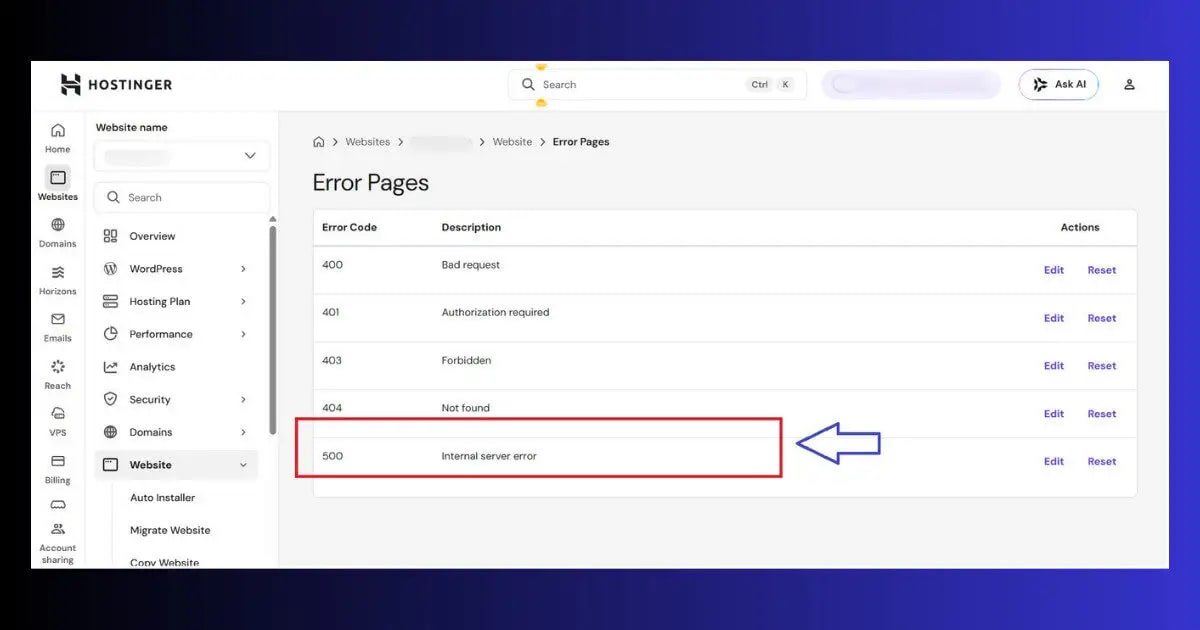
Method A — Hostinger hPanel Error Logs
- Log into Hostinger hPanel
- Go to Advanced → Error Logs
- Look for the most recent entries — they will show the exact PHP file and line number that caused the crash
- The filename almost always points to the culprit — a plugin name in the path means plugin conflict; wp-content/themes means theme issue
Method B — Enable WordPress Debug Log
If hPanel error logs are not available, enable WordPress’s built-in debug mode:
- Open hPanel → File Manager → public_html → wp-config.php → Edit
- Find the line define( ‘WP_DEBUG’, false );
- Replace with these three lines:
- Save → reload your site once to trigger the error
- Go to File Manager → public_html → wp-content → debug.log
- Open the log — find the PHP Fatal error message
- After identifying the cause — set WP_DEBUG back to false immediately

Fix 2: Disable All Plugins — Resolves ~50% of Cases
Plugin conflicts cause the majority of 500 internal server error WordPress occurrences. A plugin with a PHP error, a plugin incompatible with your current PHP version, or two plugins conflicting with each other — all produce identical 500 error symptoms. Disabling all plugins simultaneously confirms or rules out this cause in 30 seconds.
- Open hPanel → File Manager → public_html → wp-content
- Find the plugins folder
- Right-click → Rename → rename to plugins_disabled
- Refresh your website — if it loads, a plugin was causing the error ✅
- Rename plugins_disabled back to plugins
- Go to WordPress → Plugins → reactivate plugins one at a time
- After each reactivation — reload your site. When the 500 internal server error WordPress returns, that plugin is the culprit
- Deactivate the problem plugin → update it or replace it with an alternative

Fix 3: Reset Your .htaccess File
A corrupted .htaccess file is the second most common cause of 500 internal server error WordPress errors. A single invalid character, an incomplete redirect rule, or conflicting directives added by a plugin can crash the server on every request. Resetting to the WordPress default fixes this instantly.
- Open hPanel → File Manager → public_html
- Enable Show Hidden Files (Settings → toggle)
- Find .htaccess → right-click → Rename → rename to .htaccess_backup
- Create a new file named .htaccess
- Paste this clean WordPress default content:
- Save the file → refresh your site
- If the site loads — the old .htaccess was corrupted ✅
- Go to WordPress → Settings → Permalinks → Save Changes to regenerate clean rewrite rules

Fix 4: Increase PHP Memory Limit
When a page load exceeds the PHP memory limit, PHP stops and returns a the crash instead of completing the request. This is especially common on resource-heavy pages — WooCommerce product pages, Elementor-built pages, or pages with multiple complex shortcodes.
- Open hPanel → File Manager → public_html → wp-config.php → Edit
- Add these lines before the /* That’s all, stop editing! */ comment:
- Also go to hPanel → PHP Configuration → set memory_limit to 256M
- Save → reload your site → test if the 500 error is resolved
Fix 5: Switch to a Default WordPress Theme
If the error persists after disabling plugins, your active theme may be causing the this issue crash. A PHP error in your theme’s functions.php or template files produces identical symptoms to a plugin crash.
Method A — Via wp-admin (If Accessible)
- Go to Appearance → Themes
- Activate a default WordPress theme — Twenty Twenty-Four or Twenty Twenty-Three
- Reload your site — if the 500 error disappears, your previous theme was the cause
Method B — Via phpMyAdmin (If wp-admin Is Inaccessible)
- Go to hPanel → phpMyAdmin
- Open your WordPress database → click wp_options table
- Find the row where option_name = template → click Edit
- Change the option_value to twentytwentyfour → click Go
- Repeat for the row where option_name = stylesheet
- Reload your site — now running the default theme
Fix 6: Change PHP Version
WordPress plugins and themes sometimes use PHP functions that only exist in specific PHP versions. A plugin requiring PHP 8.x functions will cause a server crash crash on a server running PHP 7.4 — and vice versa, some older plugins use deprecated functions that were removed in PHP 8.x.
- Go to hPanel → PHP Configuration
- Note your current PHP version
- If you recently updated PHP and the error started immediately after — change back to the previous version
- If you have not recently changed PHP — try updating to PHP 8.2 (recommended for WordPress in 2026)
- Save → reload your site → check if the 500 error is resolved
- If switching PHP resolves the 500 error — identify which plugin or theme was incompatible with your previous PHP version and update it
Fix 7: Reinstall WordPress Core Files
If all previous fixes have not resolved the it, the WordPress core files themselves may be corrupted. This can happen after a failed auto-update, a server interruption during a manual update, or file system corruption. Reinstalling core files does not affect your content, themes, or plugins.
- Go to WordPress Dashboard → Updates (if accessible)
- Click Re-install version X.X.X — WordPress downloads fresh core files and replaces existing ones
- If wp-admin is inaccessible — download the latest WordPress from wordpress.org/download/
- Extract the zip file on your computer
- Delete the wp-content folder and wp-config.php from the extracted files — never overwrite these
- Upload all remaining files to your public_html via File Manager → overwrite when prompted
- Reload your site — the fresh core files replace corrupted ones
Recurring 500 errors? Your hosting plan may be the bottleneck.
Hostinger Business and Cloud plans include higher PHP memory limits, LiteSpeed servers with automatic error logging, and priority support — eliminating the server-side causes of recurring 500 internal server errors.
How the 500 Internal Server Error Affects Your SEO
Every hour that the 500 internal server error WordPress remains active is an hour of lost crawl data, lost visitor trust, and lost ranking signals. The 500 internal server error WordPress is unusual in that it affects your entire domain at once — not just one page — making the SEO damage compound much faster than a typical single-page error would.
Every minute your site shows a this error is costing you search rankings. Unlike many WordPress errors that affect specific pages, the 500 error typically takes your entire site offline simultaneously:
- Googlebot blocked: Search engines crawling your site during a 500 error receive a server error response instead of your content. Googlebot registers your site as temporarily unavailable and may reduce crawl frequency.
- Ranking decay: Google tracks uptime signals. A site that frequently returns 500 errors — or stays down for hours — accumulates negative reliability signals that reduce organic rankings over time.
- Deindexing risk: If a the crash persists for several days, Google may begin removing your pages from its index entirely — requiring manual resubmission via Google Search Console after the fix.
- Core Web Vitals impact: When the 500 error breaks specific pages rather than the full site, the affected pages show failed Core Web Vitals in Google Search Console — a direct negative ranking signal for those pages.
Free WordPress Technical Audit — ToolXray
After fixing the 500 error — check Core Web Vitals, crawlability, PageSpeed and 80+ signals. Free, no signup needed.
How to Prevent the 500 Internal Server Error in WordPress
- Always backup before updating: The majority of 500 errors happen immediately after plugin, theme, or WordPress core updates. A backup taken before every update session gives you a one-click restore if a 500 error appears.
- Check for security issues: Sometimes 500 errors are caused by malware injections in PHP files. Read WordPress Site Hacked Guide — if the error returns repeatedly after fixes, malware may be regenerating the corrupted files.
- Test plugin updates on staging first: Hostinger and many other hosts offer staging environments — test major updates there before applying to your live site.
- Keep PHP updated: Running PHP 8.1 or 8.2 in 2026 eliminates an entire category of plugin compatibility issues. Update via hPanel → PHP Configuration.
- Set PHP memory to 256M from the start: Add WP_MAX_MEMORY_LIMIT 512M to wp-config.php as part of your initial WordPress setup — before the error ever appears.
- Monitor error logs weekly: hPanel error logs show PHP warnings and notices before they escalate to 500 errors. A weekly 2-minute check catches problems early.
- Check performance after fix: Server errors cause INP and LCP regression. Read Fix INP in WordPress and WordPress Images Not Showing — both are common after-effects of 500 error recovery.
- Monthly technical audit: Run a free audit at ToolXray — catches performance degradation and crawl errors before they affect rankings.
The Bottom Line
The most important mindset shift when dealing with a 500 internal server error WordPress situation: resist the urge to try random fixes. The 500 internal server error WordPress always leaves evidence in your error logs — reading those logs for 2 minutes is more effective than applying 6 fixes blindly. Evidence-first diagnosis is what separates a 5-minute fix from a 2-hour troubleshooting session.
The this issue is alarming but almost always fixable in under 15 minutes once you follow the right diagnosis sequence. Check your error logs first — they tell you exactly what crashed. Then disable plugins (most common cause), reset .htaccess (second most common), increase memory, switch theme, and change PHP version in that order.
The most important habit for preventing future the problem occurrences: backup before every update and check error logs weekly. Between these two practices, you will catch 90% of potential 500 errors before they take your site offline.
After resolving the immediate error, run a technical audit to confirm your Core Web Vitals and crawlability have recovered from any period of downtime.
🔍 Free WordPress Technical Audit
After fixing the 500 error — check Core Web Vitals, crawlability, PageSpeed and 80+ signals
Run Free Audit at ToolXray →Related Articles
WordPress White Screen of Death
Blank white page — same causes as 500 error, slightly different symptoms. 9 proven fixes.
WordPress 404 Error Fix
After fixing 500 errors, check for 404s — .htaccess resets can affect permalinks.
WordPress Memory Limit Fix
PHP memory exceeded is a primary 500 error cause — complete 3-method fix guide.
WordPress Database Error Fix
Database errors sometimes surface as 500 errors — check both after a site crash.
ERR_TOO_MANY_REDIRECTS Fix
.htaccess issues cause both 500 errors and redirect loops — fix .htaccess once for both.
Free Alternative to Ahrefs
Monitor your site recovery after 500 errors — free SEO tools, no subscription needed.
Elementor Not Working Fix
Plugin crash causing both 500 errors and Elementor failures? Same plugin is the cause.
WordPress Speed Optimization
After fixing the error — optimize for PageSpeed 90+ and strong Core Web Vitals.

