We have all been there. You are browsing the web, doing some competitor research, or just reading a blog, and suddenly you stumble upon a website that looks absolutely stunning. The typography is perfect, the layout is incredibly smooth, and the navigation is flawless.
As a website owner, developer, or digital marketer, your first instinct immediately kicks in: “What WordPress theme is this? I need this for my next project!”
In the early days of WordPress, figuring this out was as simple as scrolling to the footer and looking for a “Powered by WordPress” or “Theme by XYZ” link. But in 2026, the web has evolved. Brands use custom child themes, developers aggressively minify their code, and security plugins intentionally hide CMS footprints to ward off hackers.
But do not worry. Whether you are dealing with a standard out-of-the-box template or a heavily customized, security-hardened website, there are foolproof ways to reverse-engineer a site’s architecture. In this comprehensive, step-by-step guide, we will show you exactly how to find out which WordPress theme and tech stack any website is using.

Why Spy on a Competitor’s WordPress Theme?
Before we dive into the “how,” let’s briefly discuss the “why.” Why is theme detection such a critical skill for digital entrepreneurs and SEO professionals?
- Competitive Benchmarking: If a competitor is outranking you on Google while boasting a lightning-fast User Experience (UX), their theme might be playing a huge role. Identifying their lightweight framework allows you to level the playing field.
- Design Inspiration: Building a site from scratch takes weeks. Finding a premium theme that already possesses 90% of the functionality and aesthetics you desire can save you thousands of dollars in custom development costs.
- Plugin Discovery: A theme is just the skin; plugins are the muscles. Often, while hunting for a theme, you will discover the exact page builders (like Elementor or Bricks) and lead-generation tools the site relies on to convert traffic into sales.
Method 1: The Automated Way (Fastest & Most Accurate)
Let’s be honest. Time is money. While digging through thousands of lines of raw HTML code can make you feel like a hacker in a movie, it is incredibly inefficient. Furthermore, modern caching solutions like Cloudflare and asset optimization plugins often rewrite HTML, making manual detection almost impossible for the untrained eye.
If you want instant, accurate results without breaking a sweat, the absolute best method is to use a dedicated, AI-powered footprint scanner.
🚀 Meet the ToolXray Theme & Tech Stack Detector
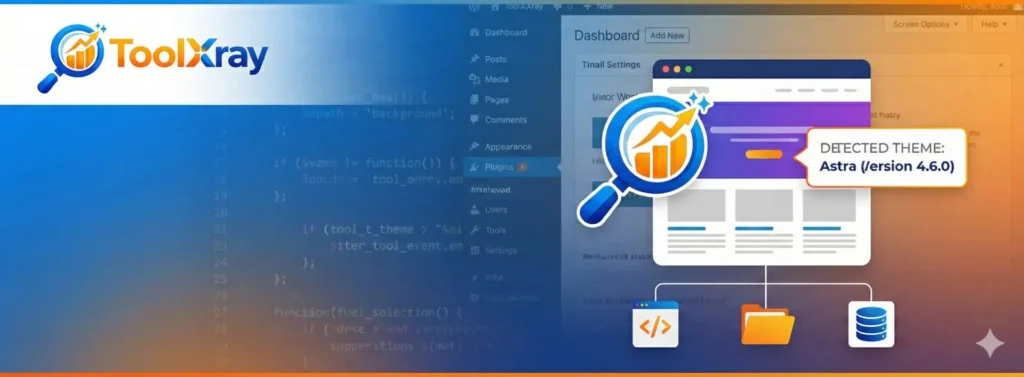
Why guess when you can know for sure? We built the ToolXray WordPress Theme Detector to bypass basic minification and aggressively scan for hidden CMS footprints. It doesn’t just tell you the name of the theme—it reveals the version number, the author, the parent theme (if a child theme is active), and a comprehensive list of active plugins.
- Copy the URL of the website you admire.
- Paste it into our Tech Stack Detector Tool.
- Hit “Run Full Audit” and get a complete technical breakdown in under 5 seconds.
Our tool goes beyond simple CSS checking. It cross-references file paths, JavaScript variables, and REST API endpoints to give you the most accurate digital blueprint available online.
Method 2: The Manual Method (Inspecting the Source Code)
If you are a developer, a curious tech enthusiast, or simply want to learn how things work under the hood, manual detection is a fantastic skill to master. Every WordPress website, by default, leaves a structural footprint in its HTML.
Here is the step-by-step process to manually sniff out a WordPress theme:
Step 1: Open the Page Source
Navigate to the website you want to analyze. Right-click anywhere on the page (avoiding images or links) and select “View Page Source”. Alternatively, you can use the keyboard shortcuts:
- Windows/Linux:
CTRL + U - Mac:
CMD + Option + U
You will now see a massive wall of HTML, CSS, and JavaScript code. Don’t panic.
Step 2: Search for the Theme Directory
WordPress has a very strict file hierarchy. Every single theme installed on a WordPress site lives inside a specific folder called wp-content/themes/. This is your golden ticket.
Press CTRL + F (or CMD + F on a Mac) to open the search bar, and type:
wp-content/themes/
Look at the word that immediately follows that directory path. For example, if you see a line of code linking to a stylesheet like this:
<link rel='stylesheet' href='https://example.com/wp-content/themes/astra/style.css' ... >
Bingo! You have just discovered that the website is using the Astra theme.
Step 3: Finding the style.css Header
Knowing the folder name is great, but folder names are often abbreviated or customized. If you want the exact name of the theme, the author’s details, and the version number, you need to look at the master stylesheet.
In that same source code window, click on the URL that ends in /style.css. This will open the raw CSS file in your browser.
At the very top of a valid WordPress style.css file, you will always find a commented header block that looks exactly like this:
/*
Theme Name: GeneratePress
Theme URI: https://generatepress.com
Author: Tom Usborne
Version: 3.3.1
Description: A lightweight, responsive WordPress theme.
*/
This header is mandatory for all WordPress themes. It gives you the exact blueprint of what you are looking at.

The “Child Theme” Trap: Why Manual Detection Often Fails
If you followed the manual steps above and found a `style.css` file that says something like “Theme Name: AwesomeBlog Custom”, you might rush to Google to buy the “AwesomeBlog Custom” theme. But you won’t find it. Why?
Because you have fallen into the Child Theme Trap.
Professional developers almost never edit a premium theme directly. Instead, they create a “Child Theme.” A child theme inherits all the features, design, and functionality of the main “Parent Theme” but allows the developer to make safe, update-proof modifications.
If a site is using a child theme, the `style.css` header will contain a specific line called Template:
Theme Name: My Custom Awesome Site
Template: divi
In this example, the actual theme powering the website is Divi (the parent theme), even though the active folder is named differently. This is exactly why using an automated tool like the ToolXray WordPress Detector is vastly superior—it automatically scans for parent-child dependencies and gives you the real framework powering the site.
How Do Website Owners Hide Their WordPress Theme?
As you get deeper into competitor research, you will inevitably encounter websites where the `wp-content/themes/` trick simply does not work. You search the source code, and there are absolutely no WordPress footprints.
Have they built a custom CMS from scratch? Probably not. They are likely using advanced security plugins like WP Hide & Security Enhancer or Perfmatters.
These plugins protect a website from automated hacking scripts by rewriting the HTML output on the server level. They change the default `/wp-content/` path to something generic like `/assets/`, effectively masking the fact that the site runs on WordPress at all.
When you encounter a masked website, basic browser extensions and manual source code reading become useless. To penetrate these masks, you need an enterprise-grade auditor that looks at REST API endpoints, specific JavaScript global variables (like `wp_data`), and JSON-LD schema structures to reveal the truth.
The Crucial Link Between Your Theme and SEO (TTFB)
Finding a beautiful theme is exciting, but aesthetics should never be your only deciding factor. The theme you choose dictates the foundational architecture of your website. A poorly coded, bloated multi-purpose theme can absolutely destroy your SEO efforts.
We recently wrote an in-depth guide on Why TTFB (Time to First Byte) is Critical for WordPress SEO. In that guide, we explained how heavy themes with thousands of lines of unoptimized PHP code choke your server, causing massive delays before a user’s browser even starts painting the webpage.
When you are spying on a competitor’s theme, do not just copy their design. Audit their performance. Before you decide to purchase the same theme they are using, run their URL through our Ultimate SEO Auditor.
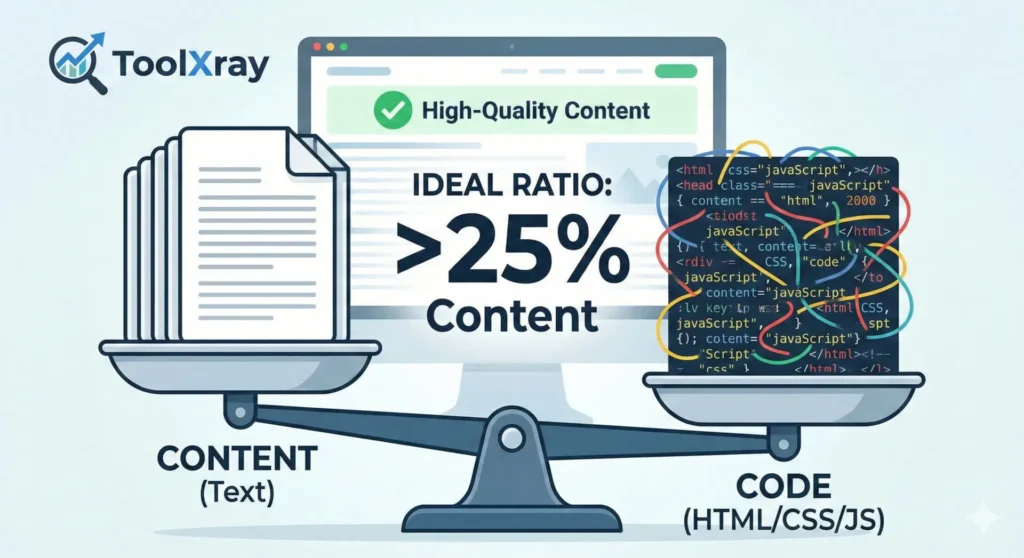
- Check their Content-to-Code Ratio. If the theme generates 90% HTML bloat and only 10% readable text, stay away.
- Check their Server Speed (TTFB). If their TTFB is over 600ms, the theme is likely unoptimized, and copying them will hurt your Core Web Vitals.
Beyond Themes: Don’t Forget the Plugins!
A common mistake beginners make is assuming that a theme is responsible for everything they see on a webpage. You might install the exact same theme as your competitor, only to find your site looks completely different.
Why? Because modern WordPress development relies heavily on plugins. That stunning hero slider? Probably Slider Revolution. That beautiful pricing table? Likely an Elementor Pro widget. That lightning-fast checkout experience? A highly customized WooCommerce extension.
To truly replicate a successful competitor’s website, you need to uncover their entire tech stack. While inspecting the source code, instead of searching for `/themes/`, you can search for `/plugins/` to manually find installed extensions. However, tracking down 30+ plugins manually is tedious.
Our ToolXray Tech Stack Detector not only isolates the theme but provides a comprehensive list of detected plugins, allowing you to piece together the exact software puzzle your competitors are using to dominate their niche.
Conclusion: Knowledge is Power
In the digital age, transparency is limited, but clues are everywhere. Finding out which WordPress theme a website is using gives you a massive tactical advantage. It allows you to benchmark against industry leaders, discover highly optimized frameworks, and save countless hours of development guesswork.
While manual inspection via `CTRL + U` is a great skill to have, nothing beats the speed and deep-scanning capabilities of automated tools. Whether you are an agency reverse-engineering a client’s competitor, or a business owner looking for design inspiration, knowing exactly what’s under the hood is your first step toward digital dominance.
Ready to Audit Your Competitors?
Stop guessing and start analyzing. Use ToolXray’s suite of Enterprise SEO and Technology footprint tools to uncover hidden digital strategies.